

1. Boot from a CD/DVD or USB drive, select the option related to password recovery/cracking and confirm, as shown below:
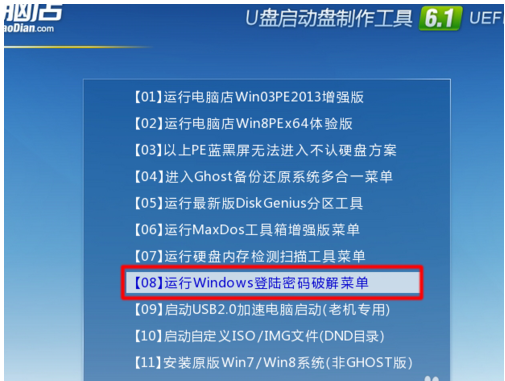
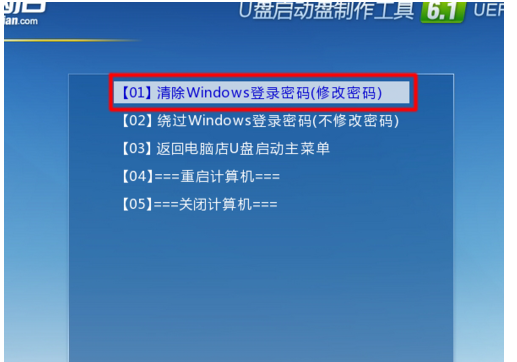
2. There are two options here. If you have forgotten the password to your own computer, it is recommended to select “Clear Windows Login Password”. After clearing the password, it will be gone, and you can set a new one after entering the system. Selecting “Bypass Windows Login Password” only allows a single login; after that session, the password will be required again. This is perfect for friends who want to log into someone else’s computer to take a look without leaving a trace. I am now assuming you forgot your own computer’s login password, so select the first option.
3. The Windows login password is stored in an encrypted form within the SAM file. This encryption cannot be decrypted, so the password can only be cleared or bypassed, not viewed. Generally, the SAM file is located on the Windows system partition, so you can choose option 1 to search the system partition directly, or option 2 to search the hard disk. However, sometimes the SAM file might be moved to another partition, causing the cracking process to fail.
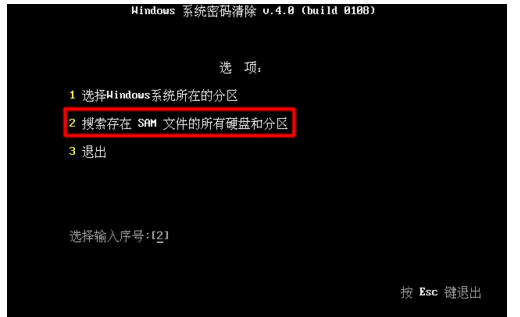
4. Choose one of the steps above. Once the SAM file is found, press Enter to continue.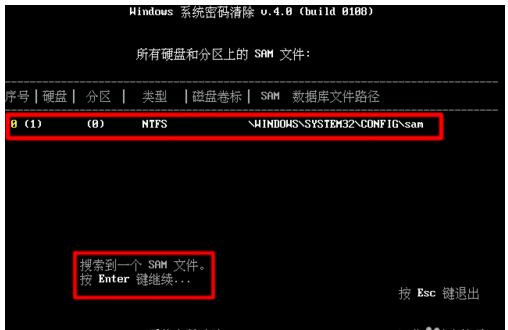
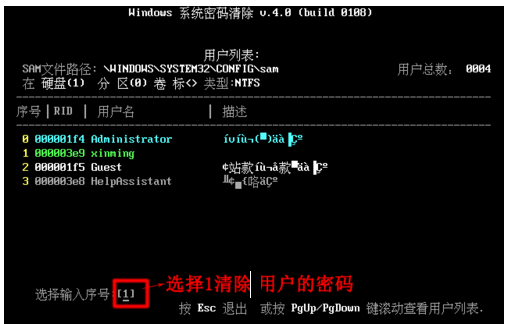
Here, taking the user “xinming” as an example, we will try to clear the password for xinming. Select 1 and press Enter.
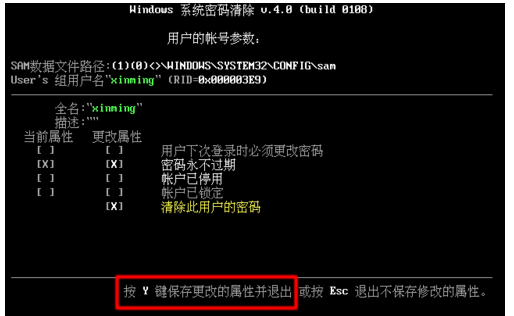
5. At this step, with X marking the option “Clear this User’s Password”, press the “Y key” to confirm the removal.
6. Press Ctrl+Alt+Delete to restart the computer. The password is now gone; simply click to enter the desktop.