

System Requirements:
- CentOS/Debian/Ubuntu Linux
- 2GB or more free disk space
- 128MB+ RAM; 192MB+ recommended for OpenVZ (do not use 64-bit OS on low memory)
- The VPS or server must have internet connectivity!
- Linux is case-sensitive; please be careful when entering commands!
Installation Steps:
1. Log into your VPS or server using PuTTY or a similar SSH tool;
After logging in, run:
screen -S lnmp
If you see “screen: command not found”, install it with:
yum install screen
or
apt-get install screen
for installation. See the detailed screen tutorial.
2. Download and install the LNMP one-click installation package:
You can choose the download version (recommended for VPS outside China or in the US) or the full version (recommended for VPS inside China); there is no difference between the two.
Before running the installer, confirm your Linux distribution by executing: cat /etc/issue to check whether it is CentOS, Debian, or Ubuntu. You can also check through your VPS provider’s control panel. Once confirmed, choose the corresponding installation command below:
For CentOS, execute:
wget -c http://soft.vpser.net/lnmp/lnmp1.1-full.tar.gz && tar zxf lnmp1.1-full.tar.gz && cd lnmp1.1-full && ./centos.sh
For Debian, execute:
wget -c http://soft.vpser.net/lnmp/lnmp1.1-full.tar.gz && tar zxf lnmp1.1-full.tar.gz && cd lnmp1.1-full && ./debian.sh
For Ubuntu, execute:
wget -c http://soft.vpser.net/lnmp/lnmp1.1-full.tar.gz && tar zxf lnmp1.1-full.tar.gz && cd lnmp1.1-full && ./ubuntu.sh
There are also two overseas mirror download points available: soft2.vpser.net and soft3.vpser.net. For specific replacement instructions, see: http://lnmp.org/faq/lnmp-download-source.html.
If you need to install version 0.9, please visit http://old.lnmp.org/install.html
After executing the above commands, the following prompt will appear:
(Note: On Debian, you will be prompted “Where are your servers located? asia,america,europe,oceania or africa”. This asks which continent your server/VPS is located in. For US VPS, just press Enter. If it is in China, type asia and press Enter. If you make a mistake, press Ctrl+Backspace to delete; this method works throughout.)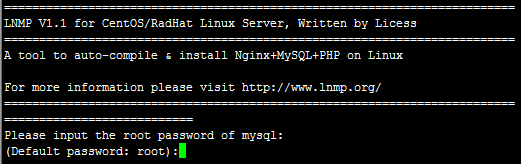
This step requires you to set the MySQL root password. Enter it and press Enter to proceed to the next step, as shown below:
Here you need to confirm whether to enable MySQL InnoDB. If unsure, you can enter y . This can be disabled separately in the MySQL configuration file. Enter y to enable, n to disable. After entering y or n, press Enter to proceed, displaying the following: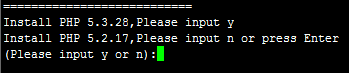
This step selects the PHP version. You can choose PHP 5.3.28 or PHP 5.2.17. Enter y for PHP 5.3.28, or n for PHP 5.2.17. After entering y or n and pressing Enter, proceed to the MySQL version selection, as shown: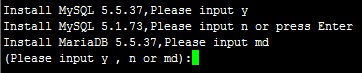
You can choose MySQL version 5.1.73, 5.5.37, or MariaDB 5.5.37. Enter y for MySQL 5.5.37, n for MySQL 5.1.73, or md for MariaDB 5.5.37. Press Enter to complete your selection.
When prompted "Press any key to start…", press the Enter key to confirm and begin installation.
The LNMP script will then automatically compile and install Nginx, MySQL, PHP, phpMyAdmin, and Zend Optimizer.
Installation time can range from tens of minutes to several hours, mainly depending on server performance, network speed, and other factors.
3. Installation Complete
If you see the following screen: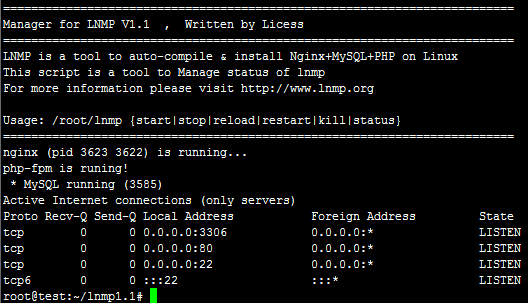
Nginx, MySQL, and PHP are all running, and both port 80 and 3306 are present, indicating a successful installation.
Next, follow the add virtual host tutorial to add a virtual host. Upload your website via SFTP or an FTP server, point your domain name’s A record to your VPS/server IP, and once the DNS propagates, your site will be ready to use.
4. Installation Failed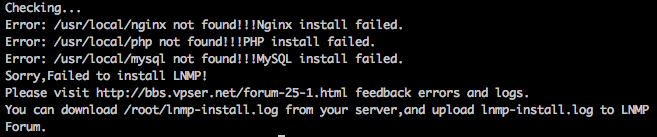
If you see a prompt similar to the image above, it indicates the installation has failed. This means the installation was unsuccessful!! Use WinSCP or another similar tool to download the lnmp-install.log file from the /root directory. Then, go to the LNMP Support Forum and create a post specifying your distribution name and version (obtainable via cat /etc/issue), whether it is 32-bit or 64-bit, and attach the compressed lnmp-install.log file. We will identify the error from the log and provide a corresponding solution.
5. Adding/Deleting Virtual Hosts and Rewrite Rule Management
http://lnmp.org/faq/lnmp-vhost-add-howto.html
6. Installing eAccelerator, xcache, memcached, imageMagick, ionCube, redis, opcache
http://lnmp.org/faq/Add-ons.html
7. LNMP Related Software Directories and File Locations
http://lnmp.org/faq/lnmp-software-list.html
8. LNMP Status Management Commands
http://lnmp.org/faq/lnmp-status-manager.html