

We recommend using the open-source, powerful, and lightweight portable tool 7z.exe to handle related functions. Although its name is 7z, it can not only extract 7z files but also zip files.
7z is very powerful, free, and open-source. Download the installation file from the official website, for example, 7z1604-x64.exe. After installation, you only need the 7z.exe and 7z.dll files inside; all other files can be deleted.
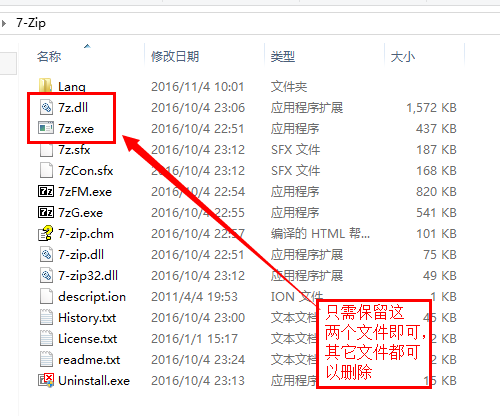
It is recommended to copy these two files to a directory in your system’s environment variables (such as C:/Windows/System32) for convenient access anytime, anywhere.
Compress:
7z a test.zip a.txt b.txt # Specify several files
7z a test.zip f:/test/** # Compress a folder
Extract:
7z x test.zip -of:/test # -o specifies the output directory; note there is no space between it and the directory path
7z x test.zip -o"f:/test abc" # If the output folder path contains spaces, enclose