

Logging into servers is routine, but many users often encounter the “maximum connections exceeded” issue. Today, let’s talk about how to fix it.
First, a quick explanation: in Windows Server 2003, the Windows components “Terminal Server” and “Terminal Server Licensing” allow multiple users to connect to the server simultaneously via Remote Desktop. Let’s start with the installation for connection access:
1. Go to “Start” – “Control Panel” – “Add or Remove Programs” as shown below:
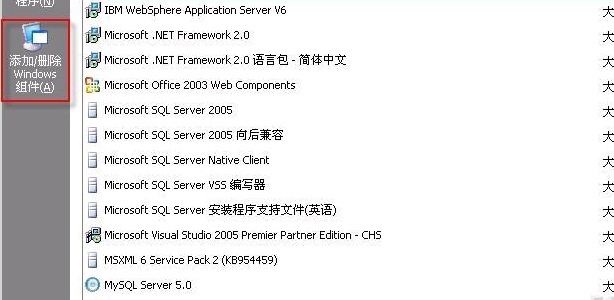
2. Click “Add/Remove Windows Components” to enter the following screen and follow the prompts to install.:
Note: If the server does not have the “Terminal Server” and “Terminal Server Licensing” components installed, you will need to use the system installation disc to install these two Windows components.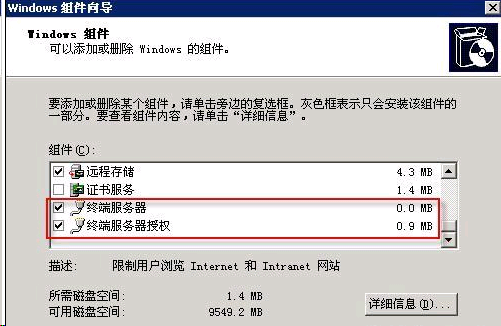
3. Configure Connection Limit
Since Windows Server 2003 defaults to a maximum of 2 Remote Desktop connections, administrators can set the connection limit as needed. The steps are as follows:
“Start” – “Run” – type “gpedit.msc” – “Computer Configuration” – “Administrative Templates”
– “Windows Components” – “Terminal Services” – “Limit number of connections”, as shown below:
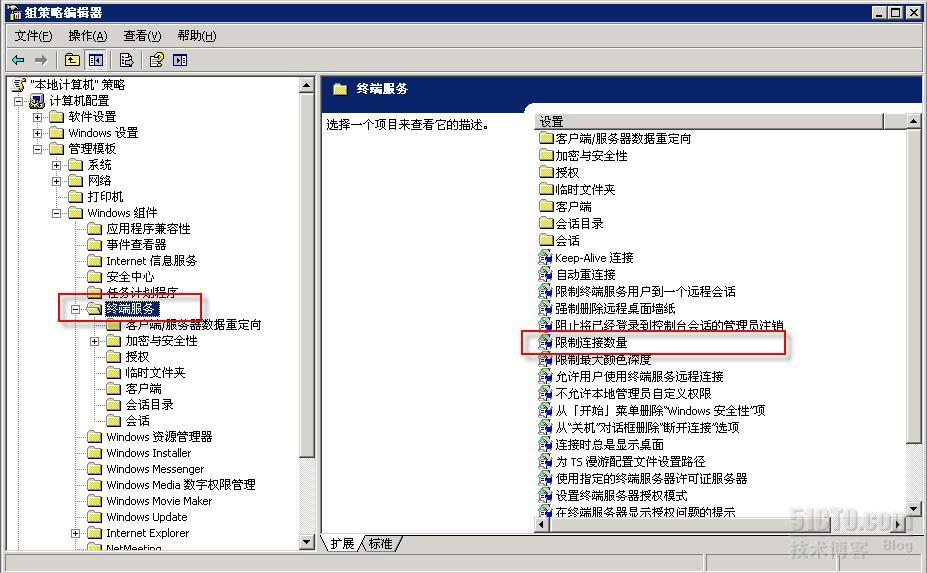
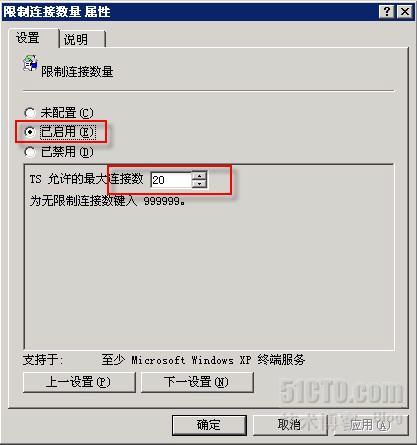
Set the maximum connection limit for this server; it cannot exceed 20, as illustrated:
If you select “Not Configured”, the system defaults to a maximum of 2 connections. Here, select “Enabled” and set the maximum connections to no more than 20.
Configure Session Expiry
Windows Server 2003 allows administrators to set an expiration time for Remote Desktop sessions. The specific configuration is as follows:
Go to “Sessions” – “Set time limit for disconnected sessions”
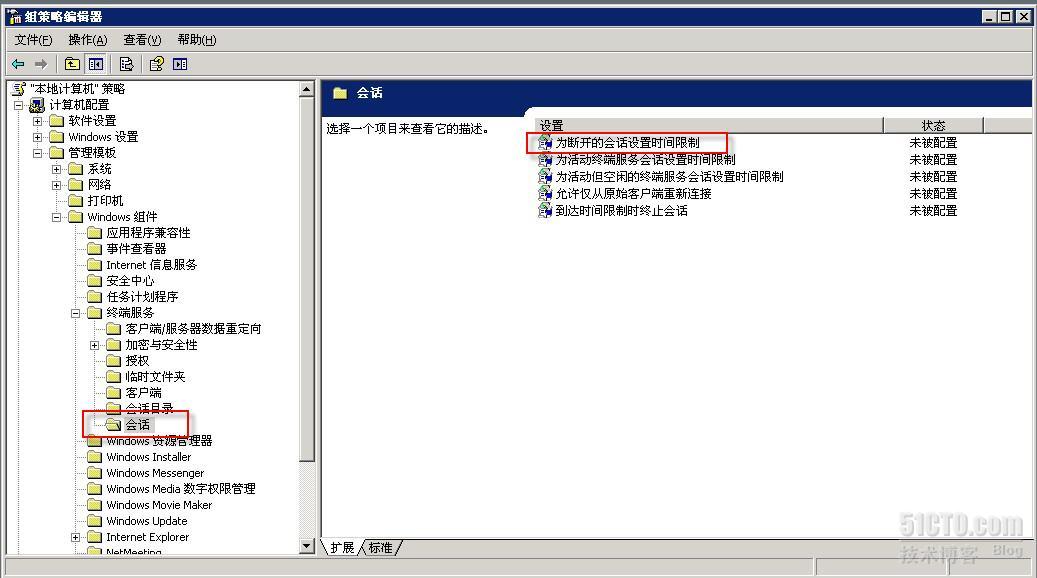
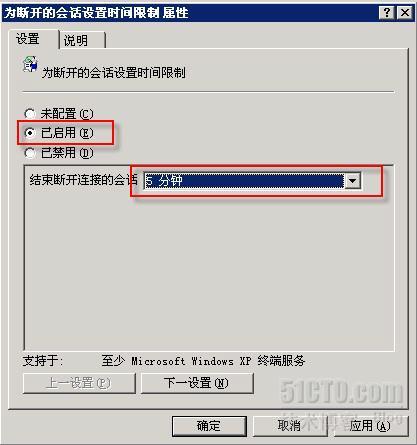
Select “Enabled” – “End a disconnected session”, and set the specific time according to your needs.
Note: After a user disconnects and the set time elapses, the system will automatically log off that session, and all foreground programs dependent on that session will also be closed.
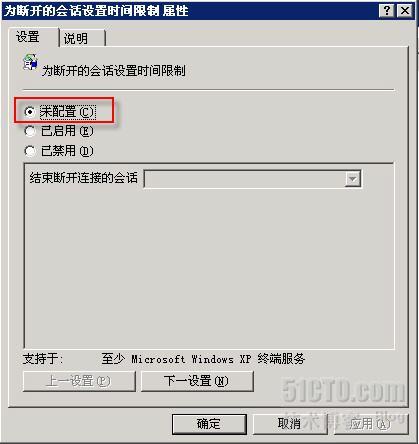
If no session expiry time is set, that session will persist indefinitely, and the foreground programs dependent on it will not be closed either. In other words, after closing the “Remote Desktop” window, any programs that were running in the foreground will continue to run. As shown:
A restart is required for the settings to take effect.