

<<
I lent my company laptop to a colleague for a business trip. When it came back, I noticed a little “hand” icon on the Local Area Connection in Network Neighborhood, just like the shared folder icon in the system. The local connection had been set to shared, and the status text confirmed it: “Local Area Connection — Connected, Shared……”. It didn’t really affect anything, but it was an eyesore, and who knows what security issues it might introduce. Since I had no use for its sharing feature anyway, I decided to disable the sharing on the Local Area Connection.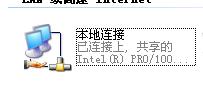
However, it is easier to invite trouble than to get rid of it. I couldn’t find the option to turn off sharing in the Local Area Connection properties. On the “Advanced” tab, the area below “Windows Firewall” was blank, with no “Internet Connection Sharing” settings. After poking around for a while, I finally figured it out. It turns out that connection sharing settings only appear with dual network adapters. This laptop has both a wired Ethernet adapter and a wireless adapter, but the wireless adapter had been disabled because I normally don’t use it. That’s why the Internet Connection Sharing option disappeared. After I re-enabled the wireless network card, Internet Connection Sharing came back, reappearing under the “Advanced” tab in the Local Area Connection properties. I unchecked the box that says “Allow other network users to connect