

1. First, set the Application Pool to Classic .NET AppPool instead of the default DefaultAppPool. This can be done for each site in the website directory or configured individually per site.
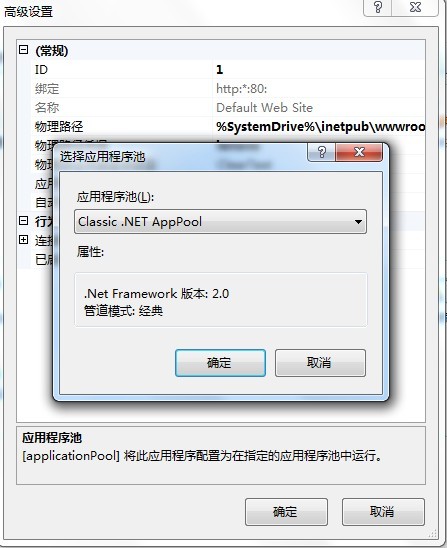
Control Panel — System and Security — Administrative Tools — Internet Information Services (IIS) Manager, open the IIS Manager. Select the default website on the left, click Advanced Settings on the right, and set the Application Pool to Classic .NET AppPool.
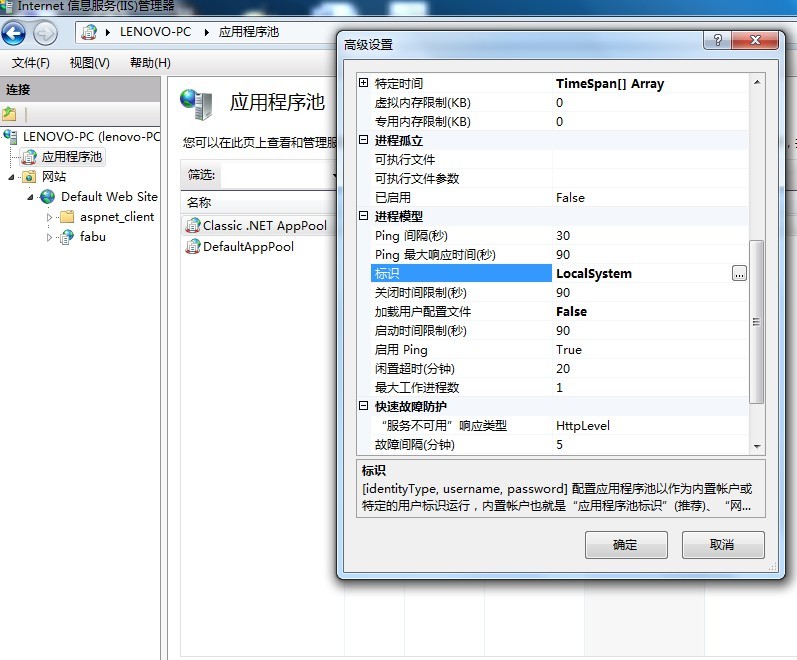
2. Select “Application Pools” on the left, select “Classic .NET AppPool”, click Advanced Settings on the right, and change the Identity to LocalSystem or NetworkService.
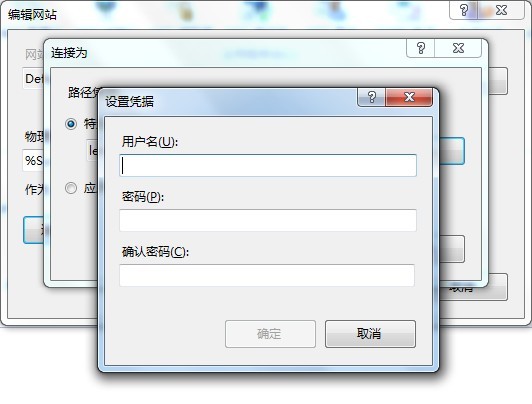
3. Select the default website, click Basic Settings on the right, click “Connect as”, choose “Specific user”, click Set, and enter the system username and password. You must use the operating system login name and password here, otherwise it will not have permission to access the hard drive partition.
4. Control Panel –> Administrative Tools –> Internet Information Services (IIS) Manager, find it in the programs list
After opening Internet Information Services (IIS) Manager, in the lower part of the middle section, you can see the Authentication configuration item. Double-click it to see the following interface: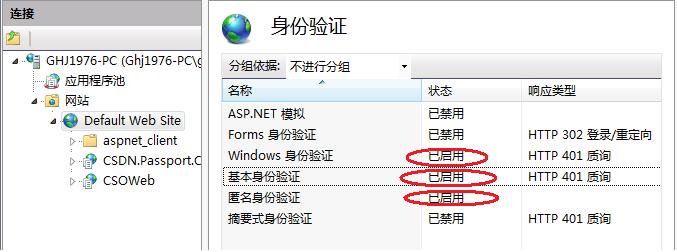 The several authentication methods added during IIS installation need to be enabled on the site you want to debug.
Note: It is the site to be debugged, not the application directory to be debugged!