

SSH Remote Session Management Tool – How to Use Screen
1. What Is the Screen Command?
Screen is a full-screen window manager that multiplexes a physical terminal between several processes. Screen has the concept of sessions鈥攁 user can create multiple screen windows within a single screen session, and each screen window operates just like a real telnet/SSH connection window.
銆怶ith Screen, you only need to run sh in.sh, then you can close your SSH connection and go have some tea, run errands, or use your computer for other things鈥攚ork or entertainment! There’s no need to monitor the installation progress!
The installation time for wdlinux is roughly 2 to 5 hours! Just reconnect via SSH every 2 hours, restore the Screen session, and check whether the compilation and installation has completed! You don’t need to watch the entire installation process鈥攋ust hand it over to Screen to execute!銆?/div>
2. How to Install the Screen Command?
Except for some minimal or customized systems, most distributions come with the screen command pre-installed. If it is not installed, on CentOS you can run: yum install screen ;
On Debian/Ubuntu, run: apt-get install screen .
3. How to Use the Screen Command?
1. Common Usage Methods
1.1 Creating a Screen Session
First, you can run: screen -S lamp , and screen will create a session named lamp.
銆怉fter creating the lamp session, you can start the installation. Run sh in.sh, enter the desired combination number, and the fully automatic installation will proceed until completion.
During this time, you can close SSH or even shut down your own computer at any time鈥攖he installation process will continue running uninterrupted on the server.銆?/div>
1.2 Detaching or Closing the SSH Session While Keeping the Screen Session’s Tasks or Programs Running
When you need to leave temporarily (the programs in the session will not close and will keep running), use the shortcut Ctrl+a d (that is, hold Ctrl, then press a, then d in sequence).
1.3 Restoring a Screen Session鈥擸ou Will See It Still Running the Installation Without Stopping!
When you come back, you can run: screen -r lamp to restore the working interface of the lamp session you created before leaving.
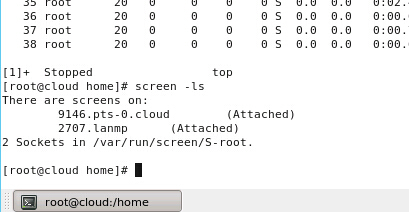
If you forget the name of the created Screen session, or if you didn’t specify a session name at the time,
you can run: screen -ls . Screen will list the currently existing sessions. For example, 11791.lnmp is the lamp session created earlier. Since the lamp session has been temporarily detached, its status is Detached. After using screen -r lamp, the status will change to Attached. 11791 is the process ID of this screen session. When restoring a session, you can also use: screen -r 11791
1.4 Closing a Screen Session
Run: exit . It will display: [screen is terminating], indicating that you have successfully exited the screen session.
3. Common Shortcuts