docker search nexus # Search for the image
docker pull sonatype/nexus3 # Pull the image
Using default tag: latest
latest: Pulling from sonatype/nexus3
8ba884070f61: Pull complete
9d732789dc29: Pull complete
b56d6d0d4fc5: Pull complete
Digest: sha256:970b09779992bf88d041d074428c54dc153f7b9c8cafe4ff364dd26d69200f7a
Status: Downloaded newer image for sonatype/nexus3:latest
Run the container:
docker run -d -p 8081:8081 –name nexus sonatype/nexus3 # The first port is the host port and can be changed arbitrarily; the second port is the container port and must not be changed.
docker logs -f nexus # Follow real-time logs
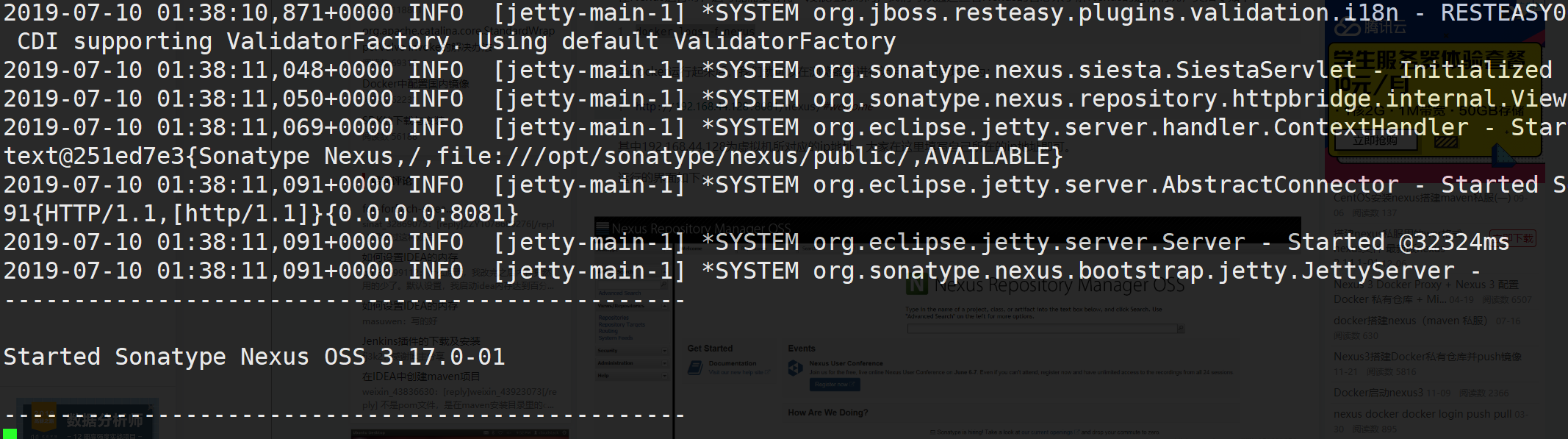
docker exec -it nexus bash # Access the container shell
Retrieve the password (this shows the plain-text password):
cat /nexus-data/admin.password
cd05e25c-2a39-437f-b631-2859b82d7ed0
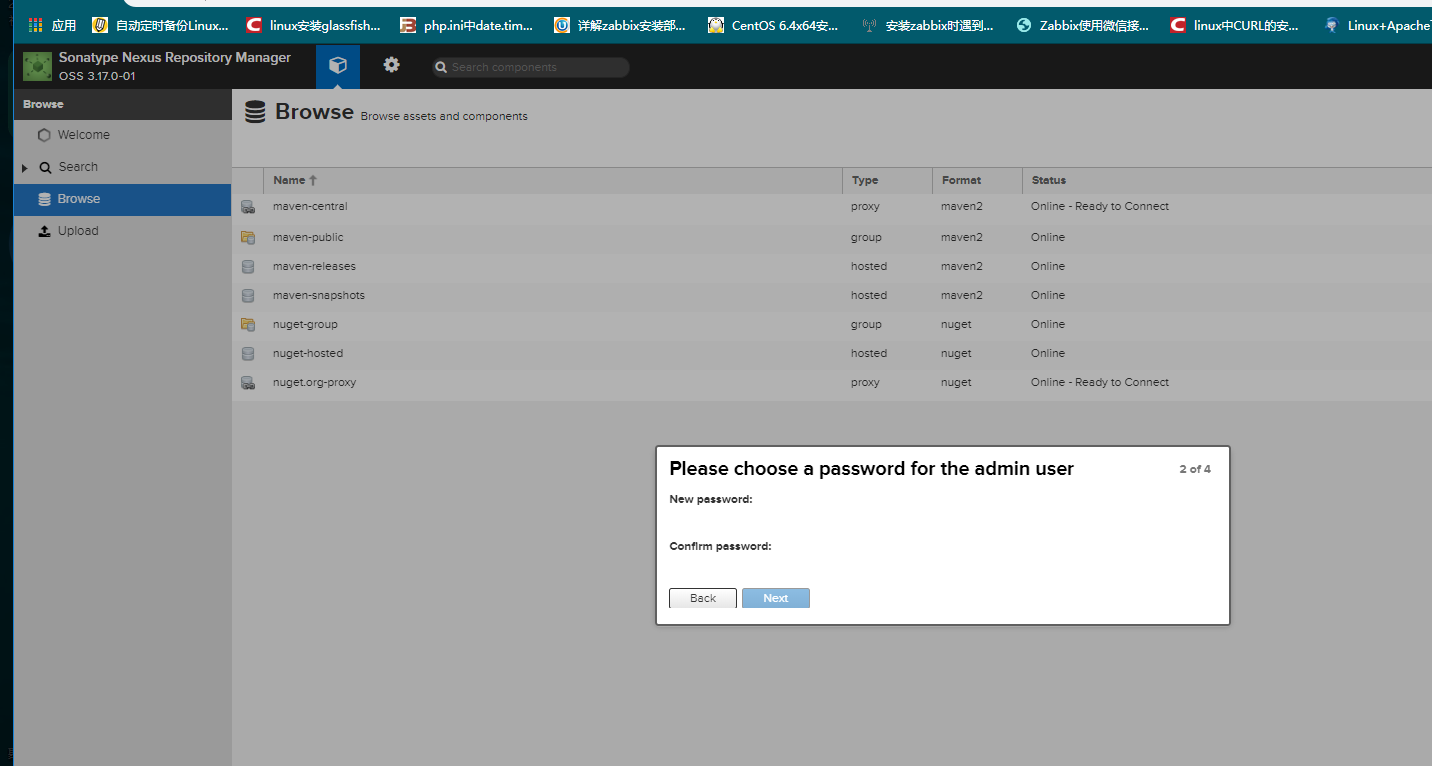
Once the Docker container is running, you can access it in your browser at:
http://192.168.1.131:8081
Username: admin Password: cd05e25c-2a39-437f-b631-2859b82d7ed0
After logging in successfully, you will be prompted to change the password and to enable anonymous access.