

How to Reset Forgotten MySQL Password on Windows
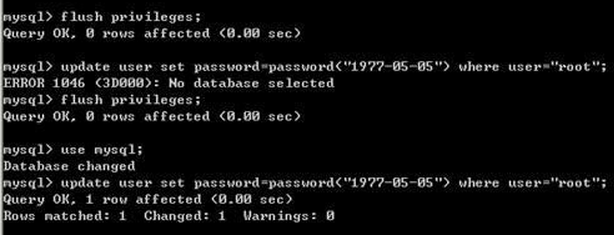
Usually, we don’t manage MySQL frequently, and over time the password can be forgotten, especially without a MySQL management tool at hand. In such cases, we need to manually reset the MySQL password. Let’s first look at how to reset the MySQL password on Windows.
1. First, stop the MySQL service. Open Computer > Manage > Services, locate the MySQL service, and stop it.
2. Open Command Prompt, navigate to the bin directory of your MySQL installation, and execute:
mysqld -nt –skip-grant-tables
3. Open a second Command Prompt window and execute the following command,
mysql -u root -p
This opens the MySQL client. The default password is blank, so just press Enter to log into MySQL. Then, select the database, which is typically:
use mysql;
Execute the following command to reset the MySQL password:
update user set password=password("newpassword") where user ="root";
Flush privileges:
flush privileges;
End the mysqld-nt process in Task Manager, then restart the MySQL service via Computer Management Services. You can now log in using the new password.
How to Reset Forgotten MySQL Password on Linux
What if you need to reset the password on a Linux system without a MySQL management tool? Just follow these few steps to reset it.
1. First, stop all MySQL services and processes. Kill the MySQL process using the following command:
/etc/init.d/mysqld stop /killall mysqld
This stops the MySQL service process.
2. Use the following command:
mysqld_safe –user=mysql –skip-grant-tables –skip-networking &
, after which it will appear to hang; simply press Enter.
3. Enter mysql -u root -p and press Enter directly to log into MySQL, following the commands in the screenshot.
4. Now that we are inside MySQL, first select a database:
use mysql;
Then, enter the command to update the MySQL password:
update user set password=password("newpassword") where user="root";
5. Flush the privileges: flush privileges;, and restart MySQL:
/etc/init.d/mysqld restart
6. Log in to verify.