

Considering system ghosting and ever-larger movie files, files exceeding 4GB have become quite normal on 64-bit systems.
Most USB drives default to the FAT32 format, which cannot store individual files larger than 4GB. Converting the USB drive to NTFS format solves this problem nicely.
Note: This applies to USB drives with a UD partition PE. Directly formatting will damage the PE and cause data loss.
(To check if your USB drive has a UD partition PE flashed, you can directly look in Disk Management to see if there is an unallocated space that was split off.)
Using the convert command (Non-destructive to data)
For example, if the USB drive is drive F:, click Run and enter convert F: /fs:ntfs
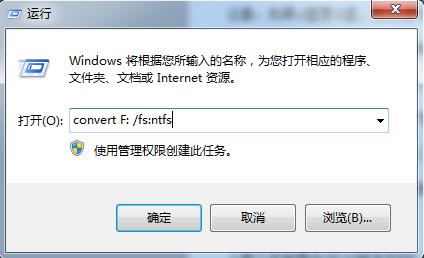
This can directly convert the USB drive to NTFS, making it convenient to store individual files larger than 4GB.
Note: If the USB drive is drive G:, then please change F: to G: