

Sometimes you need a domain name to resolve immediately. To achieve this, you need to modify the hosts file on your computer, forcing your domain to resolve to a specific IP address. Of course, modifying this file only affects your own computer and does not impact anyone else.
How to Modify the Hosts File?
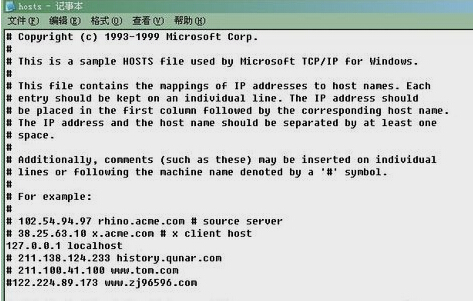
1. Open the Hosts file located in the C:/windows/system32/drivers/etc folder using Notepad.
2. Add a single line record in the format: IP address + space + domain name. For example:
199.181.132.250 www.domain.com
(Replace 199.181.132.250 with the IP address you want to resolve to, and replace www.domain.com with your own domain name. Note there must be a space between the IP and the domain.)
3. The changes take effect immediately after saving.
How to Verify the Domain’s IP Address Has Taken Effect?
1. Follow these steps on your computer:
Start > Run > Type cmd and press Enter to open the command line window.
Type ping www.domain.com
Then press Enter to view the results (replace www.domain.com with your own domain name).
2. The displayed result will be similar to: Pinging www.domain.com [199.181.132.250] …. The 199.181.132.250 in this result is the IP address the domain resolves to.
3. If it pings the IP address you intended to resolve to, it means the resolution has taken effect. Test the domain you just added, and you should be able to browse it normally.
4. If access is not working properly, check whether the domain you