

When using nginx, PHP requests need to be forwarded to a cgi program.
About FastCGI:
Its full name is FastCGI Process Manager, a process manager that manages cgi. There are many process managers on the market, and PHP-FPM is one of them.
PHP-FPM acts as a process manager, listening on a port (default 9000) and binding to localhost, only accepting connections from 127.0.0.1.
On Linux, you can check it with netstat -nlpt|grep php-fpm. PHP-CGI is the FastCGI manager that comes with PHP, but it has the following drawbacks:
- After changing php.ini configuration, php-cgi requires a restart for the new php-ini settings to take effect; it cannot perform a graceful restart.
- If you directly kill the php-cgi process, PHP stops working entirely. (PHP-FPM and Spawn-FCGI do not have this problem; the daemon gracefully spawns new child processes.)
This article focuses on Windows (64-bit) running nginx with php-cgi for parsing. By default, php-cgi automatically shuts down after processing 500 PHP requests, meaning it can no longer parse PHP (seriously, this is ridiculous! Even with PHP 7, this problem still exists.)
Solution: Use xxfpm to manage the FastCGI processes. Download link: https://github.com/78/xxfpm. Huge thanks to the author.
Installing the xxfpm Manager
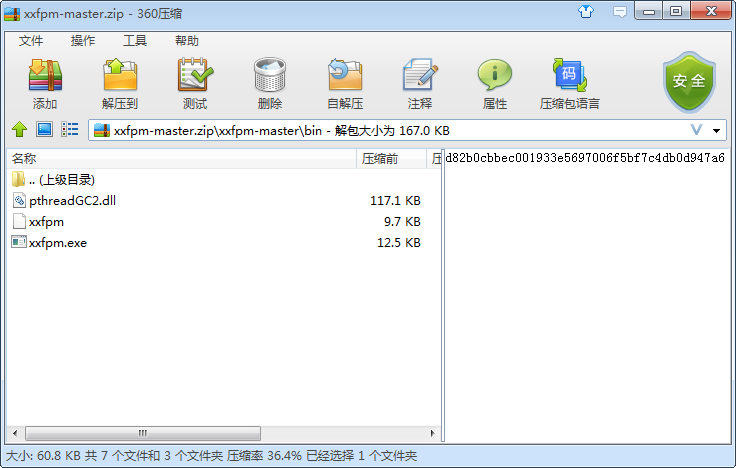
Download link:
or
Required files: pthreadGC2.dll, xxfpm.exe
1. xxfpm.exe — after extraction, you can place it in the same directory as nginx or anywhere else (the file is in the bin folder).
2. Locate pthreadGC2.dll and copy it to the C:/Windows/SysWOW64 directory (if your system is 32-bit, copy the dll file to C:/Windows/System32 instead).
3. Create a new file named registe.bat in the same directory as pthreadgc2.dll with the following content, then double-click registe.bat to run it:
@echo Starting registration…
copy pthreadgc2.dll %windir%/SysWOW64/
regsvr32 %windir%/SysWOW64/pthreadgc2.dll /s
@echo pthreadgc2.dll registered successfully
@pause
4. Copy the downloaded xxfpm.exe to your nginx directory (using d:/nginx as an example here).
5. Download RunHiddenConsole.exe (used to run nginx in the background) and extract it:
start_nginx.bat # Note: Here we still use extraction to the nginx directory as an example. The -n parameter specifies the number of processes to start. Adjust the PHP path according to your setup.
@echo offset PHP_FCGI_MAX_REQUESTS=1000echo Starting PHP FastCGI…RunHiddenConsole d:/nginx/xxfpm.exe “d:/php/php-cgi.exe -c d:/php/php.ini” -n 5 -i 127.0.0.1 -p 9000echo Starting nginx…RunHiddenConsole d:/nginx/nginx.exe -p d:/nginxexit
stop_nginx.bat
@echo offecho Stopping nginx…taskkill /F /IM nginx.exe > nulecho Stopping PHP FastCGI…taskkill /F /IM xxfpm.exe > nulexit
6. Now run start_nginx.bat, which will start 5 php-cgi processes simultaneously (since we passed -n 5 as a parameter). If you manually kill one, you will notice a new one spawns automatically, keeping the count at 5.
This is because xxfpm manages php-cgi and maintains 5 php-cgi processes, preventing CGI process crashes from shutting everything down.