

Experiment Environment
Local: Windows 7
Remote: CentOS 6.x, 7.x Linux
1. Windows-side operations:
Download the OpenSSH tool, install it, and generate keys:
http://mirror.cnop.net/ssh/OpenSSH-for-Windows.zip
Open the CMD dialog and enter the following:
ssh-keygen -t rsa -C "[email protected]" # Note: change the email to your own, press Enter 3 times until the key is generated.
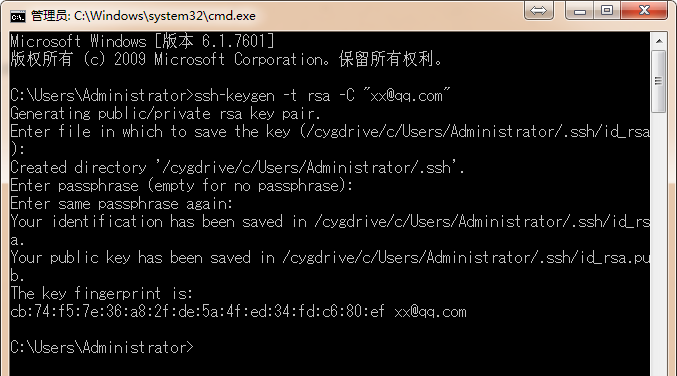
Follow the prompts to open the generated location. The following example uses the default Administrator path:
C:/Users/Administrator/.ssh # Different user profiles; please refer to the path information shown in the screenshot above.
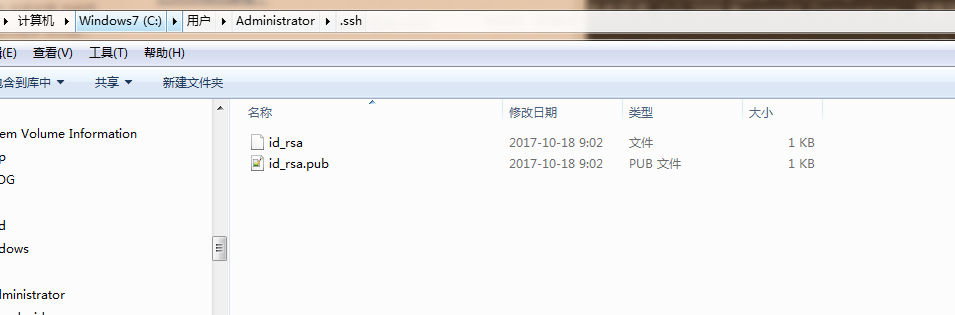
2. Upload the file id_rsa.pub to the remote host, or open it directly with Notepad and copy its content to the remote host:
cd /home/jjzb/.ssh
cat id_rsa.pub >>/home/jjzb/.ssh/authorized_keys # This example uses the user jjzb to append the content to the authorized_keys file
Alternatively
Directly edit the /home/jjzb/.ssh/authorized_keys file and paste the public key content into it
3. Test by entering the following in the CMD window:
ssh [email protected] # Change the IP to your own; add the port if needed