

Some regional ISPs like China Telecom, China Unicom, and Tietong still impose restrictions on router shared internet access to prevent a single broadband line from being shared by multiple households. However, this practice causes trouble for a single household with multiple computers or other internet devices. In fact, you can bypass this restriction by cloning the MAC address. Here’s how to do it step by step.
Xiao Zhang recently told us that his router was blocked by China Telecom from multi-user sharing, and he didn’t know what to do since his household has two computers that both need internet access. It would be too costly to subscribe to a separate broadband line for each computer.
Opinions vary widely on China Telecom and Unicom’s router blocking practices, but ultimately we can only grumble about it—the result remains the same.
Rather than just venting our frustration, let’s look for a solution. Here, we’ll teach you how to bypass the shared internet access restrictions imposed by China Telecom and Unicom on routers!
How to Clone MAC Address for Router Shared Internet Access
A MAC (Media Access Control) address, also known as a hardware address or physical address, is used to define the location of a network device. In the OSI model, the third layer (Network Layer) handles IP addresses, while the second layer (Data Link Layer) is responsible for MAC addresses. Therefore, a host has an IP address, and each network location has a MAC address unique to it.
First, ensure the computer used for the broadband subscription can access the internet in standalone mode. This confirms that the MAC address of that computer’s network card is a valid, authorized MAC address. Enter the system’s MSDOS prompt, run the ipconfig/all command, and you can find the MAC address of that computer’s network card. For example: 00-50-8D-D1-71-A7.
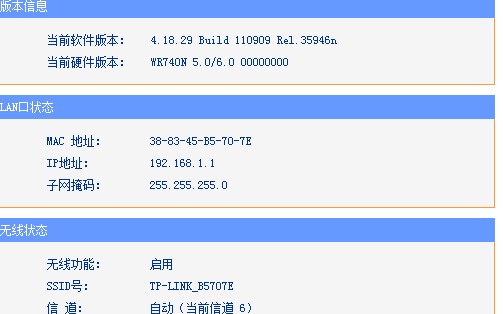
Next, to use the valid MAC address, unplug the incoming broadband cable from the standalone computer’s network card and plug it into the WAN port of the broadband router. Connect the network cards of multiple client computers to the LAN ports of the broadband router. Power on the broadband router. Launch an IE browser on any client computer connected to the broadband router. Type the router’s IP address, http://192.168.1.1, into the IE browser’s address bar to enter the router’s Web setup page.
Click the “Network Parameters” button in the left panel of the configuration page, then select the “MAC Address Clone” button. A “MAC Address Clone” window will appear. In the “Current Management PC MAC Address” field, enter the “valid MAC address” found earlier: 00-50-8D-D1-71-A7. Then click the “MAC Address Clone” button, and this MAC address will be filled into the “MAC Address” field. Finally, restart the router for the settings to take effect.
Implementing the MAC address cloning feature is very simple. Just use the bound computer to access the WEB setup page of your broadband router or wireless router, find the “WAN” or “CloneMAC” option, and select “CloneMAC (MAC Address Clone)”. This will clone the current computer’s network card MAC address to the router’s Wide Area Network (WAN) port. After saving, restart the broadband router or wireless router, and you can enjoy normal multi-device shared internet surfing.
This way, the router obtains a valid MAC address bound by the ISP, enabling multiple computers to share the internet connection. Experience has shown that modifying the MAC addresses of all computer network cards within the local network can also achieve shared internet access.
Notes:
1. Each computer must be able to access the internet individually.
2. Each network adapter must be configured (laptops have two adapters—wired and wireless).
3. It’s best to connect each network adapter or computer to the router individually, with other computers turned off.
4. Restart the router each time you save a setting.