

I struggled a bit with how to phrase the title to make things clearer for everyone. This method does not apply to OpenVZ under the SolusVM control panel, nor does it apply to XEN, because for those two architectures, if you forget your password, you can simply click “root password” in the backend and reset it. However, what if you’re on a dedicated server, or a KVM setup installed step-by-step, and you happen to forget it? This article documents the solution for just such a problem.
A friend using KVM once asked me, “I forgot my root password, where can I change it?” My typical response would be, “Reinstall the OS”… Please forgive my ignorance; reinstalling is certainly not the best choice. We can easily reset the root password via a VNC connection.
Below, I’ll just grab a random VPS to test. This article uses a CentOS 5.* system as an example and tests on two KVM-architecture VPSs: they are XSVPS.COM (Kansas) and VPSPLAZA.COM (Singapore).
Assuming we have forgotten the root password, first, log into the SolusVM control panel. We will perform a reboot, then connect via VNC.
You can click the VNC button directly in the panel, or record the VNC info and use a tool. I’ll do it directly from the backend here.
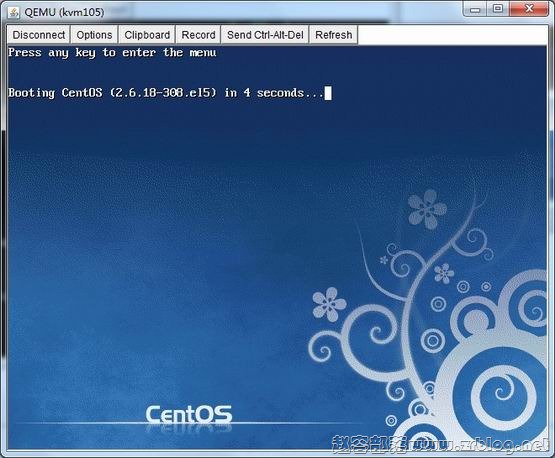
Pay attention to this step above: once you reboot, immediately go to VNC. Act a bit quickly, because this boot menu passes by very fast. When you see the countdown as shown above, press the up or down arrow keys on your keyboard to select.
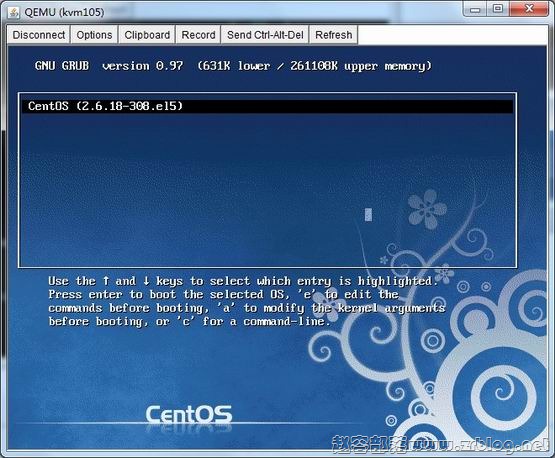
The image below shows the currently available system kernels. After selecting that line, press the “E” key on your keyboard to edit.
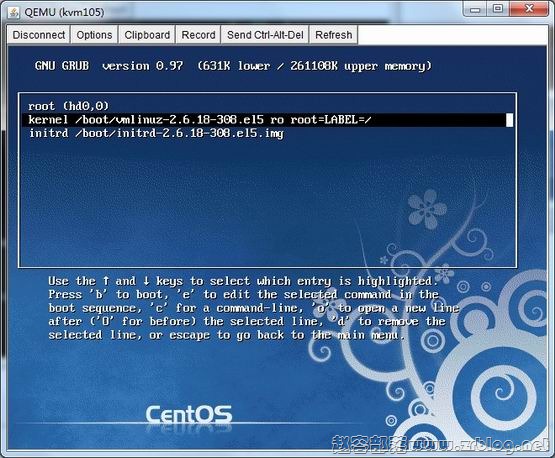
As shown below, select the second line and also press “E” to edit.
Add ” single” (space single) to the end of that line. Make sure there is a space between “single” and the preceding part.
As shown below, I’ve highlighted it with a red box.
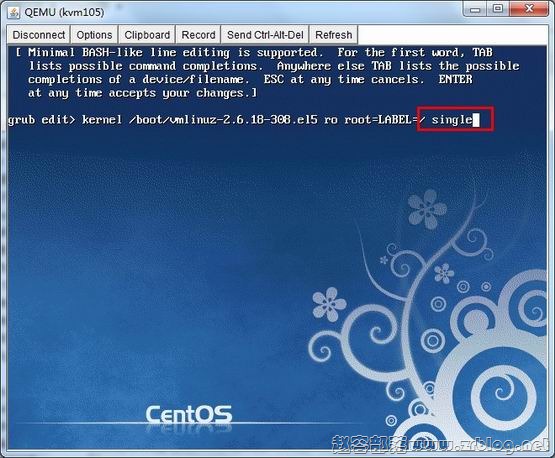
After inputting that, press Enter to save, then press the “B” key to boot in this single-user mode.
At this point, the system logs in directly without asking for any password, as shown below:
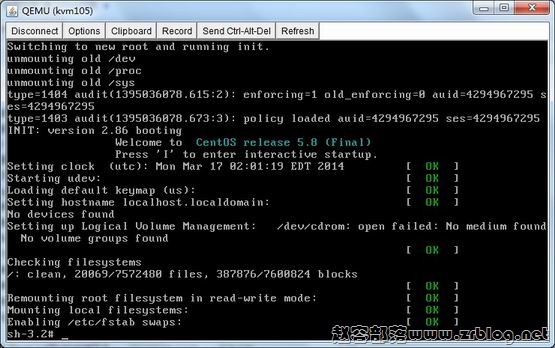
From here, it’s simple. We can set the root password to whatever we want. Just use the `passwd` command or `passwd root`, enter the desired password twice consecutively, then reboot the machine. After that, you can log in with the new password.
The above method is suitable for KVM-architecture VPSs and also applies to dedicated servers with IPMI management.