

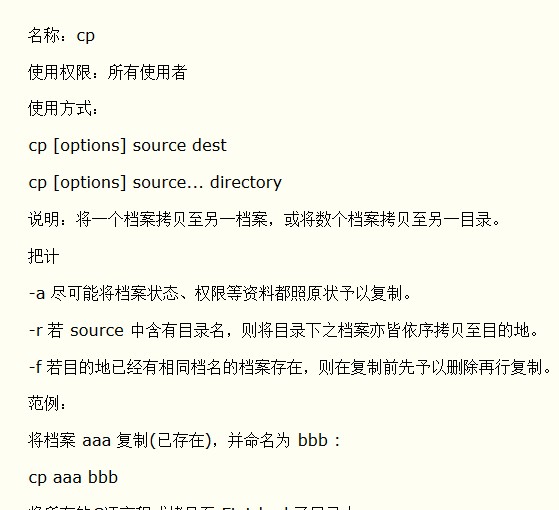
Name: cp
Permission: All Users
Usage:
cp [options] source dest
cp [options] source… directory
Description: Copy one file to another file, or copy several files to another directory.
Options:
-a Copy file status, permissions, and other metadata as faithfully as possible to the original.
-r If the source contains a directory name, copy all files under that directory in sequence to the destination.
-f If a file with the same name already exists at the destination, delete it before copying.
Examples:
Copy the file aaa (already exists) and name it bbb:
cp aaa bbb
Copy all C language programs to the Finished subdirectory:
cp *.c Finished
Command: scp
There are three common methods for copying files between different Linux systems:
The first is FTP, where one Linux machine installs an FTP Server, allowing another to use an FTP client program to copy files.
The second method uses the Samba service, operating similarly to Windows file copying, which is relatively simple and convenient.
The third method is to use the scp command for file copying.
scp is a secure file copy protocol, based on SSH login. It is quite convenient to operate. For example, to copy a current file to another remote host, you can use the following command.
scp /home/daisy/full.tar.gz root@172.19.2.75:/home/root
Then it will prompt you to enter the login password for the root user of that host 172.19.2.75, and then the copying will begin.
If you want to do the reverse operation, copying a file from the remote host to the current system, it is also very simple.
 scp root@/full.tar.gz 172.19.2.75:/home/root/full.tar.gz home/daisy/full.tar.gz
The Linux scp command can copy files and directories between Linux hosts;
==================
scp Command
==================
scp can copy files between two Linux hosts;
Basic command format:
scp [optional parameters] file_source file_target
======
Copying from Local to Remote
======
* Copying a file:
* Command format:
scp local_file remote_username@remote_ip:remote_folder
or
scp local_file remote_username@remote_ip:remote_file
or
scp local_file remote_ip:remote_folder
or
scp local_file remote_ip:remote_file
The 1st and 2nd specify a username; after executing the command, you need to enter the password. The 1st only specifies the remote directory (file name remains unchanged), while the 2nd specifies the file name;
The 3rd and 4th do not specify a username; after executing the command, you need to enter the username and password. The 3rd only specifies the remote directory (file name remains unchanged), while the 4th specifies the file name;
* Example:
scp /home/space/music/1.mp3 [email protected]:/home/root/others/music
scp /home/space/music/1.mp3 [email protected]:/home/root/others/music/001.mp3
scp /home/space/music/1.mp3 www.cumt.edu.cn:/home/root/others/music
scp /home/space/music/1.mp3 www.cumt.edu.cn:/home/root/others/music/001.mp3
* Copying a directory:
* Command format:
scp -r local_folder remote_username@remote_ip:remote_folder
or
scp -r local_folder remote_ip:remote_folder
The 1st specifies a username; after executing the command, you need to enter the password;
The 2nd does not specify a username; after executing the command, you need to enter the username and password;
* Example:
scp -r /home/space/music/ [email protected]:/home/root/others/
scp -r /home/space/music/ www.cumt.edu.cn:/home/root/others/
The above commands copy the local music directory to the remote others directory, resulting in a remote directory structure of ../others/music/.
======
Copying from Remote to Local
======
To copy from remote to local, simply swap the last two parameters of the command used for copying from local to remote.
For example:
scp [email protected]:/home/root/others/music /home/space/music/1.mp3
scp -r www.cumt.edu.cn:/home/root/others/ /home/space/music/
The simplest usage is as follows:
scp local_username@IP_address:filename1 remote_username@IP_address:filename2
[local_username@IP_address:] can be omitted. You may need to enter the password corresponding to the remote username.
Several potentially useful parameters:
-v Like the -v flag in most Linux commands, used to display progress. It can be used to check connection, authentication, or configuration errors.
-C Enable compression option.
-P Select port. Note that -p is already used by rcp.
-4 Force the use of IPv4 addresses.
-6 Force the use of IPv6 addresses.
Two points to note:
1. If the remote server firewall has special restrictions, scp needs to use a specific port. The specific port depends on the situation, and the command format is as follows:
#scp -p 4588 [email protected]:/usr/local/sin.sh /home/administrator
2. When using scp, pay attention to whether the user you are using has permission to read the corresponding files on the remote server.