

From time to time, we need to help friends, family, acquaintances, business partners, or miscellaneous others escape the predicaments of using Windows. While we may not encounter problems daily like they do, we are often the ones they turn to when trouble strikes. Moreover, even our own Windows partitions or drives can run into issues (after all, sometimes we just need to play a game, and despite Steam’s efforts, Linux isn’t quite a gamer’s paradise yet)鈥攈opefully not. Let’s look at a couple of situations we might face and how we can fix them using a Linux environment at hand and some NTFS partition recovery tools.
Simple Fixes
Windows systems generally handle abnormal “cold reboots” (power loss, switching off a power strip, or a little one’s random button presses at home causing a shutdown) quite well. In fact, to this day, the most effective fix for Windows desktop problems is often a simple system restart. However, occasionally Windows partitions will indicate that the system needs to perform a drive consistency check. Ignoring this can lead to file system deterioration and worsen the situation after a few reboots. As we all know, Windows file system checks are notoriously slow and often need to run multiple times to clear the “dirty” flag from the file system.
Here is a small tool called “ntfsfix.” On Debian-based systems (like Ubuntu), it can be installed with the following command:
sudo apt-get install ntfsfix
Or on RPM-based systems (like Red Hat or CentOS) with this command:
sudo yum install ntfsfix
The ‘ntfsfix’ tool can quickly repair common errors and NTFS partition inconsistencies. The most common usage requires no parameters at all. It can also report items that were not fixed, which we can then address using the following options:
- -b: Clears bad sectors on the disk (useful after cloning from an old disk to a new one).
- -d: Clears the “dirty” flag. The “dirty” flag is the most common reason Linux cannot mount a Windows partition, usually occurring when Windows fails to shut down properly before a power loss.
- -n: Does nothing except display what it would do (in other words, what needs fixing) on standard output.
In the past, Windows would use NTFS Disk Check before booting to reset the “dirty” flag, a process that often took hours. ‘ntfsfix’ accomplishes this in roughly three seconds.
Deep Recovery
Unfortunately, not all problems can be fixed quickly. In fact, there is a plethora of expensive disk recovery software (often falling into the “disk forensics” category, as it is used by investigators when sifting through damaged disks) designed to repair drives that power on but fail to boot or cannot access the file system.
There is a magical tool, free and powerful (and if used on your local machine, it can be placed on a bootable rescue Live CD), that can be used to recover your Windows NTFS partitions (and also EXT2/3/4, FAT/FAT32, exFAT, HFS, and SunFS file systems). This tool is called TestDisk and is available in the software repositories for Debian and CentOS. It is not in Red Hat’s official repositories, but installing it is easy.
sudo apt-get install testdisk
On RPM-based systems (like Red Hat or CentOS):
sudo yum install testdisk
This tool is simply unparalleled. If the drive powers on and spins up, even when it has physical damage, this little utility can miraculously retrieve some files. You can launch it via an old-school style command “sudo testdisk /dev/sdX,” where ‘X’ is your drive letter, and you will then see the following interface:
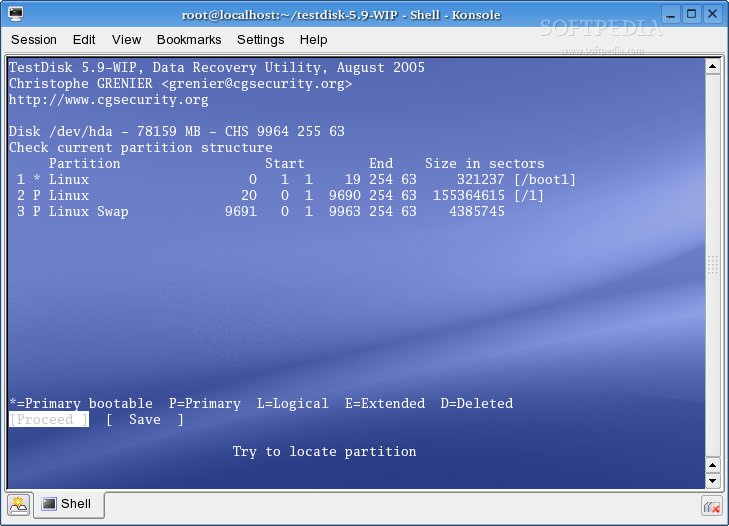
TestDisk running in the terminal
The tool is very easy to use; simply follow the on-screen menu prompts, and it is interactive. It will scan a specified partition, then display the reconstructed directories and files, which you can then mark and save to another disk or partition. I have successfully recovered files from Windows, OS X, and Linux partitions that either wouldn’t boot for one reason or another, or were feared to fail completely if booted鈥攑artitions that, in short, were not long for this world.
Realistically, you cannot expect 100% file system recovery, especially if your drive has sustained damage. But at least it’s better than nothing, and without the significant expense of hiring a professional (actually, it costs nothing at all). So if your drive is having problems now, give this tool a try.
Closing Remarks
When you use Linux, disk repair is much easier and certainly cheaper鈥攚hether connecting the problematic drive via a USB adapter or booting from a Live CD and using the repair tools it contains. All the tools discussed in this article are free to use and are under active development (updates). Feel free to leave a comment below about what tools you’ve had to use to recover from your own disk problems.
via: http://blog.linuxacademy.com/linux/ntfs-partition-repair-and-recovery-in-linux