

When you first check out from a server using TortoiseSVN, you will be prompted to enter your username and password. There is an option below the input fields to save the authentication information. If you select this option, you won’t need to enter your username and password every time thereafter.
However, if the username or password is later changed on the server side, the next checkout attempt will fail. What’s frustrating is that the client is not smart enough to automatically pop up the credential input box for you to update. I searched for quite a while and couldn’t find a place to modify this saved username and password.
Eventually, I found two solutions:
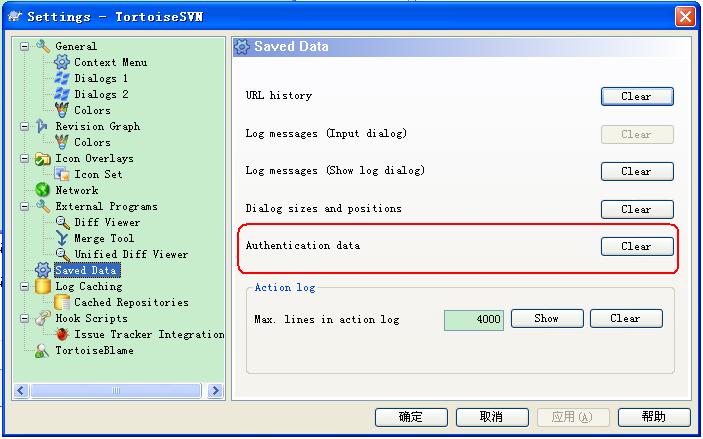
Method 1: In TortoiseSVN’s settings dialog, select “Saved Data”, then click the “Clear” button next to the “Authentication Data” row to clear the saved authentication data. The next time you check out, the username and password dialog will reappear.
If Method 1 Doesn’t Work, Try Method 2:
Tortoise caches authentication data like usernames and passwords in the following directory on the client file system:
C:/Users/Administrator/Application Data/Subversion/auth
Delete all folders under the “auth” directory, then reconnect to the remote server for checkout, and the dialog will appear!