

Sometimes Linux newcomers are confused when downloading software because the download page often offers both 32-bit and 64-bit versions. So figuring out whether your operating system is 32-bit or 64-bit is very important, because you’ll need this information for many things. In this article, we’ll discuss five ways to check whether your Linux system is 32-bit or 64-bit.

How to Check if Your Linux Is 32-Bit or 64-Bit
Note that these methods were tested on the Ubuntu 13.10 platform.
1. Run the ‘uname -a’ Command
One of the most common methods is to run the uname command.
For example, on my system, it displayed the following information:
- $ uname –a
- Linux ubuntu 3.11.0–12–generic #19-Ubuntu SMP Wed Oct 9 16:12:00 UTC 2013 i686 athlon i686 GNU/Linux
That highlighted i686 (or sometimes i386) indicates the operating system is 32-bit, but if it shows x86_64, that means the operating system is 64-bit.
2. Run the ‘uname -m’ Command
The command above contains too much information. You can use this parameter to get straight to the point: ‘uname -m’.
For example, on my system, it displayed the following:
- $ uname –m
- i686
This indicates my Ubuntu Linux system is 32-bit. If the output shows x86_64, it means the system is 64-bit.
3. Use the file Command
Although this is purely showing off, it is still a way to achieve the goal. Using this method requires you to run the file command with /sbin/init as the argument.
Here is an example:
- $ file /sbin/init
- /sbin/init: ELF 32–bit LSB shared object, Intel 80386, version 1 (SYSV), dynamically linked (uses shared libs), for GNU/Linux 2.6.24, BuildID[sha1]=0xc0d86a25a7abb14cad4a65a1f7d03605bcbd41f6, stripped
The highlighted 32-bit indicates this is a 32-bit operating system. If it shows 64-bit, it means the operating system is 64-bit.
4. Use the arch Command
Another alternative method is to use the arch command, which outputs the machine hardware name.
Here’s an example:
- $ arch
- i686
Here you can see the output is i686, which indicates it is a 32-bit operating system. For a 64-bit operating system, the output should be x86_64.
5. Through System Settings
If you are using Ubuntu 12.04 or higher, you can easily check your system architecture in **All Settings -> Details**.
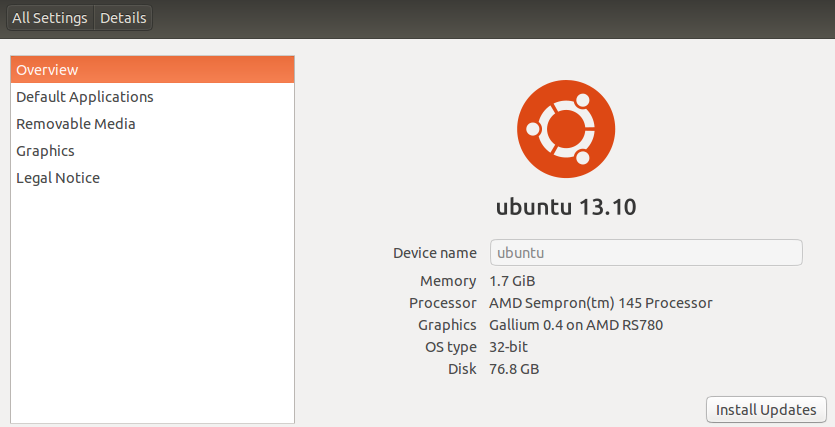
There you can see the system type (32-bit) clearly displayed.
Do you know any other methods to detect whether the operating system is 32-bit or 64-bit? Share with us in the comments below.
via: http://mylinuxbook.com/5-ways-to-check-if-linux-is-32-bit-or-64-bit/