

1. Ensure the CGI feature is enabled in IIS 7 Application Development features.
2. Install the PHP Manager module by downloading the version appropriate for your system.
IIS 7.5 adds a new PHP extension module, available for download here:
Mirror download:
http://mirror.cnop.net/php/tools/PHPManagerForIIS-1.2.0-x64.msi
http://mirror.cnop.net/php/tools/PHPManagerForIIS-1.2.0-x86.msi
3. Install PHP Manager. The downloaded file is an MSI package; simply double-click it and proceed through the installation by clicking “Next”.
4. Next, download PHP from the following address:
http://mirror.cnop.net/php/windows/php-5.4.31-Win32-VC9-x86.zip
Extract the contents to D:/php5/. Modify the PHP configuration file by renaming php.ini-development to php.ini.
In php.ini, locate date.timezone and set it to date.timezone = “Asia/Shanghai” (This step is mandatory, otherwise a warning will appear).
Enable the required modules, such as php_curl.dll, php_mysql.dll, php_mysqli.dll, php_xmlrpc.dll, and php_curl.dll. Simply remove the preceding semicolon for each and save the file.
5. PHP Manager Configuration
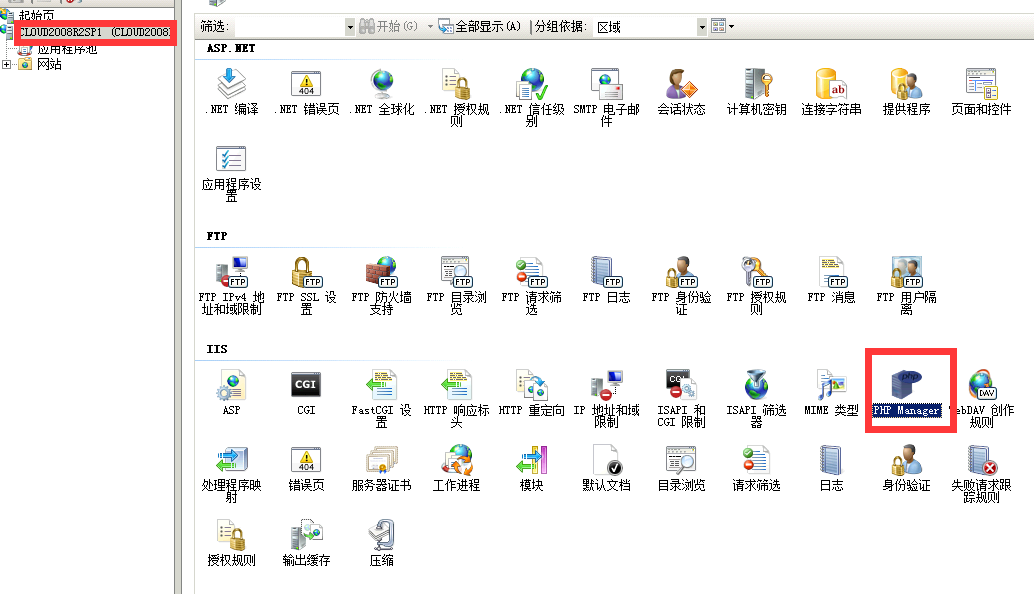
In the IIS Manager interface, double-click “PHP Manager” within your site’s properties, then click “Register new PHP Version” and browse to D:/php5/php-cgi.exe (adjust the path according to your actual setup).
6. Create a test file to verify the installation.