

<<
How to Set Up a Broadband Router: A 7-Step Illustrated Guide. Configuring a broadband router is a common task, but how can we fine-tune the settings for a smoother and more convenient experience?
◆ Cabling (A crucial step for beginners): Use a straight-through Ethernet cable. Connect one end to any LAN port on the broadband router and the other end to your computer’s network card. Plug the router into a power source.
Broadband Router Setup
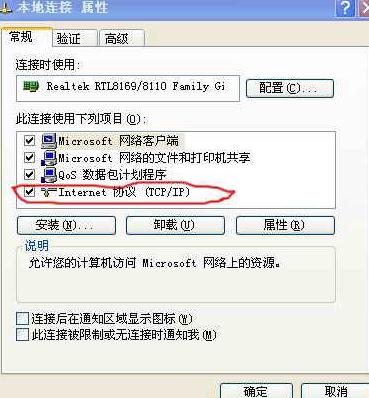
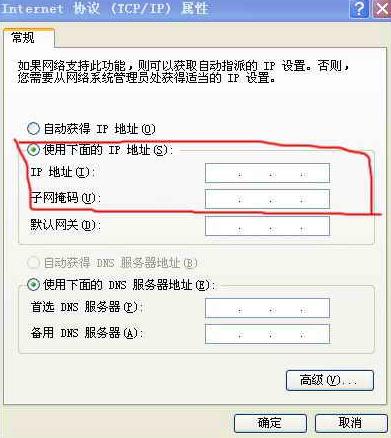
◆ Network Connection Settings: Refer to Figure 1 and double-click the protocol. A dialog box will pop up. Fill in the IP address 198.162.1.X (where X is any number from 2 to 254). See Figure 2.
Broadband Router Setup
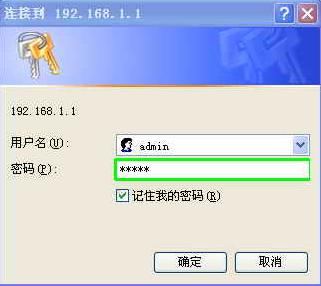
◆ Open Internet Explorer. Type http://192.168.1.1 into the address bar. The following window will appear. The username is usually admin, and the default password is also admin. You can check the “Remember my password” box.
Broadband Router Setup
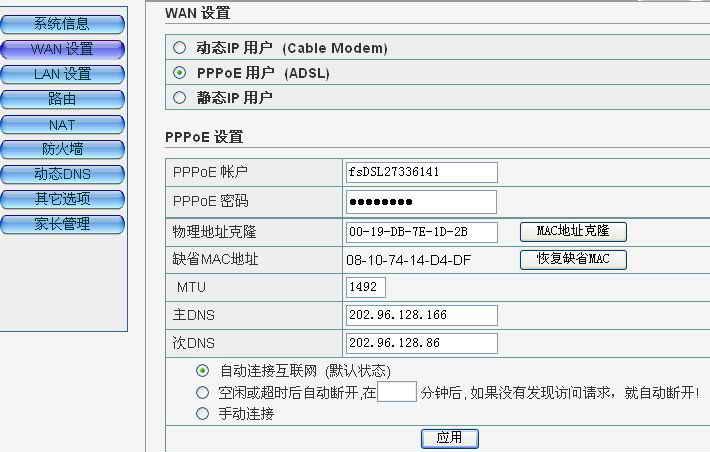
◆ After clicking OK, the following window (where WAN is the main configuration item) will display nine options in the left sidebar (System Settings, WAN Settings, LAN Settings, Routing, NAT, Firewall, Dynamic DNS, Other Options, Parental Control). Click WAN Settings (using PPPoE as an example) and fill in your username and password. If you don’t know them, ask your installation provider (they are often written on the back of the installation disc provided). Also configure MAC Address Cloning.
Broadband Router Setup
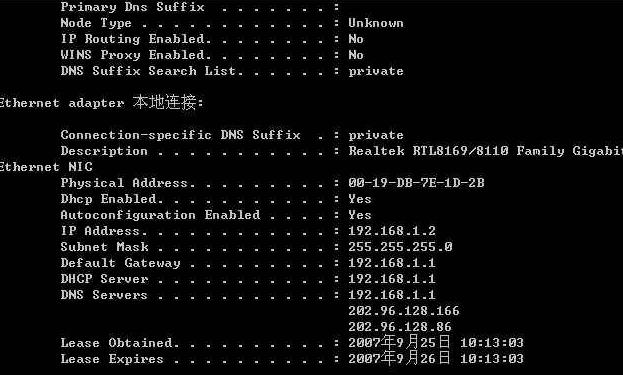
◆ (This is mainly to handle ISPs that bind your account to a specific network card’s MAC address. Clone the MAC to the real address of a PC that can already get online.) Also set the Primary and Secondary DNS entries. (Adding DNS here saves you the trouble of configuring it on each individual computer.) You can find the MAC address and DNS settings directly on your computer. Run cmd, execute ipconfig /all, and you can obtain these parameters.
Broadband Router Setup
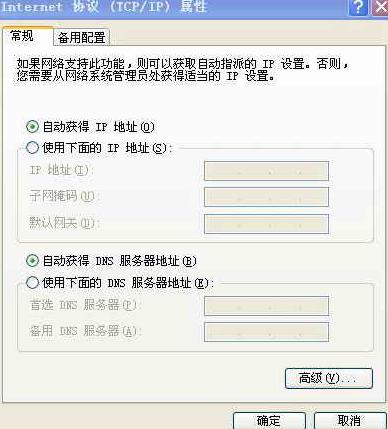
◆ LAN Settings: This mainly involves DHCP configuration. If you enable the DHCP service, the broadband router will automatically assign IP addresses to connected computers. The default IP range is 192.168.1.2-192.168.1.102. In this case, you must set your computer to obtain an IP address automatically (as shown in Figure 7);
Broadband Router Setup
◆ If you disable the DHCP service, you need to manually add an IP address on each computer. The IP can be any value from 192.168.1.2 to 192.168.1.254.