

RHEL ISO does not include this tool, so you need to download the source package from a third-party site and compile it. This software also has a Windows version. It can report network interface traffic status, showing incoming and outgoing bytes per interface, with data generated once per second.
1. Installing ifstat
wget http://gael.roualland.free.fr/ifstat/ifstat-1.1.tar.gz
tar -zxvf ifstat-1.1.tar.gz
cd ifstat-1.1
./configure –prefix=/usr/local/ifstat
make
make install
2. Using ifstat
The command is as follows:
/usr/local/ifstat/bin/ifstat
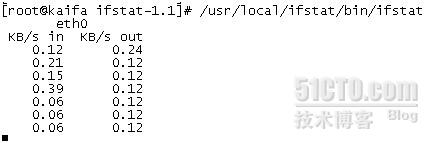
3. Related Parameters
-l Monitor the loopback network interface (lo). By default, ifstat monitors all active non-loopback network interfaces. In practice, adding the -l parameter monitors all network interface information, not just the lo interface. In other words, adding -l shows one more interface’s status (lo) than without it.
-a Monitor the status of all detectable network interfaces. In practice, this shows one more interface (plip0) compared to using -l. A quick search reveals this is the parallel port interface (a network device called PLIP – Parallel Line Internet Protocol, which provides parallel port networking).
-z Hide interfaces that have no traffic, such as those that are up but unused.
-i Specify an interface to monitor, followed by the network interface name.
-s Equivalent to adding -d snmp:[comm@][#]host[/nn]] parameter, querying a remote host via SNMP.
-h Display brief help information.
-n Disable the periodic display of header information (i.e., without -n, the interface names appear at the top when ifstat runs, and reappear when the screen scrolls to remind you which interface the traffic data belongs to. Adding -n turns off the periodic header display, showing it only once).
-t Add a timestamp at the beginning of each line (telling us the specific time).
-T Report the total bandwidth of all monitored interfaces (a total column appears at the end, showing the sum of all interfaces’ incoming traffic and the sum of all outgoing traffic, simply adding them together).
-w Use a fixed column width instead of automatically expanding it to fit interface name lengths.
-W Automatically wrap lines if the content exceeds the terminal window width.
-S Keep status updates on the same line (no scrolling or wrapping). Note: This is very convenient if you dislike screen scrolling, similar to bmon’s display mode.
-b Display bandwidth in kbits/s instead of kbytes/s (you should know the difference between bit and byte).
-q Quiet mode, warning messages are not displayed.
-v Display version information.
-d Specify a driver to collect status information.