

In modern office life, network environments are often complex, typically involving several network devices such as routers and switches. Adding a switch is quite simple 鈥?it’s almost plug-and-play. However, adding a router is much trickier. If not configured properly, it can cause major issues. This article uses two H3C routers as an example to introduce you to this process.
I. Pre-Connection Preparation
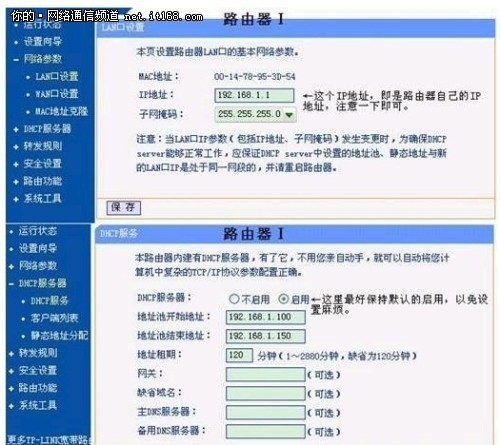
1. Router 1 settings, as shown below:
鈻?/p>
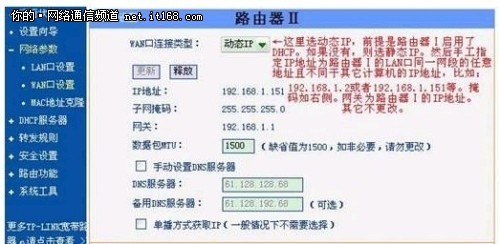
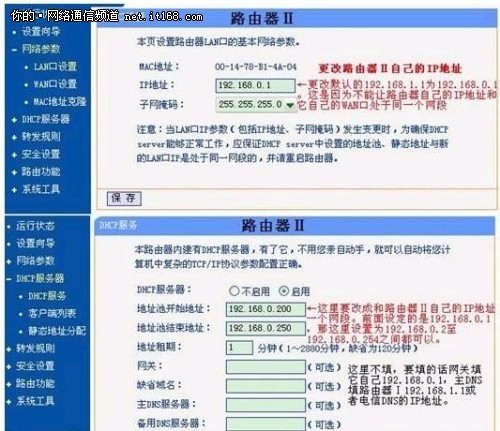
2. Router 2 settings primarily involve changing the WAN port address, changing the LAN port address, and changing the DHCP address range. Set the WAN port of Router 2 to Dynamic IP so it can obtain an IP address from the first router. Change its own IP address and DHCP to a different network segment so that it is not on the same segment as the first router, as shown below:
鈻?/p>
鈻?/p>
II. Connecting the Two Routers
Here, simply use a standard straight-through network cable to connect any LAN port of Router 1 to the WAN port of Router 2. In this method, Router 2 functions as a router. Router 2 can be viewed as a computer; therefore, Router 2 and the computers connected to it are on an equal footing. Computers must use Router 2 as their gateway to access the outside network. Since the router acts as an isolation device, it divides itself into two halves: one side has the WAN port address with the computers, and the other side has the LAN port address with other computers. The gateway on those computers must point to the LAN port address of Router 2, not Router 1.
III. Potential Issues
1. Cannot access router settings. If you lack the manual, you can download it from the router manufacturer’s official website. Then, reset the router. Use one computer to connect to that router and unplug all other network cables. Set the IP address of the computer used for configuration to obtain an IP address automatically, then check if you can access the router’s settings page.
2. Cannot access the network. If the computer mentioned in point 1 cannot access the network, first enter the router settings page and check the running status to see if the WAN port is connected, i.e., whether it is online. If not, check the ADSL account or try a different network cable to connect the WAN port of Router 1 to the ADSL modem.
You can even connect a telephone directly to the ADSL phone line to check if the line is active. If the computer mentioned in point 2 cannot access the network, first check whether its IP address is on the same network segment as Router 2, whether the gateway address is correct, and whether the DNS address is the IP address of Router 1.
By following the