

When the WAN port of an internet cafe broadband router fails to connect and its status remains “Connecting,” you can troubleshoot from the following aspects:
1. Check whether the physical network cables are correctly connected and whether all related devices are powered on and functioning properly.
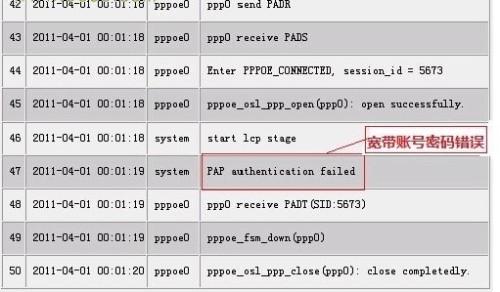
2. Verify that the broadband account and password are entered correctly. You can test by connecting a single PC directly without the router to dial up. Alternatively, log into the router’s management interface, navigate to System Tools -> System Log. If a log entry similar to the one below appears, it indicates an incorrect broadband username or password:
3. For broadband connections using an Ethernet cable, try changing the WAN port speed, such as setting it to 10M Full Duplex, to improve the router’s driving capability.
4. The WAN port connection failure may occur because the ISP has bound the connection to your computer’s MAC address, while the router’s MAC address is what gets detected. In this case, try cloning the MAC address.
5. Attempt to upgrade the router’s firmware version, then restore it to factory defaults and reconfigure it.
If none of the above methods work, have the customer perform a comparison test. Take the router to a different environment to see if it functions normally, ensuring there is no hardware issue with the router itself; or ask the customer to test with a different brand of router to determine if the original environment is incompatible with router usage.
Below are the specific configuration steps for the WAN port of an internet cafe broadband router.
1. Changing the Router WAN Port Speed
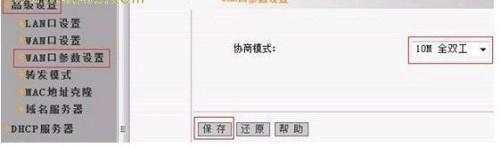
Log into the router’s management interface (192.168.0.1), then navigate to “Advanced Settings”→“WAN Port Parameters”. On the right-side page, select the appropriate speed mode (usually changing it to 10M Full Duplex) and click Save, as shown below:
2. Cloning the Router MAC Address
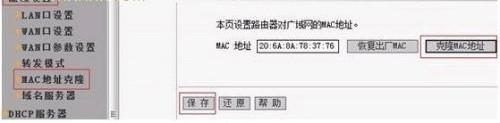
Log into the router’s management interface at 192.168.0.1→Advanced Settings→MAC Address Clone—-click Clone MAC Address, and finally click Save.
Above is the cause analysis and solution for a router’s WAN port displaying a continuous “Connecting” status. Network administrators only need to follow the steps above to quickly resolve the issue.