

Today, I’ll show you how to enable a hidden feature in Windows 7: Virtual WiFi and SoftAP (Virtual Wireless AP). This turns your PC into a wireless router, letting you share your Internet connection and save on network fees and the cost of buying a router.
1. Run Command Prompt as an administrator:
Shortcut Win+R → type cmd → press Enter
2. Enable and configure the virtual WiFi adapter:
Run the command: netsh wlan set hostednetwork mode=allow ssid=wifi key=12345678
3. Set up Internet Connection Sharing:
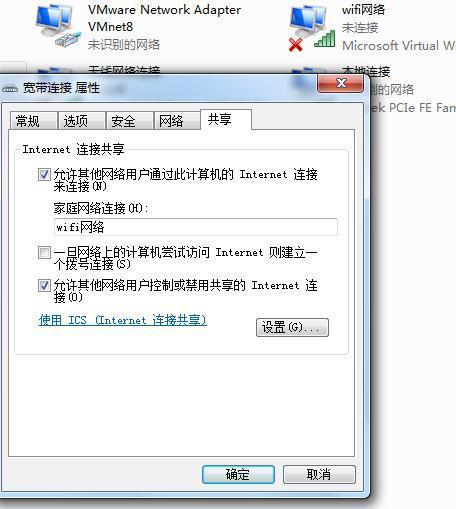
In the “Network Connections” window, right-click the network connection that has Internet access, select “Properties” → “Sharing”, check “Allow other network users to connect through this computer’s Internet connection”, and choose “Virtual WiFi”.
4. Start the wireless network:
Back in the Windows 7 command line,
continue in Command Prompt and run: netsh wlan start hostednetwork
Once done, the red cross on the virtual WiFi icon will disappear, meaning the WiFi hotspot is ready. Other devices can now search for the signal “wifi”, enter the password you set (12345678), and surf the Internet wirelessly.
If you have any questions, please reply in the comments and we’ll do our best to help. If you spot any mistakes, feel free to correct us.