

Recently, due to study requirements, I needed to perform network packet capture analysis. So I had to use a powerful packet sniffing tool, Sniffer Pro.
Sniffer, which can be translated as a packet sniffer, is a network analysis method based on passive listening principles. Using this technology, you can monitor network status, data flow, and the information transmitted over the network. When information is transmitted in plaintext over the network, it can be exploited using network listening methods. By setting a network interface to monitor mode, you can capture the continuous stream of information flowing across the network. Sniffer technology is widely applied in various fields such as network fault diagnosis, protocol analysis, application performance analysis, and network security assurance.
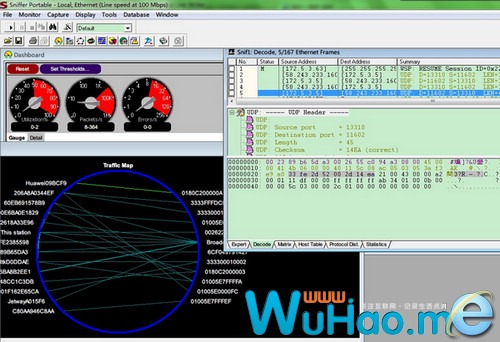
The entire installation process went smoothly after downloading, including entering the serial number and so on, but when I finally launched the software, I discovered a compatibility issue with Windows 7. Upon normal startup, no network card appeared at the network card selection screen, and the small plus sign in front of “Local” could not be expanded. I just left it there and shelved it for a few days. Today, while doing something else, it suddenly occurred to me to try running it in compatibility mode—many older software programs were solved this way to get them running properly. I tried it, and sure enough, it worked. Click Start–Programs–select the Sniffer shortcut, right-click Properties, select the Compatibility tab, check the compatibility mode box (Windows XP SP3), and click OK. Run Sniffer again, and everything is OK—the network card can now be selected. Enter the program, and everything works normally. It seems that running older software on Windows 7 via compatibility mode can indeed make most programs compatible.
Software Download: