When performing FTP operations, I generally use EditPlus’s built-in FTP feature. However, EditPlus’s FTP function cannot directly delete non-empty directories, which makes removing multi-level directory trees very cumbersome, so I switched to using FlashFXP for this task.
During the connection process in FlashFXP, the following prompts appeared:
[R] Data Socket Error: Connection Timeout
[R] List Error
[R] PASV Mode Failed, Trying PORT Mode.
[R] PORT Mode Successful, please update your site profile.
After Googling, I learned that the FTP protocol has two modes for data transfer: Active Mode (PORT Mode) and Passive Mode (PASV Mode).
The direction of connection initiation for these two modes is completely opposite. In Active Mode, the server initiates the connection to the client; in Passive Mode, the client initiates the connection to the server.
Whether passive mode is used depends on the client program. In the ftp command line, you can use the passive command to turn passive mode off or on.
FlashFXP supports both modes and has “Use Passive Mode” as its default setting.
So, how do you set the data transfer mode to PORT (Active Mode) in FlashFXP?
There are two methods, using FlashFXP 3.6.0 as an example:
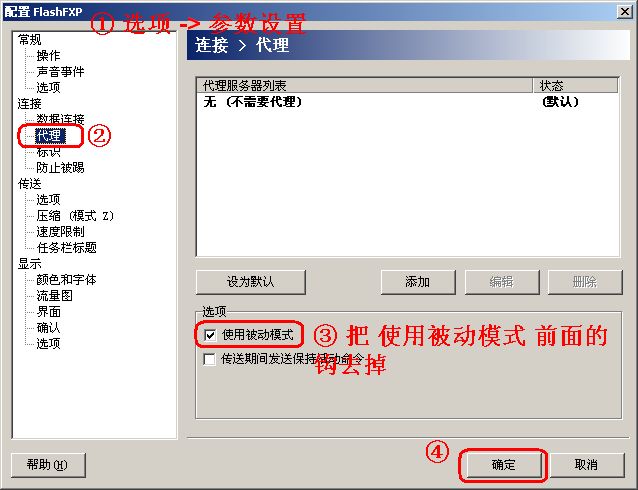
Method 1: Modify FlashFXP’s Default Connection Parameters for FTP Servers
Options -> Preferences… -> Proxy -> Uncheck the box next to “Use Passive Mode” and click OK.
Method 2: Configure Settings for Individual Sites
If FlashFXP manages multiple sites and some need Passive Mode (PASV) while others need Active Mode (PORT), we can also configure settings for each individual site:
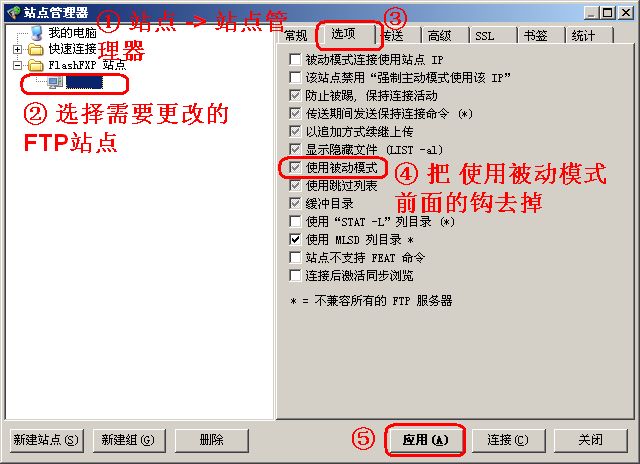
Sites -> Site Manager -> Select the FTP site you want to change -> Options
Click “Use Passive Mode” to remove the check from the checkbox (grayed out by default), and apply.