

1. If you see a “Service Unavailable” prompt, refreshing a few times may allow access. 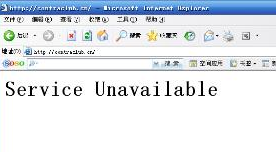
This situation occurs because the website has exceeded IIS limits. Unlike Windows 2000 systems which prompt “Too Many Connections,” Windows Server 2003 displays "Service Unavailable" when IIS limits are exceeded. This is caused by the website surpassing system resource limits, primarily due to programs consuming too many resources.
For example, with the same 100 online users, a LeoBBS forum can consume over 10 times the resources of a PW forum. Additionally, infinite loop programs or unoptimized code can consume excessive system resources, which are obviously limited. However, on Windows Server 2003, websites run in independent processes and do not affect each other.
If a website’s program consumes too many resources or generates too many errors, the system log will show: “Application pool 'xxx' has been automatically disabled due to a series of errors in the processes serving that application pool,” or indicate that “Application pool 'xxx' has exceeded its job limit settings. At this point, visiting the site will prompt: Service Unavailable. Typically, the system recovers within about 30 seconds, and normal access can be restored after a few refreshes.
Additionally, if the current number of visitors exceeds the system’s IIS connection limit, a Service Unavailable prompt will also appear (on Windows 2000 hosts, excessive connections prompt: Too Many Connections, Please Try Later; while Windows Server 2003 hosts directly prompt: Service Unavailable).
2. No IIS Connection Limit Set, Yet Still Encountering Service Unavailable
This is commonly seen on websites using ACCESS databases. Generally, users on Windows Server 2003 with IIS 6 might experience a situation where a previously normal system suddenly has one website inaccessible, displaying: Service Unavailable, even though no IIS connection limit is set for that site. It then quickly affects other sites, and soon all sites show Service Unavailable. What is the cause?
Analysis reveals it is still an old MS problem: the ACCESS engine has crashed. Using a server doctor tool’s file repair function, the repair results show files causing “Catastrophic Failure” of the ACCESS engine and “Object reference not set to an instance of an object” errors. After repairing with the file doctor, the system returns to normal.
3. Service Unavailable When Browsing a Windows SharePoint Services Web Site
This issue may occur if the application pool for the virtual server is not correctly configured in Microsoft Internet Information Services (IIS) 6.0.
r: rgb(253, 254, 255);” /> Solution:
To resolve this issue, follow these steps:
1. Verify that an application pool has been configured for the virtual server. The default application pool is MSSharePointPortalAppPool.
Follow these steps to determine the application pool being used by the virtual server.
a). Click “Start”, point to “Administrative Tools”, and then click “Internet Information Services (IIS) Manager”.
b). Expand “ServerName”, expand “Web Sites”, right-click the virtual server, and then click “Properties”.
c). Click the “Home Directory” tab. The application pool configured for the virtual server is listed in the “Application Pool” box.
d). Click “OK”.
2. Verify that the password for the application pool account is correct. IIS does not automatically poll Active Directory directory service for password changes. If the application pool account is a domain account and its password has expired, you may receive the error message described in the “Symptoms” section of this article after a new password is reassigned to this account.
3. Verify that the application pool account is a member of the IIS_WPG group and the STS_WPG group on the server.
4. Restart IIS to recycle the application pool.