

For easier management, especially when dealing with numerous machines, passwordless system login becomes quite necessary.
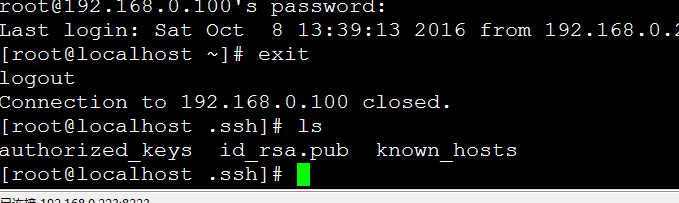
Scenario: Machine A wants to log in to Machine B via SSH without a password.
Machine A IP: 192.168.0.100 Machine B IP: 192.168.0.223
1. Log in to 192.168.0.100 and generate a public/private key pair on Machine A:
Generate them using this command:
ssh-keygen -b 1024 -t rsa
The result is as follows
[root@localhost ~]# ssh-keygen -b 1024 -t rsa
Generating public/private rsa key pair.
Enter file in which to save the key (/root/.ssh/id_rsa):
Enter passphrase (empty for no passphrase):
Enter same passphrase again:
Your identification has been saved in /root/.ssh/id_rsa.
Your public key has been saved in /root/.ssh/id_rsa.pub.
The key fingerprint is:
40:44:8d:2c:20:bd:c0:1b:b2:01:9f:e8:f9:bb:db:67 [email protected]
You can see that both the public and private keys have been generated in the .ssh directory; the public key is id_rsa.pub, and the private key is id_rsa, located under /root/.ssh/.
2. Go to Machine B, copy Machine A’s public key to the .ssh directory on Machine B, and add it to the authorized_keys file.
Use this command:
scp [email protected]:/root/.ssh/id_rsa.pub /root/.ssh
Enter the password to complete the copy.
Append Machine A’s public key to the authentication file on Machine B:
cat /root/.ssh/id_rsa.pub >> /root/.ssh/authorized_keys
OK, the trust relationship from Machine A to Machine B is now established.
You can now log in to Machine B directly from Machine A using the SSH command.