

How to Upload and Download Files Using DOS FTP Commands: Only the Unimaginable Is Impossible
How to Upload and Download Files Using DOS FTP Commands
Open the Windows Start menu, execute the “Run” command, enter ftp in the dialog box, and press “OK” to switch to a DOS window with the command prompt:
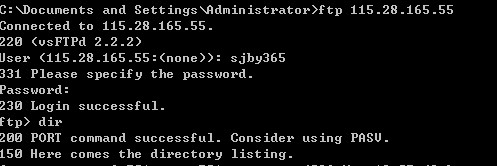
Connect to: ftp 198.168.1.110
Enter User: 123
Enter Password: 123
Wait a moment, and the screen will indicate a successful connection:
ftp> connected to…
The server will then ask for the username and password; enter 123 and abc123 respectively. Once authenticated, you are connected.
To upload a file, for example, to transfer a:/index.html to the server’s root directory, type:
ftp> put a:/index.html (Enter)
When the screen prompts that the transfer is complete, you can type the relevant command to view the file:
ftp> dir (Enter)
To download, suppose you want to transfer all .jpg files from the server’s /images directory to your local machine, enter the commands:
ftp> cd images (Enter) [Note: Enters the /images directory]
ftp> mget *.jpg
Once uploading and downloading are complete, type bye to end the connection.
ftp> bye (Enter)
Here is a summary of commonly used FTP commands:
1. open: Connect to a server;
銆€銆€2. send(put): Upload a file;
銆€銆€3. get: Download a file;
銆€銆€4. mget: Download multiple files;
銆€銆€5. cd: Change directory;
銆€銆€6. dir: List files in the current directory;
銆€銆€7. del: Delete a file;
銆€銆€8. bye: Terminate the connection with the server.
To learn more, you can type:
ftp> help (Enter)
to view the command set:
ascii: Set the file transfer type to ASCII (default)
bell: Sound an alert each time a file transfer is completed
binary: Set the file transfer type to binary
bye: Terminate the host FTP process and exit the FTP management mode
case: When ON, filenames copied to the local machine using the MGET command are all converted to lowercase letters
cd: Same as the UNIX CD command
cdup: Return to the parent directory
chmod: Change file permissions on the remote host
close: Terminate the remote FTP process and return to the FTP command state; all macro definitions are deleted
delete: Delete a file on the remote host
dir [remote-directory] [local-file]: List files in the current remote host directory. If a local file is specified, the result is written to that local file
get [remote-file] [local-file]: Transfer a file from the remote host to the local host
help [command]: Output an explanation of the command
lcd: Change the current working directory on the local host; if omitted, changes to the current user’s HOME directory
ls [remote-directory] [local-file]: Same as DIR
macdef: Define a macro command
mdelete [remote-files]: Delete a batch of files
mget [remote-files]: Receive a batch of files from the remote host to the local host
mkdir directory-name: Create a directory on the remote host
mput local-files: Transfer a batch of files from the local host to the remote host
open host [port]: Establish a new connection
prompt: Interactive prompt mode
put local-file [remote-file]: Transfer a local file to the remote host
pwd: Print the current remote host directory
quit: Same as BYE
recv remote-file [local-file]: Same as GET
rename [from] [to]: Rename a file on the remote host
rmdir directory-name: Remove a directory on the remote host
send local-file [remote-file]: Same as PUT
status: Display the current FTP status
system: Display the remote host system type
user user-name [password] [account]: Log in to the remote host again with a different username