

One of the most basic commands in Linux is ls. Without this command, we would have difficulty browsing directory entries. It’s a command every Linux learner must know.
What Is ls?
The ls command is used to list files and directories. By default, it lists the contents of the current directory. With options, we can do much more with ls. Here are some practical examples of using ls in daily operations.

1. Running ls Without Options
Running ls without options lists only files or directories. No other information is displayed (Translator’s note: Sometimes you may find the output of ls without options differs from what’s described here; that’s likely because your ls command is actually an alias with options).
$ ls

2. Using the Long Listing Format
Using the -l character (lowercase L), it displays a long listing of the current directory contents. In the following examples, we’ll combine the -l option (which is frequently used) for better results.
$ ls -l
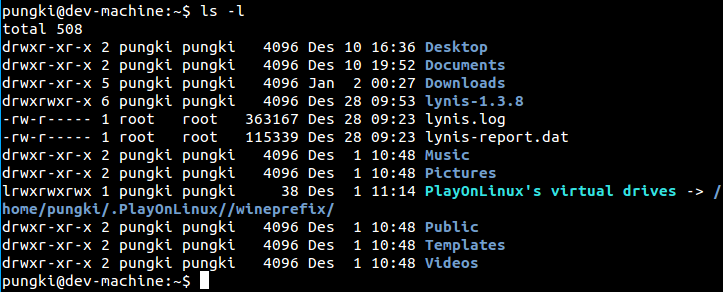
Here is how to read the output:
-
Column 1
- The first letter d means the content is a directory or file. In the screenshot above, Desktop, Documents, Downloads, and lynis-1.3.8 are directories. If it’s ‘-‘(dash), it means the content is a file. When it’s l(lowercase L), it means the content is a link file.
- The following 9 characters are about file permissions. The first three rwx characters are the file owner’s permissions, the second set of three rwx is the group’s permissions, and the last three rwx are permissions for others accessing the file.
-
Column 2 This tells us how many links point to this file.
-
Column 3 This tells us who is the owner of this file/folder.
-
Column 4 This tells us who is the group owner of this file/folder.
-
Column 5 This tells us the size of the file/folder in bytes. The size of a directory is always 4096 bytes.
-
Column 6 This tells us the last modification time of the file.
-
Column 7 This tells us the file name or directory name.
3. Displaying File Sizes
Viewing sizes in bytes can be inconvenient. 6.5M is easier to read than 6727680 bytes. To do this, we can use the -h option combined with -l. The -h option means human-readable.
$ ls -lh
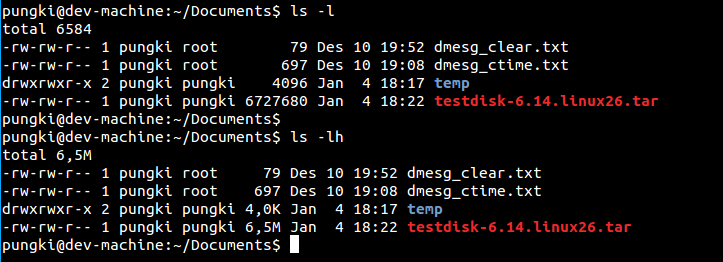
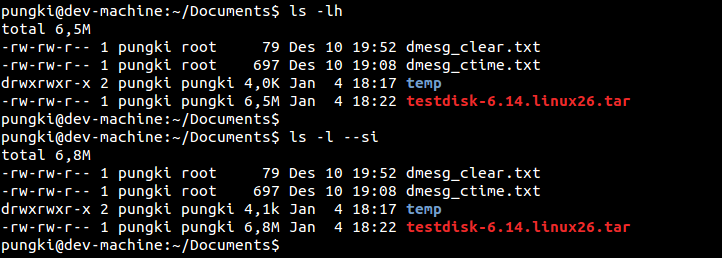
Another option to achieve this is –si. This option is similar to -h, but –si uses 1000 as the base unit, while -h uses 1024.
$ ls -si
4. Sorting Files by Size
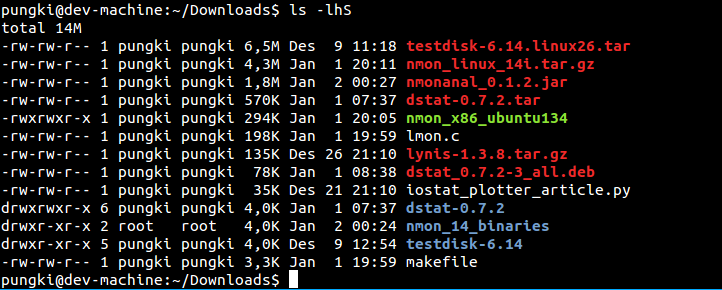
After we can display file sizes, we may want to sort them by size. We can use the -S option to do this. The listing will be sorted from largest to smallest.
$ ls -lhS
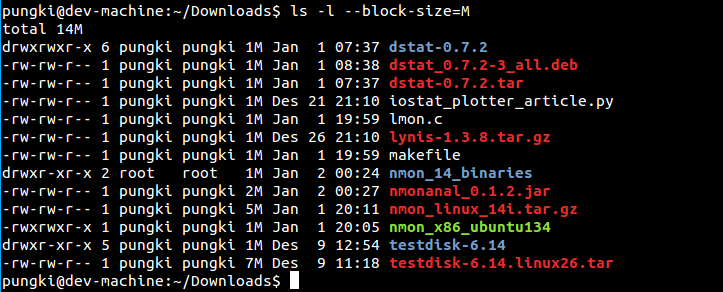
5. Setting the Block Size
ls can change the unit size using –block-size=SIZE. Here, SIZE can be:
K = KilobyteM = MegabyteG = GigabyteT = TerabyteP = PetabyteE = ExabyteZ = ZettabyteY = Yottabyte
For example, if we want to use MB as the unit size, the syntax would look like this:
$ ls -l –block-size=M
6. Displaying Hidden Files
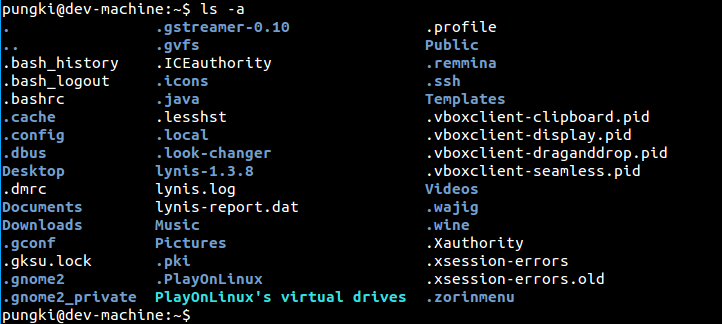
In Linux, files starting with "."(dot) are hidden files. To display them with the ls command, we can use the -a option.
$ ls -a
7. Listing Only Directory Entries
If we want to list only directories, we can use the -d option.
$ ls -d */

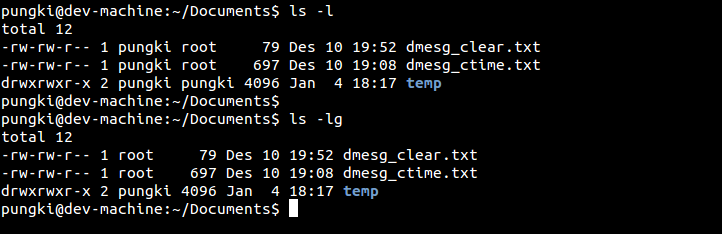
8. Omitting Owner Information
To do this, we use the -g option.
$ ls -g
9. Omitting Group Information
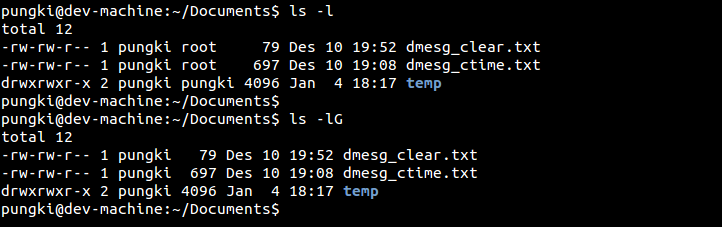
-g hides the owner information, while —G hides the group information.
$ ls -lG
10. Printing UID and GID
If you want to list the owner and group of items in numeric form (i.e., UID and GID), we can use the ls command with the -n option. Here’s an example.
$ ls -n
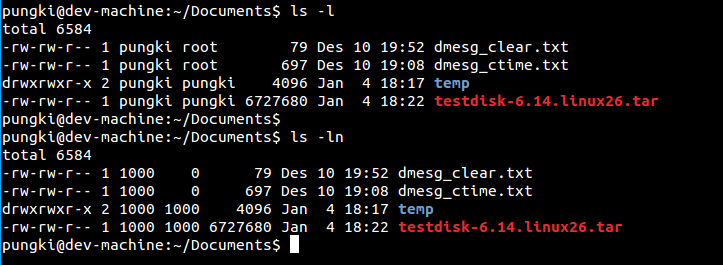
From the example above, we can see that user pungki’s UID is 100, the GID is 1000, and the root group’s GID is 0.
11. Printing Without Colors
Some Linux distributions have color enabled for the ls command. This makes ls print the listing in various colors. If you don’t want this, you can use the –color=never option.
$ ls –color=never

12. Printing the Index Number of Each File
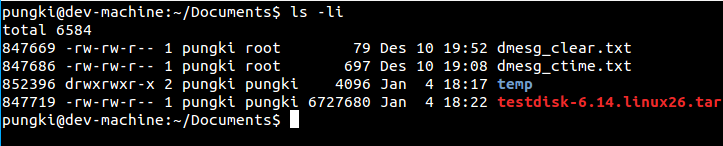
To print the index, or what is commonly known as the inode number, we can use the -i option. The index number will be displayed in the first column.
$ ls -li
13. Appending / (Slash) to Mark Directories
To do this, use the -p option.
$ ls -p

14. Reversing the Sort Order
You might need to reverse the order when listing entries. To do this, you can use the -r option.
$ ls -r

15. Recursively Listing Subdirectories
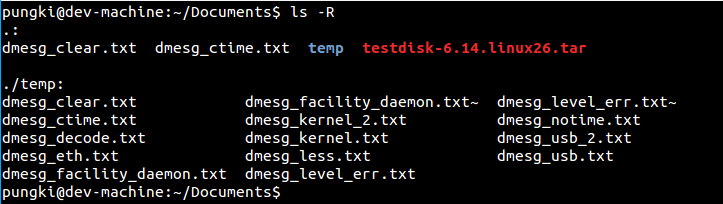
With the -R option, you can list a directory including its subdirectories.
$ ls -R
16. Sorting by Extension
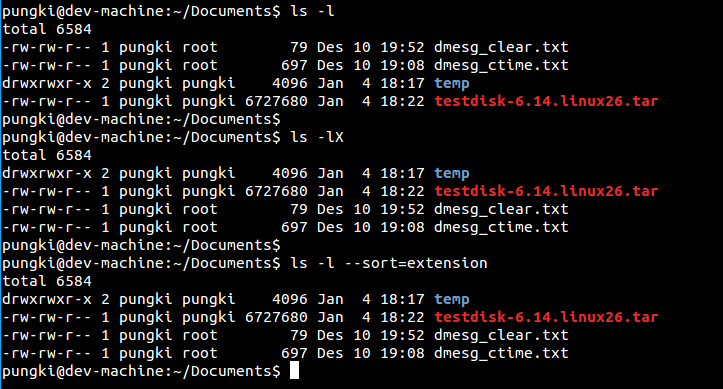
You can use the -X option or –sort=extension to sort by extension (Translator’s note: This is useful for filtering different types of files).
$ ls -lX
or
$ ls –sort=extension
17. Listing by Modification Time
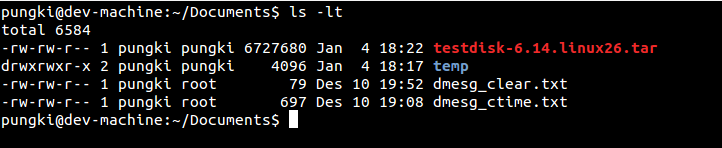
Using the -t option sorts by modification time, with newer files first.
$ ls -lt
18. Listing Your Home Directory
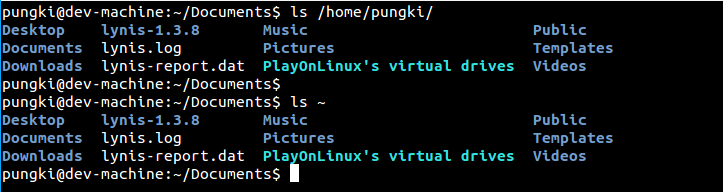
To list your home directory, you can represent it with "~"(tilde). This way you don’t need to type the full directory path. Assuming the home folder is /home/pungki, then the tilde corresponds to /home/pungki.
$ ls ~
19. Listing the Parent Directory
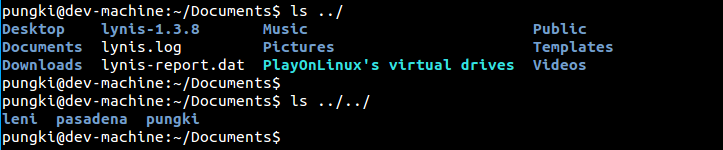
No matter which directory you are in, you can list the parent directory without typing the full path. Here’s an example.
$ ls ../
This lists the contents of the directory 1 level up.
$ ls ../../
This lists the contents of the directory 2 levels up (Translator’s note: “…” cannot be used to represent 2 levels up).
20. Printing the ls Command Version
Use the –version option to print it