

Disk I/O bottlenecks have plagued us for years. As SSD technology matures and costs gradually decline, more and more companies are adopting SSD drives in their servers.
Since adding an mSATA SSD to my laptop last year, the overall system performance boost has been beyond words!
A single SSD delivers excellent performance, but without RAID, data security cannot be guaranteed. However, using a standard RAID card with SSDs can shift the bottleneck to the RAID card itself. To achieve both high performance and data safety, you can opt for high-end solutions like PCIe solid-state drives (SSDs) or flash cards.
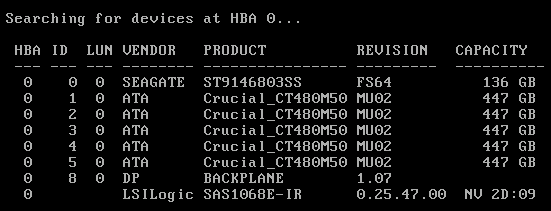
Is there a more budget-friendly alternative? The answer is software RAID, such as mdadm v3.2.5 on Linux.
The chart below shows the IOPS test results under different RAID configurations on CentOS 6.4 x86_64 using fio v2.1.4-8-g3e26:
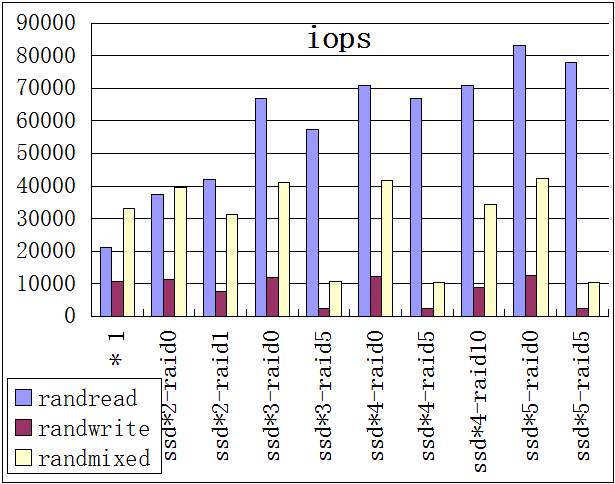
The conclusions are as follows:
1. Software RAID can harness the performance of multiple SSDs; the more drives, the better the performance (currently tested with up to 5 drives).
2. RAID 0 offers the best performance but the worst data safety.
3. RAID 5 has poor write performance, which drags down overall performance in mixed read/write workloads.
4. RAID 10 provides the optimal balance of performance, capacity, and data security.
The test script is as follows:
- #!/bin/bash -x
- yum –y install fio mdadm xfsprogs
- mkdir –pv /ssd
- umount /ssd
- mdadm –S /dev/md0
- yes | mdadm –C /dev/md0 –a yes –l 0 –n 5 —assume–clean /dev/sd{b,c,d,e,f}
- mkfs.xfs –f /dev/md0
- mount /dev/md0 /ssd
- rm –fv /tmp/fio-*.txt
- cat /proc/mdstat
- mdadm –D /dev/md0
- fio —bs=512 —ioengine=libaio —userspace_reap —time_based —runtime=600 —group_reporting —buffered=0 —direct=1 —randrepeat=0 —norandommap —ramp_time=6 —iodepth=16 —numjobs=16 —size=100G —directory=/ssd –name=randread –rw=randread –filename=fio-test.file –output=/tmp/fio–r.txt #Random Read
- fio —bs=512 —ioengine=libaio —userspace_reap —time_based —runtime=600 —group_reporting —buffered=0 —direct=1 —randrepeat=0 —norandommap —ramp_time=6 —iodepth=16 —numjobs=16 —size=100G —directory=/ssd –name=randwrite –rw=randwrite –filename=fio-test.file –output=/tmp/fio–w.txt # Random Write
- fio —bs=512 —ioengine=libaio —userspace_reap —time_based —runtime=600 —group_reporting —buffered=0 —direct=1 —randrepeat=0 —norandommap —ramp_time=6 —iodepth=16 —numjobs=16 —size=100G —directory=/ssd –name=randmixed –rwmixwrite=20 –rw=randrw –filename=fio-test.file –output=/tmp/fio–m.txt # 8:2 Mixed Read/Write
- grep —color iops /tmp/fio-*.txt
Note that software RAID is not auto-assembled at boot by default; you need to manually generate the configuration file.
- mdadm —verbose —detail —scan > /etc/mdadm.conf
- # ARRAY /dev/md0 level=raid0 num-devices=5 metadata=1.2 name=ssd.higkoo.org:0 UUID=0dfa7417:13c1622d:1dca1dfe:12a0e0f4
- # devices=/dev/sdb,/dev/sdc,/dev/sdd,/dev/sde,/dev/sdf
For detailed instructions on "/etc/mdadm.conf", check the help or the sample file provided by running “rpm -ql mdadm | grep "mdadm.conf"”.
Then add the RAID partition to fstab. You can use /dev/md0 or check its UUID with `ls -l /dev/disk/by-uuid`. Write some data, then reboot to verify. Mission accomplished!
via : http://hi.baidu.com/higkoo/item/13371fe44761e62d5a7cfb55