

I. Application Introduction
Connecting multiple routers in series is mainly to expand the existing network range or build a new network (subnet) under the existing network. Generally, we use multiple routers in series in the following situations:
A. To expand wireless signal coverage in a home network, a new wireless router is added to boost the signal;
B. The original router is a wired router, and a wireless router may be added to provide Wi-Fi signal.
C. To share a broadband connection with a neighbor, running a network cable from the neighbor’s home to your own router;
D. To access the network provided by a landlord, you need to connect your own router to the landlord’s network;
E. In a company, you need to add a wireless router within an existing network to provide a Wi-Fi signal;
……
II. Setup Methods
There are different connection methods for different needs. The three most commonly used methods are listed below. Be sure to choose the appropriate networking solution based on your actual situation:
1. WDS (Wireless Bridging)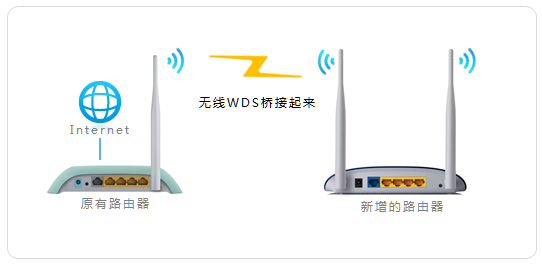
Applicable Environment:
In home or office environments where the original router signal strength is weak, multiple wireless routers are networked via WDS wireless bridging to enhance wireless signal coverage.
Result After Networking:
Multiple routers are on the same local area network. Computers connected to any router’s LAN port can access the internet, and wireless terminals can roam after connecting to the signal, achieving the goal of signal enhancement.
Brief Setup Steps:
1. Confirm the wireless signal name and password of the front-end main router;
2. Log in to the management interface of the new router;
3. Enable WDS bridging and scan for the wireless signal of the front-end main router;
4. Record the management IP address of the new router;
Setup is complete, connect to the internet.
Setup methods vary slightly for different router models. Please refer to the corresponding setup guide based on your actual router model: How to Set Up WDS Wireless Bridging?
2. Use as an AP (Wireless Switch):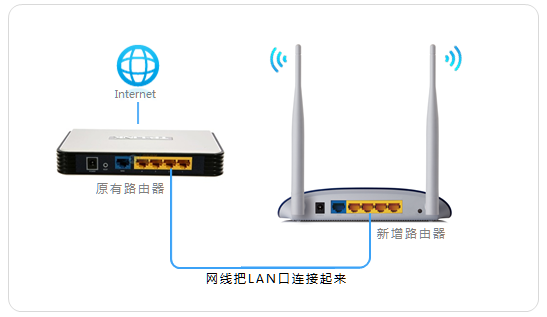
Applicable Environment:
In home or office environments where the original wired router cannot provide a Wi-Fi signal, you now need to add wireless capability to the existing wired network, using the new router as a wireless AP.
Result After Networking:
Wireless signal is added to the network; phones and pads can connect to the wireless signal to surf the internet; all terminals are on the same local area network, within the same subnet, and can access each other.
Brief Setup Steps:
1. Log in to the management interface of the new router;
2. Change the management IP address;
3. Set the wireless name and password;
4. Disable the DHCP server;
5. Use a network cable to connect the LAN port to the front-end network;
Setup is complete, connect to the internet.
Setup methods vary slightly for different router models. Please refer to the corresponding setup guide based on your actual router model: How to Set Up as a Wireless Switch?
3. Building a New Network (Subnet)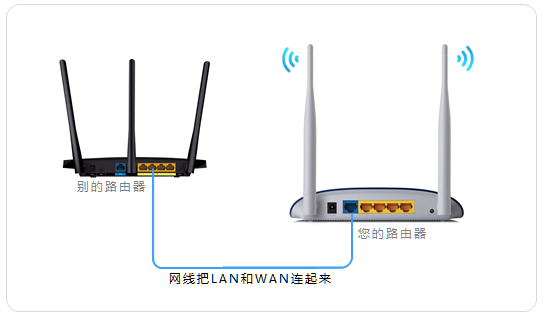
Applicable Environment:
To connect to a neighbor’s, landlord’s, or company’s network, using the new router as an independent router.
Result After Networking:
All terminals under this router can access the internet, and the network under this router is a small local area network (subnet). The front-end network cannot access your terminals, just as if you had your own dedicated broadband line.
Brief Setup Steps:
1. Reset the new router;
2. Connect the cables according to the topology diagram and log in to the new router’s interface;
3. Set the wireless name and password;
4. Change the management address to a different network segment (this step is not required for a newly purchased router);
5. Restart the router;
Setup is complete, connect to the internet.
For detailed setup instructions, please refer to: Router LAN-WAN Cascade Setup Method.
III. FAQ
You might be concerned about the following questions:
1. What if I have three routers, how do I network them?
If you have three or more routers, the usage method is the same as the topologies shown above. The key is to clearly analyze your needs and refer to the corresponding setup method.
2. I need to connect multiple routers to a switch, how do I use them?
You can refer to the following topology. For detailed setup instructions, please refer to Solution 3 (Building a New Network). If you need to use all the added routers as wireless APs, please refer to Solution 2 (Use as an AP).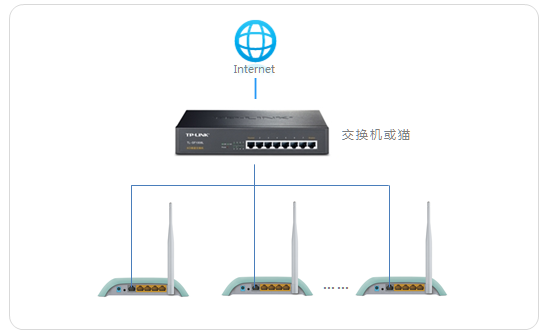
3. Can a TP-LINK router be connected under other brands?
If using a wired network cable cascade, it can work with any brand. If using WDS wireless bridging, it generally works fine, but incompatibility issues cannot be completely ruled out.
For more information on wireless product networking solutions, please click to refer to: How