|
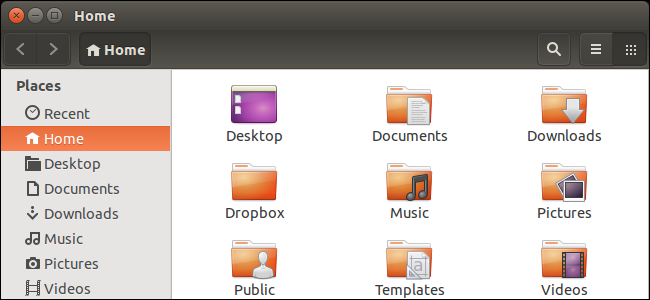
If you share an Ubuntu machine with others, you probably set up multiple users, hoping they each log into their own accounts and can only access their own home directories. However, by default, any user can access any home directory. When you add a new user in Ubuntu, the adduser tool creates a new home directory for the new account. By default, the directory is located under the root /home/ directory, named after the account’s username. For example, /home/lori. Home directories created for users in Ubuntu have world-readable/executable permissions, which gives all other users on the system the ability to read the contents inside other users’ home directories. For details, please read our article on how Linux file permissions work. Note: When we mention something to type in this article, the text to type is inside quotation marks. Do not type the quotation marks, unless we specify otherwise. You can easily modify your home directory’s permissions to protect your private files. To check the permissions of your home directory, press Ctrl + Alt + T to open a terminal window, and type the following command at the prompt, then press Enter. Replace “username” below with your own username.
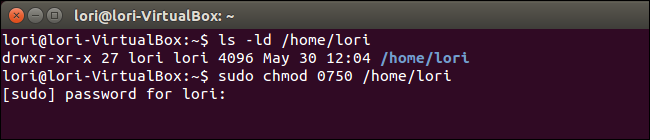
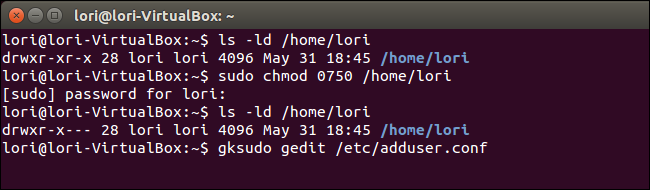
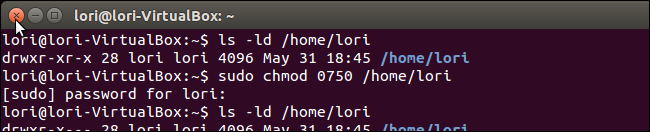
Note: The command contains only a lowercase L, not the number 1. At the beginning of the line, the file’s permissions are listed, just as we discussed in the article about Linux permissions.
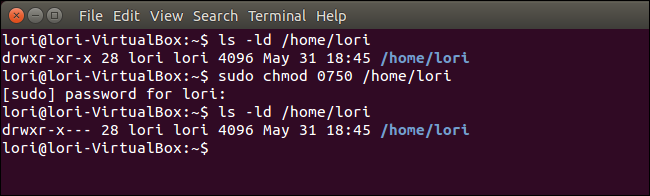
Thus, the home directory listed below has read, write, and execute permissions for the owner, and read and execute permissions for the group and others.
To change these permissions, type the following line at the prompt and press Enter.
When prompted for your password, type it and press Enter. Note: The chmod command uses octal numbers as a way to specify permissions. Our article on Linux permissions used a different method that requires several steps but may be easier to understand. Using octal numbers to specify permissions is a faster method. Whichever method you use, as long as you are comfortable with it is fine. To learn about setting permissions with octal numbers, please read this article.
Press the up arrow twice to recall the “ls -ld /home/username” command again to check the permissions. Notice that the other permissions are now all dashes (-), which means others can no longer read, write, or execute anything in your home directory. However, users in your same group can still read and execute files and folders in your home directory. If you want no one except yourself to access your home directory, you can enter “0700” in the chmod command. Note: For more information on user and group management in Linux, please check our article To close the terminal window, type “exit” at the prompt and press Enter.
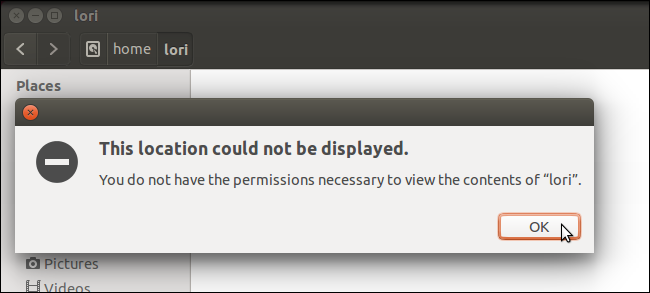
Now, when other users on the system try to access your home directory, the following dialog box will pop up.
You can even make Ubuntu use specified permissions when creating new users. To accomplish this, you need to edit the adduser configuration file. To edit this file, type the following command at the prompt and press Enter.
We use gedit to edit this file, but you can also use any other text editor you prefer. Note: The gksudo command appears similar to the sudo command, but it is used to run graphical programs as root, while the sudo command is used to run command-line programs as root.
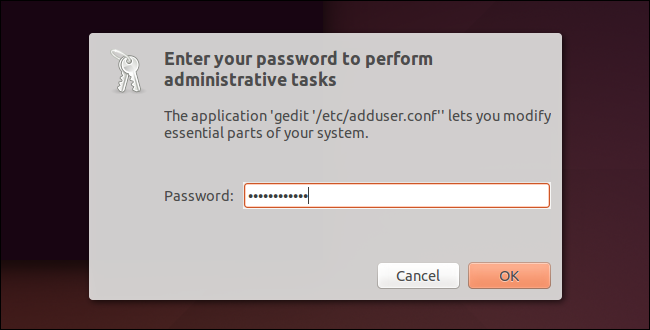
In the dialog box that pops up, enter your password in the password edit field and press Enter or click OK.
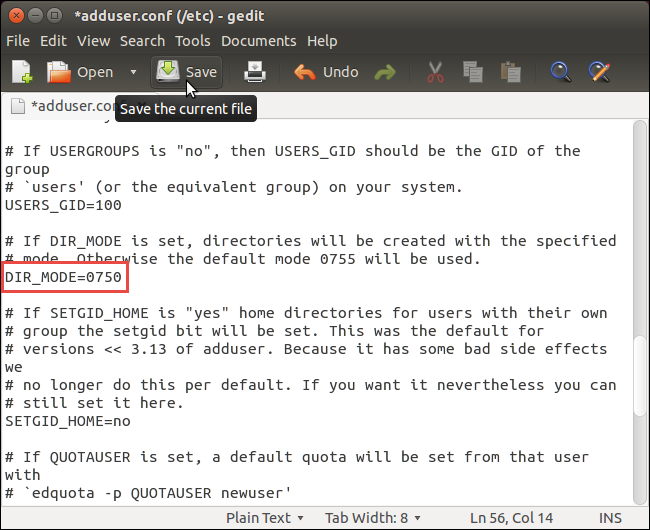
Scroll down in the adduser.conf file to the DIR_MODE command, where the default value is “0755”. Change this value to reflect the different permissions (r, w, x) you want to grant to the various user types (owner, group, others), such as “0750” or “0700” as we discussed earlier. Click Save.
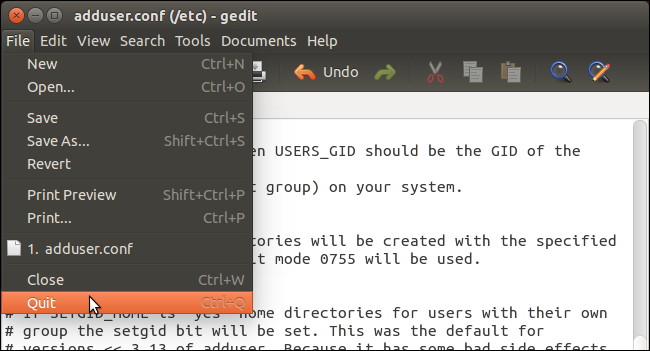
Select Quit from gedit’s File menu to close gedit, or you can click the X button in the upper-left corner of the window to close it.
Click the X in the upper-left corner of the window to close the terminal window.
Now, the files in your home directory will remain private. Keep in mind: if other users are in the same group as you, you may want to remove both group and world permissions from your home directory. |