|
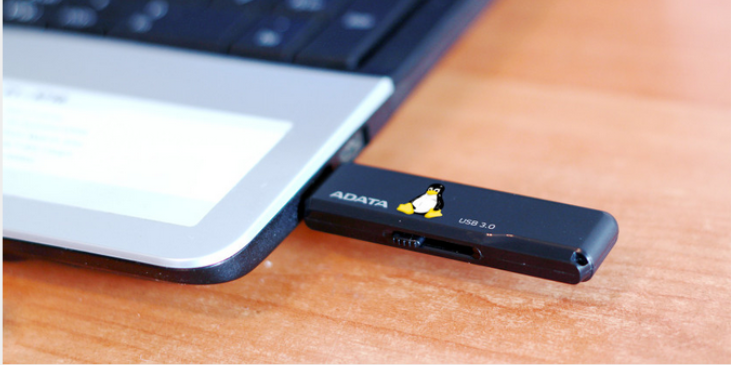
You may have heard of running a live Linux operating system from a USB drive, but did you know you can permanently save your session data or even install Linux directly onto the USB stick? This article covers three ways to carry Linux in your pocket (on a USB drive). Pick the method that suits you best! Burn the ISO Image to a USB Drive
Burning a Linux distribution’s Live ISO image to a USB drive has become extremely easy. From there, you can boot your Linux system on any PC that supports booting from USB. However, this method has one drawback: when you shut down, all your “modified” data is lost. This is because, as a live environment, all data is stored in RAM rather than on the USB drive. Once you power off, any changes are gone. If you need to modify your USB Linux installation for daily use (such as installing or updating software or editing documents), this approach is clearly not viable. However, if you plan to use it for secure communications (like online banking or scenarios requiring TOR) and want to ensure no sensitive information is saved, this method is undoubtedly the best fit. Persistent Data Storage
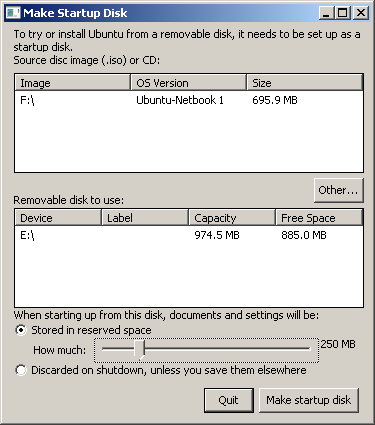
If you are an Ubuntu user, you can choose to persistently save changes from the ISO image on the USB drive. This allows you to install applications and save newly created or modified documents on the USB stick. Drawbacks: When a live system runs, it typically logs in automatically using a live account. This account has no password, so anyone can log into the system, making it insecure. You also need to be extra careful when updating software. If the Linux kernel is updated, the bootloader may become corrupted. Compared to a system installed on a hard drive, this method is quite inflexible because the bootloader requires the kernel being booted to match the kernel version of the installed ISO image. Full Installation to a USB Drive
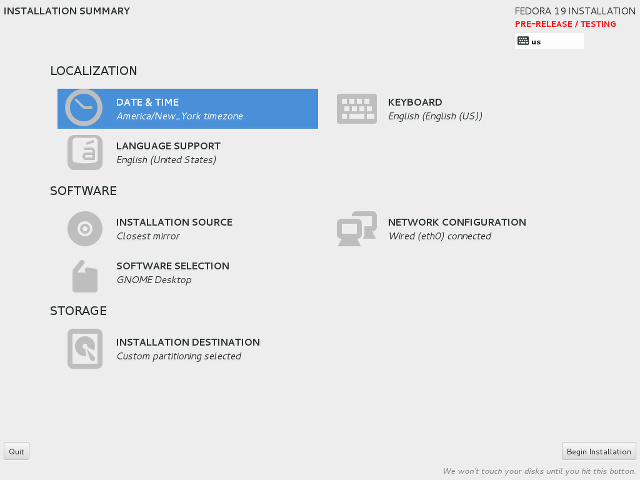
Finally, you can opt for a full system installation onto a USB drive. You’ll need a CD or another USB drive to store the installation ISO image. This method allows you to install the entire system completely onto a USB drive, with the same flexibility as a system installed on a hard drive. The advantage is clear: it is no different from a system installed on a hard drive and is highly portable. But this method also has its downsides. First, your USB drive needs to be large enough — at least 8GB or more. Second, the system itself believes it is installed on a hard drive, so it optimizes for the currently running hardware. However, this optimization might cause the system to fail when encountering different hardware in the future. This mainly involves installing proprietary drivers. To maintain maximum system compatibility, avoid using such drivers. When I used this installation method, I did not use proprietary drivers and encountered no compatibility-related issues. ConclusionSurprised? You shouldn’t be — the Linux system is inherently very flexible, so it can meet a variety of needs. Now that you know three ways to run Linux from a USB drive, choosing the method that suits you best should be easy. Or perhaps, knowing several different installation methods has made your decision a bit more hesitant.
Reprinted from: http://www.geekfan.net/7810/ |