

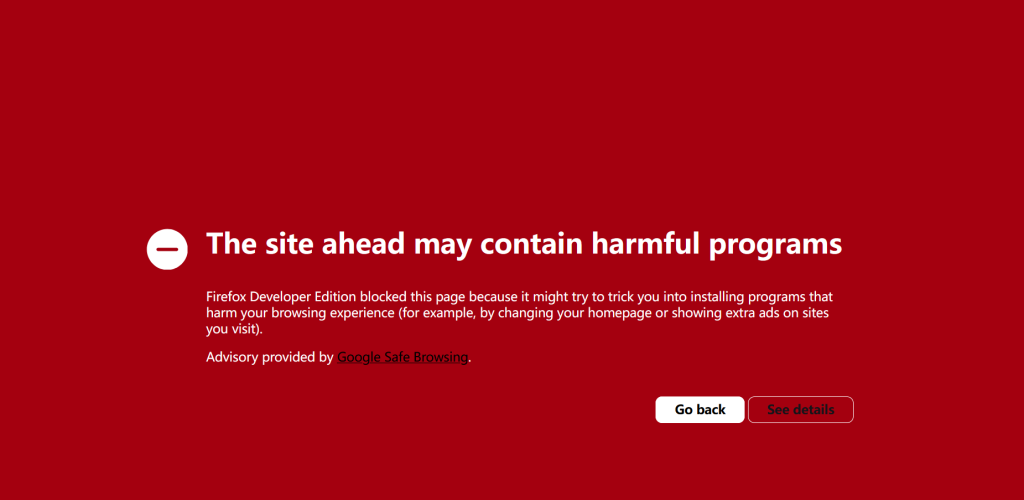
Firefox Developer Edition blocked this page because it may attempt to trick you into installing harmful software that could affect your browsing experience — for example, by changing your homepage settings or displaying unwanted advertisements on websites you visit.
Dangerous Website
Attackers on the website you are trying to access may attempt to trick you into installing harmful software that could interfere with your browsing experience, such as changing your homepage or injecting additional advertisements into websites you visit.
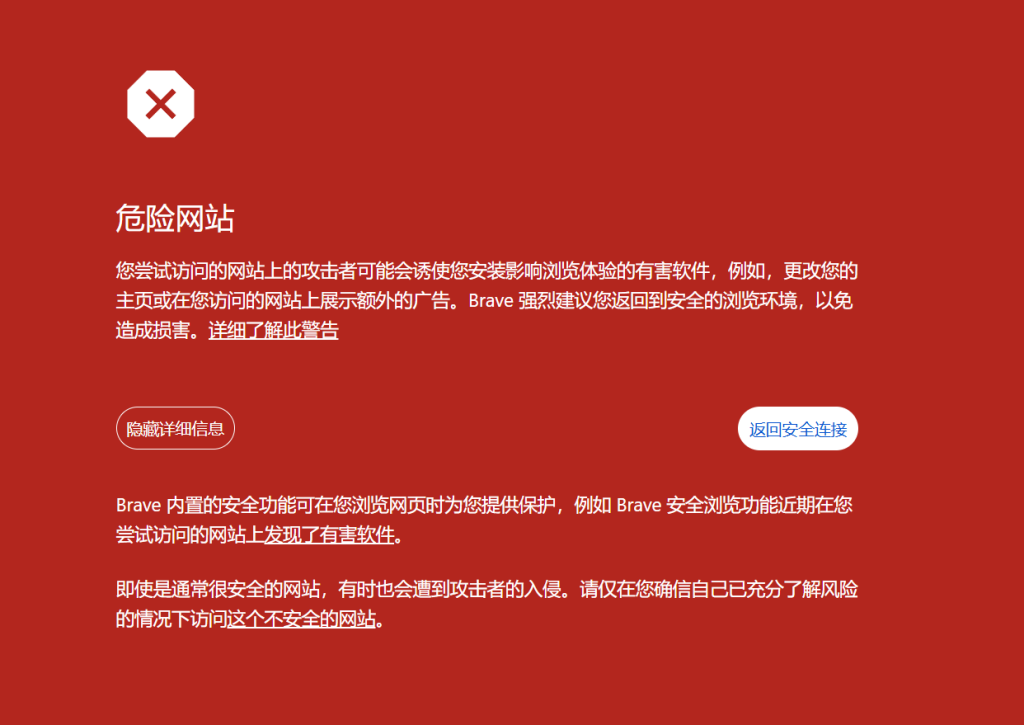
Brave strongly recommends returning to a safe browsing environment to avoid potential risks.
Why does this warning appear?
In most cases, this warning appears because the website has been compromised and contains malicious code, unauthorized plugins, or harmful files.
Google’s security systems may detect unsafe links, scripts, or programs on the website and display a warning to protect visitors from potential threats.
How to Recover Your Website as the Site Owner
If you are the website owner, you need to take the following steps to restore your website.
1. Remove malicious code and plugins from your website
First, thoroughly clean your website and remove any malicious files, injected scripts, suspicious plugins, or unauthorized changes.
Make sure your website is secure before requesting a review from Google.
2. Check Google Search Console for security issues
Log in to Google Search Console to understand why your website was flagged:
https://search.google.com/search-console
If you do not have an account yet, create one first, then add and verify your website domain.
In Google Search Console, check the Security Issues report to identify the specific problems detected by Google.
3. Scan your website with security tools
After fixing the issues, use additional security tools to verify that your website is clean.
Google Safe Browsing Check:
https://transparencyreport.google.com/safe-browsing/search
Enter your website domain in the search box and check the results.
Pay special attention to the examples and URLs mentioned in the Google Search Console security report.
You can also use third-party security scanners such as:
to perform an additional malware scan.
4. Submit a review request to Google
Once you have confirmed that all malicious code, unsafe links, and suspicious plugins have been removed, submit a review request through Google Search Console:
https://search.google.com/search-console
Go to the security issue report and click “Request Review”.
Google will review your website and, if the problems have been resolved, the warning will eventually be removed.
Important Note
Before requesting a review, make sure your website has been completely cleaned.
Submitting a review without removing the malicious code, injected links, or compromised plugins may result in the warning remaining active.
Keeping your website, CMS, themes, and plugins updated is also essential to prevent future security issues.
不错