

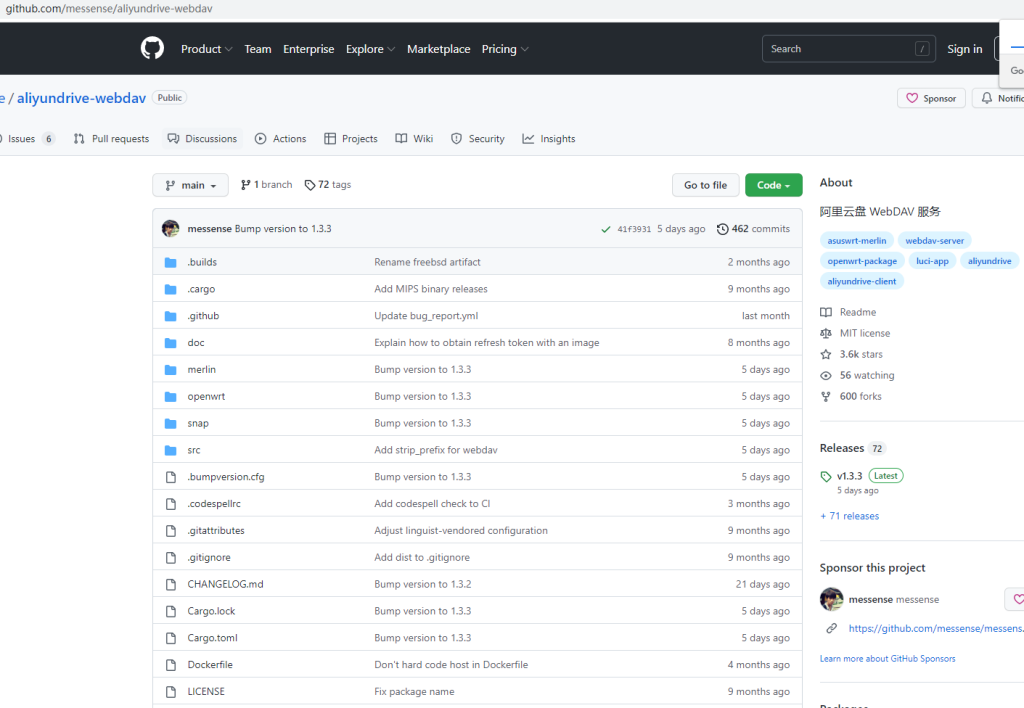
Project address: https://github.com/messense/aliyundrive-webdav
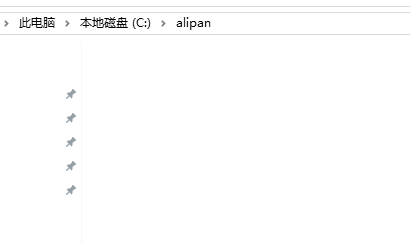
1. Create a new folder named alipan on your C drive.
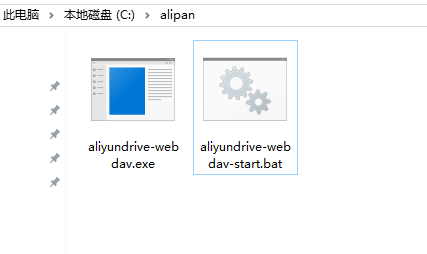
2. Download the aliyundrive-webdav software and the bat startup script, then extract them into the C:\alipan folder:
(Since this software updates frequently, it is recommended to download the latest version)
aliyundrive-webdav download:
https://mirror.cnop.net/?search=aliyundrive-webdav
or
https://github.com/messense/aliyundrive-webdav/releases
Startup script download (you can rename it to start.bat after downloading; the default name is also fine):
https://mirror.cnop.net/?search=aliyundrive-webdav-start
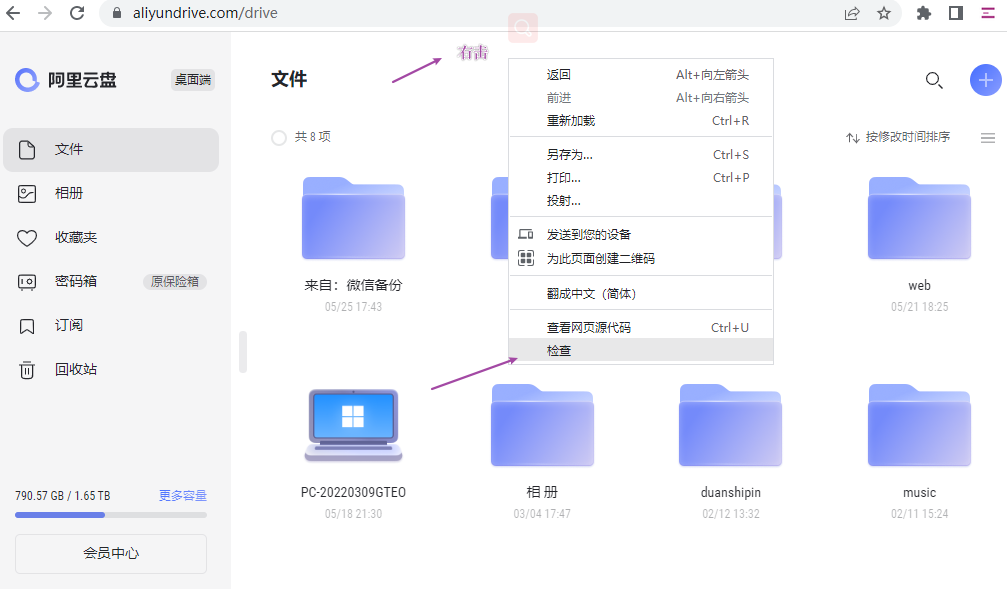
3. Obtain the refresh-token:
Go to the official website https://www.aliyundrive.com, log in, then right-click on any blank area and select Inspect.
Application -> Storage -> website domain -> token
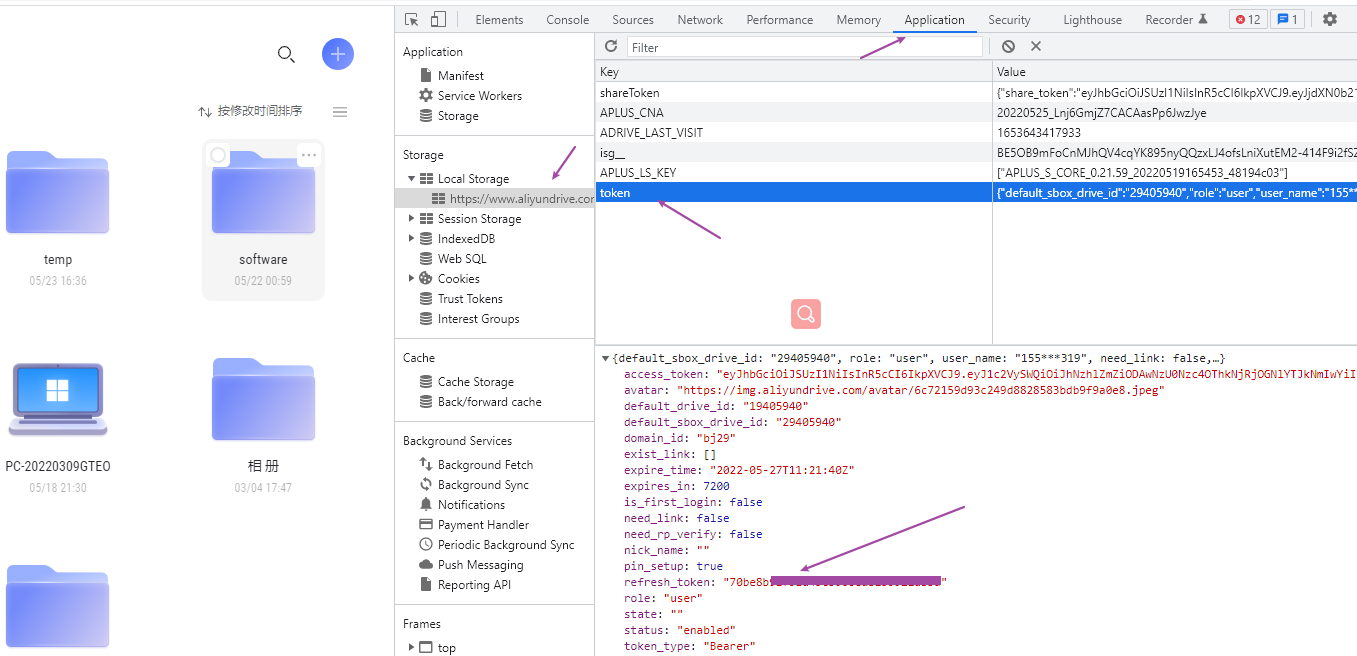
Right-click -> Copy value:

4. Right-click on start.bat (if not renamed, it should be aliyundrive-webdav-start.bat), select “Edit”, and replace the refresh-token inside with the value you just copied:

@echo off
if “%1” == “h” goto begin
mshta vbscript:createobject(“wscript.shell”).run(“%~nx0 h”,0)(window.close)&&exit
:begin
c:/alipan/aliyundrive-webdav.exe -p 8080 –auto-index –refresh-token=3ecabb3c2edd457786391b6xxxxxxxxxx –auth-user=admin –auth-password=admin
5. Start it and add it to startup:
Double-click start.bat to launch it.
Right-click start.bat -> Send to -> Desktop (create shortcut).
Press Windows+R to open the Run dialog and type: shell:startup

Cut and paste the desktop start.bat shortcut here:

Mounting:
Mount tool download https://mirror.cnop.net/?search=raidrive
After installation, click Add in the top right corner and fill in the address, port, user, password, and other information respectively (as shown below):

Finally, click Connect to finish.
Reference video:
https://www.ixigua.com/7102439517583311397