

1. Operations on the client machine will not affect the master under any circumstances.
If the client forcefully kills the mfsmount process using kill -9, you must first umount and then mount again. Otherwise, you will see this error:
fuse: bad mount point `/usr/mfstest/': Transport endpoint is not connected
see: /usr/local/mfs/bin/mfsmount -h for help
2. On the master, metalogger, chunker, and client servers, processes shut down normally during system shutdown (init0) or reboot (init6). No repair is needed.
3. After the master starts, the metalogger, chunker, and client all automatically establish connections with it.
Normal startup order: master—chunker—metalogger—client
Shutdown order: client—chunker—metalogger—master
However, in practice, no anomalies were observed regardless of the startup or shutdown order.
4. In the entire MFS system, only the master may fail to start after a sudden power loss.
Use mfsmetarestore -a to repair and allow it to start. If that fails, use the backup log from the metalogger for recovery. (Several tests revealed: if mfsmetarestore -a cannot repair, using the metalogger also fails to repair).
Forcefully creating metadata.mfs from metadata.mfs.back can start the master, but it likely results in a loss of 1 hour of data.
The MFS development team replied regarding this issue: they explicitly stated that data between the failure point and the previous full hour would be lost. This aligns with my earlier suspicion. Because operation logs for MFS are recorded in changelog.0.mfs, which merges into metadata.mfs every hour. If a sudden power loss occurs, the information in changelog.0.mfs hasn’t been merged into metadata yet. Forcefully creating metadata.mfs from metadata.mfs.back leads to losing the data in changelog.0.mfs.
Original text from the MFS team: metadata.mfs.back contains metadata from within the last hour – you can run the master server based on this file but you lose metadata from last hour from the outage. It mainly concerns the files which were saved or modified during this time. The system would be consistent but we'll lack the last changes.
Command "mfsmetarestore" tries to add to "metadata.mfs.back" all the changes which taken place from last save of it till the moment of outage.
Regarding the previously encountered unrecoverable failure, I asked if future versions could offer the ability to restore to a specific version number. Their reply was:
Maybe in the future we'll implement two options to "metarestore":
– ignore any erroers, recover as much as it is possible
– save the file after encountering the first error
During sudden power loss tests, cases where mfsmetarestore –a failed and metalogger recovery also failed occurred relatively infrequently. Out of 5 tests, only one was unrecoverable.
5. Chunker Maintenance: Chunker chunks can automatically replicate or be deleted.
When setting a “goal” for a directory, newly created files and subdirectories under it inherit this directory’s setting, but the copy count for already existing files and directories remains unchanged. However, using the -r option can change the copy count for existing items.
If the goal is set to 2, data integrity is guaranteed as long as at least one of the two chunkers runs normally.
Assuming the goal (number of copies) for every file is not less than 2, and there are no under-goal files (check using mfsgetgoal –r and mfsdirinfo commands), then a single chunkserver can be stopped or restarted at any time. Later, whenever you need to stop or restart another chunkserver, ensure the previous chunkserver is connected and there are no under-goal chunks.
In actual testing, while transferring a large file with a storage goal of 2 copies, shutting down chunker1 during the transfer will definitely result in some chunks existing only on chunker2. Starting chunker1 and then shutting down chunker2 will definitely result in some chunks existing only on chunker1.
Starting chunker2 again: the client was able to keep transferring normally throughout the entire process.
On the client side, the file was inaccessible for a period, then became accessible again after a short while. The file was fine. Using mfsfileinfo to check this file revealed that some chunks were distributed on chunker1 and some on chunker2.
Using mfssetgoal 2 and mfssetgoal -r 2 could not change the current distribution status of this file’s chunks.
However, after using mfssetgoal -r 1, all chunks were modified to 1 copy. Then, using mfssetgoal -r 2 changed all chunks to 2 copies.
Testing whether the chunker has issues under a sudden power loss scenario:
a. During data transfer, turn off chunker1. After the data transfer is complete, power on and start chunker1.
After chunker1 starts, it automatically replicates data chunks from chunker2. File access is not affected throughout this process.
b. During data transfer, turn off chunker1. Without waiting for the data transfer to complete, power on and start chunker1.
After chunker1 starts, the client will send data to chunker1, and simultaneously, chunker1 replicates missing chunks from chunker2.
If there are three chunkers and goal=2, chunks are randomly stored on two selected chunkers.
If one chunker becomes unavailable, then some chunks on the remaining two chunkers will definitely only have a single copy stored. After the interval defined by the parameter (REPLICATIONS_DELAY_DISCONNECT = 3600), chunks with only one copy will automatically be replicated to achieve two copies.
After two copies exist, if the previously failed chunker becomes available again, some chunks will then have three copies stored. MFS will automatically delete the extra copy.
When I added a third server as an extra chunkserver it looked like it started replicating data to the 3rd server even though the file goal was still set to 2. Yes. Disk usage ballancer uses chunks independently, so one file could be redistributed across all of your chunkservers.
6. Chunk Repair: mfsfilerepair
mfsfilerepair deals with broken files (those which cause I/O errors on read operations) to make them partially readable. In case of missing chunk it fills missing parts of file with zeros; in case of chunk version mismatch it sets chunk version known to mfsmaster to highest one found on chunkservers. Note: because in the second case content mismatch can occur in chunks with the same version, it’s advised to make a copy (not a snapshot!) and delete original file after "repairing".
During a large file transfer on the client, forcefully unplugging the master host’s power supply caused an illegal shutdown of the master. After using mfsmetarestore -a to repair, the master log reported bad blocks:
Jan 19 17:22:17 ngmaster mfsmaster[3250]: chunkserver has nonexistent chunk (000000000002139F_00000001), so create it for future deletion
Jan 19 17:22:18 ngmaster mfsmaster[3250]: (192.168.5.232:9422) chunk: 000000000002139F creation status: 20
Jan 19 17:25:18 ngmaster mfsmaster[3250]: chunk 000000000002139F has only invalid copies (1) – please repair it manually
Jan 19 17:25:18 ngmaster mfsmaster[3250]: chunk 000000000002139F_00000001 – invalid copy on (192.168.5.232 – ver:00000000)
Jan 19 17:26:43 ngmaster mfsmaster[3250]: currently unavailable chunk 000000000002139F (inode: 135845 ; index: 23)
Jan 19 17:26:43 ngmaster mfsmaster[3250]: * currently unavailable file 135845: blog.xxx.cn-access_log200904.tar.gz
The client repaired it using mfsfilerepair
[root@localhost mfstest]# /usr/local/mfs/bin/mfsfilerepair blog.xxx.cn-access_log200904.tar.gz
blog.xxt.cn-access_log200904.tar.gz:
chunks not changed: 23
chunks erased: 1
chunks repaired: 0
Checking the master log revealed:
Jan 19 17:30:17 ngmaster mfsmaster[3250]: chunk hasn't been deleted since previous loop – retry
Jan 19 17:30:17 ngmaster mfsmaster[3250]: (192.168.5.232:9422) chunk: 000000000002139F deletion status: 13
Jan 19 17:35:16 ngmaster mfsmaster[3250]: chunk hasn't been deleted since previous loop – retry
Jan 19 17:35:16 ngmaster mfsmaster[3250]: (192.168.5.232:9422) chunk: 000000000002139F deletion status: 13
After executing the following operation on the client, the master stopped reporting related information:
mv blog.xxt.cn-access_log200904.tar.gz blog.xxt.cn-access_log200905.tar.gz
7. Chunker Space
Each chunkserver’s disk must reserve some disk space for growing chunks to allow the creation of new chunks. New data access is only possible when all disks have over 256MB free and chunkservers report more than 1GB of total free space. The minimum recommended configuration should start from several GB of storage.
When doing df -h on a filesystem the results are different from what I would expect taking into account actual sizes of written files.Every chunkserver sends its own disk usage increased by 256MB for each used partition/hdd, and a sum of these master sends to the client as total disk usage. If you have 3 chunkservers with 7 hdd each, your disk usage will be increased by 3*7*256MB (about 5GB). Of course it's not important in real life, when you have for example 150TB of hdd space.
There is one other thing. If you use disks exclusively for MooseFS on chunkservers df will show correct disk usage, but if you have other data on your MooseFS disks df will count your own files too.
If you want to see usage of your MooseFS files use 'mfsdirinfo' command.
8. Snapshot
You can snapshot any file or directory. Syntax: mfsmakesnapshot src dst
However, both src and dst must belong to the MFS system, meaning you cannot snapshot a file from the MFS system to another filesystem. Both elements must be on the same device.
Mfsappendchunks: append chunks to a file
append file chunks to another file. If destination file doesn't exist then it's created as empty file and then chunks are appended
Snapshot testing:
a. After creating a snapshot of a file, checking both files shows they share the same chunk. Deleting the original file (initially visible in the trash bin, but permanently deleted after some time) leaves the snapshot file intact and accessible. Using mfsfileinfo to check reveals it still uses the original chunk.
b. After creating a snapshot of a file, both files share the same chunk. After modifying the original file, the chunk name used by the original file changes, indicating it now uses a new chunk. The snapshot file still uses the original chunk.
9. Trash Bin
Set the deletion time for files or directories. The time a deleted file remains in the "trash bin" is called the isolation time, viewable via the mfsgettrashtime command and settable via the mfssettrashtime command. The unit is seconds.
Independently install or mount the MFSMETA filesystem (mfsmount -m mountpoint). It contains the /trash directory (holds info on deleted files that can still be restored) and /trash/undel (used to retrieve files).
Moving a deleted file to /trash/undel restores it.
Inside the MFSMETA directory, besides the trash and trash/undel directories, there is a third directory called reserved. This directory contains deleted files that are still kept open by other users. Once users close these opened files, the files in the reserved directory are deleted, and their data is immediately removed. This directory cannot be operated on manually.
10. File Descriptors
In version 1.5.12, a serious error occurred during intensive small file writes, possibly related to the operating system’s file descriptor limit. The default OS file descriptor limit was 1024.
Version 1.6.11 defaults to 100000.
It is recommended that when going live, you modify the file descriptor limit on master and chunker servers by editing /etc/security/limits.conf and adding:
* – nofile 65535
11. mfscgiserv
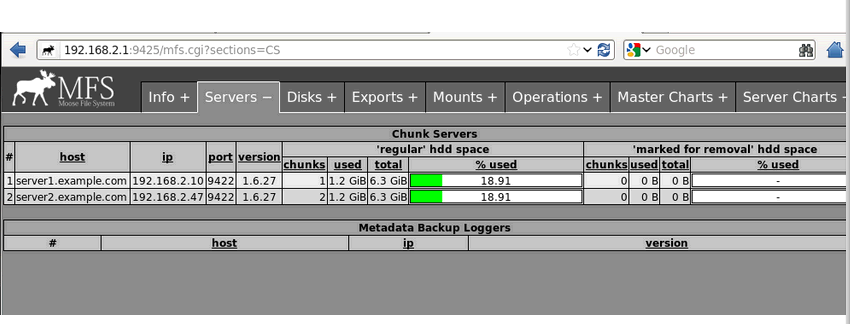
Mfscgiserv is a python script listening on port 9425. Start it directly using /usr/local/mfs/sbin/mfscgiserv. Using a browser, you can comprehensively monitor all client mounts, chunkservers, the master server, and various client operations.