

phpinfo() is a function used to display the current PHP environment. How can you check whether your hosting supports pseudo-static URLs using the phpinfo() function?
1. Create a PHP environment detection file, such as: phpinfo.php.
2. Place the detection file in your web server’s root directory (typically the wwwroot directory for virtual hosting).
3. Execute the phpinfo.php file by entering your URL (domain name)/phpinfo.php in the browser and pressing Enter.
4. Under normal circumstances, you will see the following interface:
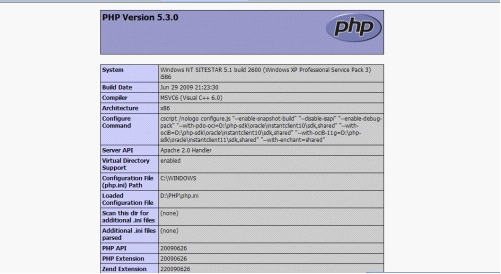
5. Use Ctrl+F to search for Loaded Modules, and you will see the following interface:
If the Loaded Modules value includes mod_rewrite, it means your environment supports pseudo-static URLs!
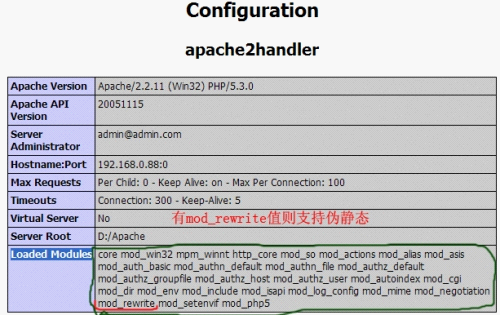
Appendix: Apache Environment Pseudo-static Configuration
1. Check whether Apache supports mod_rewrite. Use PHP’s phpinfo() function to view the environment configuration. Press Ctrl+F to search for “Loaded Modules”, which lists all modules enabled by apache2handler. If it includes “mod_rewrite”, then support is already enabled and no further configuration is needed.
If “mod_rewrite” is not enabled, open the httpd.conf file located in your Apache installation directory “/apache/conf/”. Press Ctrl+F to search for “LoadModule rewrite_module” and remove the “#” at the beginning of the line.
If it is not found, go to the “LoadModule” section and add “LoadModule rewrite_module modules/mod_rewrite.so” on the last line (must be on its own line), then restart the Apache server.
2. Enable .htaccess support in Apache
Modify the httpd.conf file
Options FollowSymLinks
AllowOverride None
Change to
Options FollowSymLinks
AllowOverride All
Note: In addition to the above settings, you also need to configure the following (many online resources overlook this part), otherwise your configuration will fail. Change the DocumentRoot parameter to your local website directory. For example, if your website root directory is D:/web/, set it to DocumentRoot “D:/web/”, i.e., modify the current directory.
After completing this step, you must also restart the Apache server for the changes to take effect.
3. Create the .htaccess file
Create a new file: htaccess.txt
Open it with Notepad, click File – Save As, enter “.htaccess” in the file name field, and click Save. This file must be saved in the root directory of your website.
4. Fill in the website pseudo-static rewrite rules (requires knowledge of regular expressions)
RewriteEngine on
RewriteRule index.html$ index.php
RewriteRule index-([1-9]+[0-9]*).html$ index.php?p=$1