

In the era of “big data,” we often encounter large text files (multiple GB or larger). Imagine needing to manually search and edit these massive files, or analyzing several multi-GB log files by hand to solve a specific problem. Traditional text editing software is not very effective at handling such large files, and we are often frustrated by out-of-memory errors when trying to open them.
If you are a savvy system administrator, you might use a combination of commands like cat, tail, grep, sed, and awk to open and manipulate a text file. In this tutorial, I will discuss more user-friendly ways to open (and edit) a large text file in Linux.
Vim LargeFile Plugin
The Vim text editor boasts a vast collection of plugins (or scripts) that extend Vim’s functionality. One such plugin is the LargeFile plugin.
The LargeFile plugin enables large files to be loaded and edited more quickly by turning off certain Vim features like events, undo, and syntax highlighting.
To install the LargeFile plugin on Vim, first ensure that Vim is installed.
On Debian, Ubuntu, or Linux Mint:
$ sudo apt-get install vim
On Fedora, CentOS, or RHEL:
$ sudo yum install vim-enhanced
You can download the LargeFile plugin from the Vim website. The latest version is 5, and the downloaded file will be saved in Vimball format (with a .vba extension).
To install the plugin in your home directory, open the .vba file with Vim as shown below.
$ gunzip LargeFile.vba.gz$ vim LargeFile.vba
In the Vim window, type “:so %” and press Enter to install the plugin in your home directory.
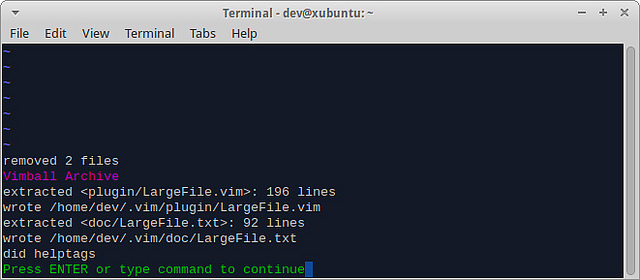
Once finished, type “:q” to exit Vim.
The plugin will be installed at ~/.vim/plugin/LargeFile.vim. You can now use Vim as you normally would.
When loading a “large” file in Vim, this plugin works by turning off events, undo, syntax highlighting, and other features. By default, files larger than 100MB are considered “large files” by the plugin. To change this default setting, you can edit the ~/.vimrc file (create it if it does not exist).
For example, to set the large file threshold to 10MB, add the following to ~/.vimrc:
let g:LargeFile=10
While LargeFile can speed up file loading, Vim itself does not handle editing extremely large files well, because it loads the entire file into memory at once. For instance, loading a 1GB file with Vim will consume a significant amount of memory and swap space, as shown in the top output below.
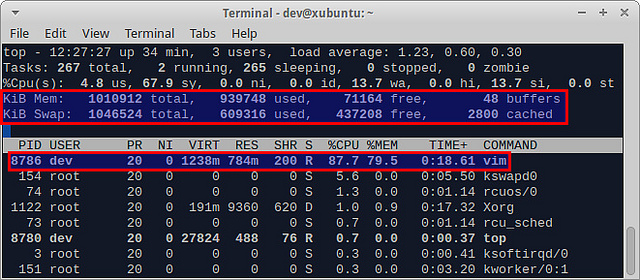
So if your file is significantly larger than your Linux system’s physical memory, you should consider other options, as described below.
glogg Log Explorer
If you only need to view a text file without editing it, consider glogg. It is a standalone, GUI-based log analyzer. The glogg analyzer supports filtering and selecting the text file to be opened using regular expressions and wildcards, allowing users to see only the content they truly care about.
To install glogg on Debian (Wheezy or later), Ubuntu, or Linux Mint:
$ sudo apt-get install glogg
To install glogg on Fedora (17 or later):
$ sudo yum install glogg
Open a text file with glogg:
$ glogg test.log
glogg can open a large text file very quickly. It took me about 12 seconds to open a 1GB log file.
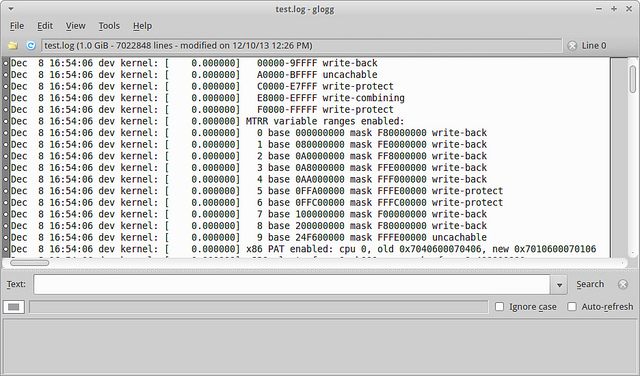
In the "Text" field, you can enter a regular expression and click the "Search" button. It supports case-sensitive search and auto-refresh functionality. After searching, the filtered results are displayed at the bottom of the window.
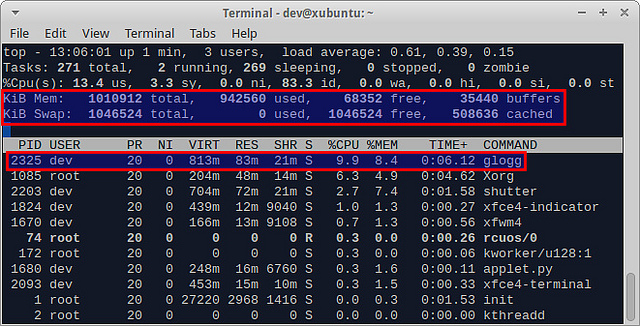
Compared to Vim in terms of file loading, glogg is much more lightweight. After loading a 1GB log file, it only used 83MB of physical memory.
JOE Text Editor
JOE is a lightweight, terminal-based text editor released under the GPL. JOE is one of the rare text editors that supports large files, capable of opening and editing files larger than the physical memory.
Furthermore, JOE supports various powerful text editing features, such as non-destructive editing, search and replace with regular expressions, unlimited undo/redo, syntax highlighting, and more.
To install JOE on Debian, Ubuntu, or Linux Mint:
$ sudo apt-get install joe
To install JOE on Fedora, CentOS, or RHEL:
$ sudo yum install joe
To open and edit a text file, run:
$ joe test.log
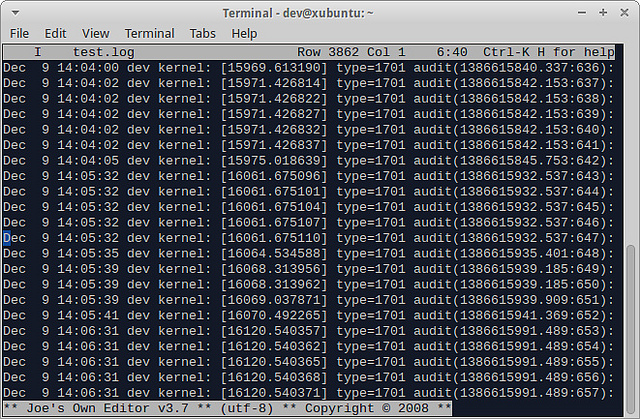
Compared to the previously mentioned glogg, loading a large text file with JOE is a bit sluggish; loading a 1GB file took nearly 30 seconds. However, considering that full-text editing is required, this is tolerable. Once the file is loaded, you can edit it in a relatively fast terminal mode.
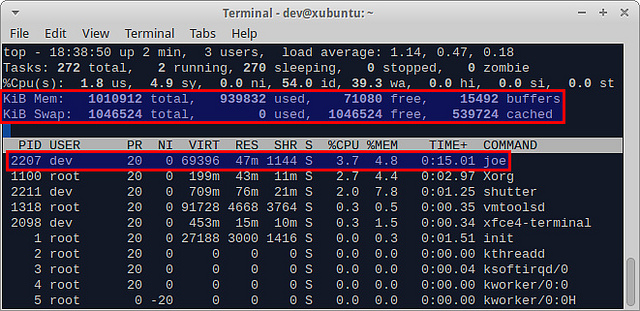
JOE’s memory consumption is impressive. Loading and editing a 1GB text file only used 47MB of physical memory.
If you know of other methods to open/edit large text files in Linux, please share them with us!
via: http://xmodulo.com/2013/12/open-large-text-file-linux.html