

/dev/shm is a special directory mounted by default on system memory, with a size of half the total system RAM. However, this size often fails to meet our needs in many cases. Below is how to modify its size on CentOS 6.x systems.
1. Edit /etc/fstab
#vim /etc/fstab
Before: tmpfs /dev/shm tmpfs defaults 0 0
After: tmpfs /dev/shm tmpfs defaults,size=32g 0 0
2. Remount /dev/shm
#mount -o remount /dev/shm
Normally, the above two steps will take effect on Red Hat or CentOS versions 6 and above.
The setting will be lost after a reboot, and you need to run the following command after startup to make it effective again:
mount -o remount /dev/shm
This issue appears to be a system bug, which can be found in Red Hat’s Bugzilla ( https://bugzilla.redhat.com/show_bug.cgi?id=669700 ). There is also a workaround for this, as follows:
Edit /etc/rc.d/rc.sysinit
#vim /etc/rc.d/rc.sysinit
Before: mount -f /dev/shm >/dev/null 2>&1
After: mount /dev/shm >/dev/null 2>&1
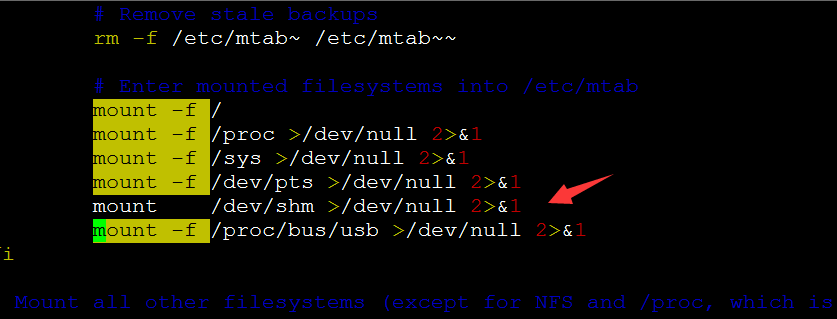
Reboot Linux to check if it takes effect:
#reboot
Check the size again:
#df -h
