

The URLRewrite.txt file in the docs directory of the Ecshop extracted folder provides a brief overview of how to enable static pages in Ecshop. The main steps are:
1. Add in httpd.conf;
2. Remove the # before #LoadModule rewrite_module in httpd.conf;
3. In the ecshop directory
The URLRewrite.txt file in the docs directory of the Ecshop extracted folder provides a brief overview of how to enable static pages in Ecshop.
The main steps are:
1. Add “” in httpd.conf;
2. Remove the # before #LoadModule rewrite_module in httpd.conf;
3. Rename htaccess.txt in the ecshop directory to .htaccess. On Windows 2003 (Win2003), you may not be able to rename it directly. Go to the command line (Start – Run – type cmd.exe), navigate to the ecshop directory, and enter rename htaccess.txt .htaccess. You can also directly upload a file that someone else has already renamed.
4. Restart Apache.
5. Go to the Ecshop Admin Panel – Store Settings, set URL Rewrite to Enabled, and choose either Simple or Complex mode.
Example: 1. Open .htaccess
Find
RewriteRule ^goods-([0-9]+)(.*).html$ goods.php?id=$1 [QSA,L]
Modify it to your desired pattern, e.g.
RewriteRule ^mygood-([0-9]+)(.*).html$ goods.php?id=$1 [QSA,L]
After modification, open
the build_uri function in the include/lib_common.php file
Find the product section
case 'goods':
if (empty($gid))
{
return false;
}
else
{
$uri = $rewrite ? 'mygood-' . $gid : 'goods.php?id=' . $gid;
}
break;
Go to the admin backend and clear the cache to complete the modification.
If the navigation links do not end with .html —–
The navigation URLs are not automatically generated; they are set in the admin backend. See the Custom Navigation Bar settings in the Ecshop website backend System Settings.
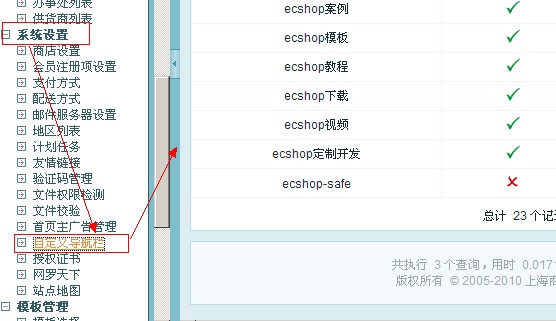
Simply change the URL of each menu item to a pseudo-static URL.