

You can download the software from the official website or the following link:
1. After downloading, extract it to the C drive:
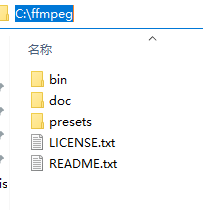
2. Environment Variable Configuration (using Windows 10 as an example):
2. Environment Variable Configuration (using Windows 10 as an example):
Right-click “My Computer” -> Properties -> Advanced System Settings -> Advanced -> Environment Variables -> User variables for administrator
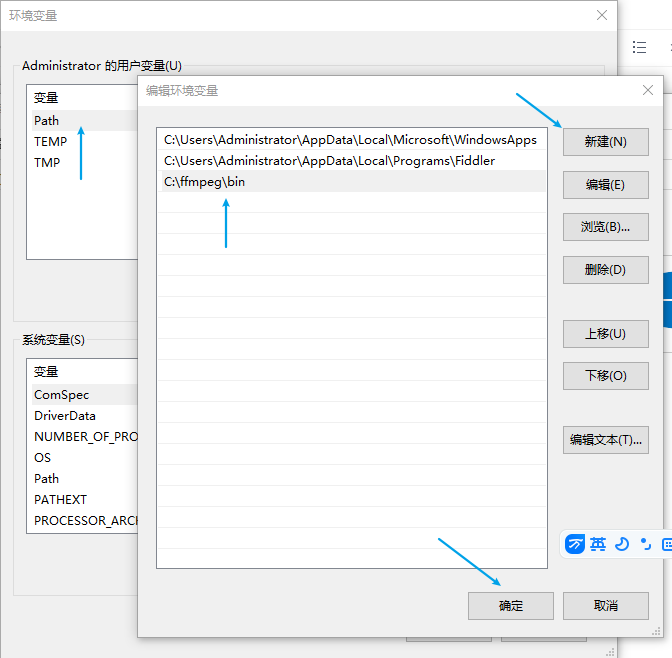
3. Testing
Press Windows+R to open the Run dialog, type “cmd” and click OK
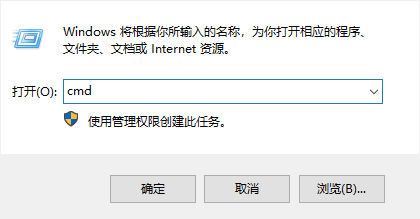
Type ffmpeg -version and press Enter. If you see output similar to the following, it is successful: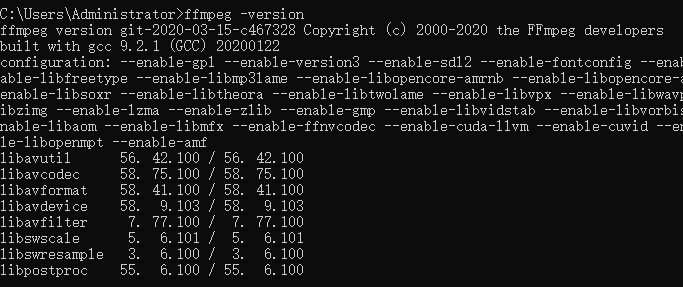
4. Downloading Videos
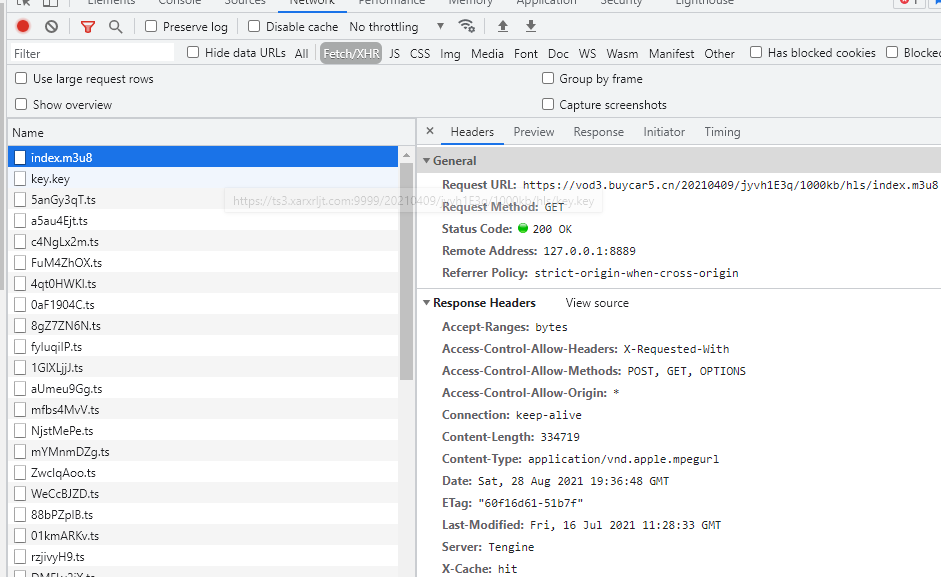
Right-click on the webpage and select “Inspect” -> Network -> XHR, type m3u8 in the search box
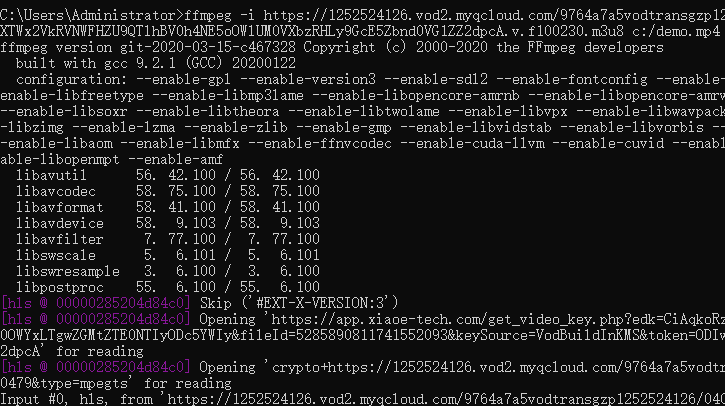
The command is as follows (demo address):
ffmpeg -i https://1252524126.vod2.myqcloud.com/9764a7a5vodtransgzp1252524126/040360685285890811741552093/drm/voddrm.token.ODIwOGJmODE5ODE4ZmJmNWRXTWx2VkRVNWFHZU9QTlhBV0h4NE5oOWlUM0VXbzRHLy9GcE5Zbnd0VG1ZZ2dpcA.v.f100230.m3u8 c:/demo.mp4
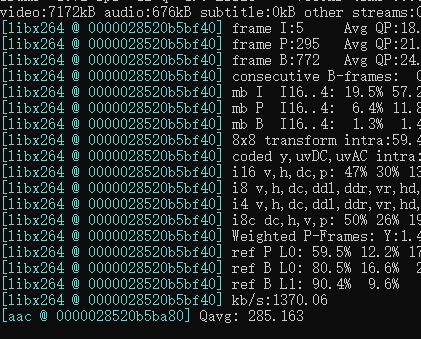
After the download completes, the file will be saved as demo.mp4 on the C drive.