GPG is an excellent open-source encryption tool. It can effectively protect information from being monitored or tampered with, playing a vital role in safeguarding personal privacy.
During the U.S. surveillance programs revealed years ago, it also played a key part in protecting the safety of whistleblower Edward Snowden.
Next, let’s take a simple look at how to encrypt and decrypt file information.
1. Install rng-tools
yum install rng-tools #First, install a key generation tool
rngd -r /dev/urandom
Otherwise, you will get the following message:
We need to generate a lot of random bytes. It is a good idea to perform
some other action (type on the keyboard, move the mouse, utilize the
disks) during the prime generation; this gives the random number
generator a better chance to gain enough entropy.
2. GPG tool: This tool is generally included by default in Linux systems, so no separate installation is needed:
gpg -help #View help file and version info
3. Generate a GPG Key Pair: Before using GPG, you must generate a key pair.
gpg –gen-key
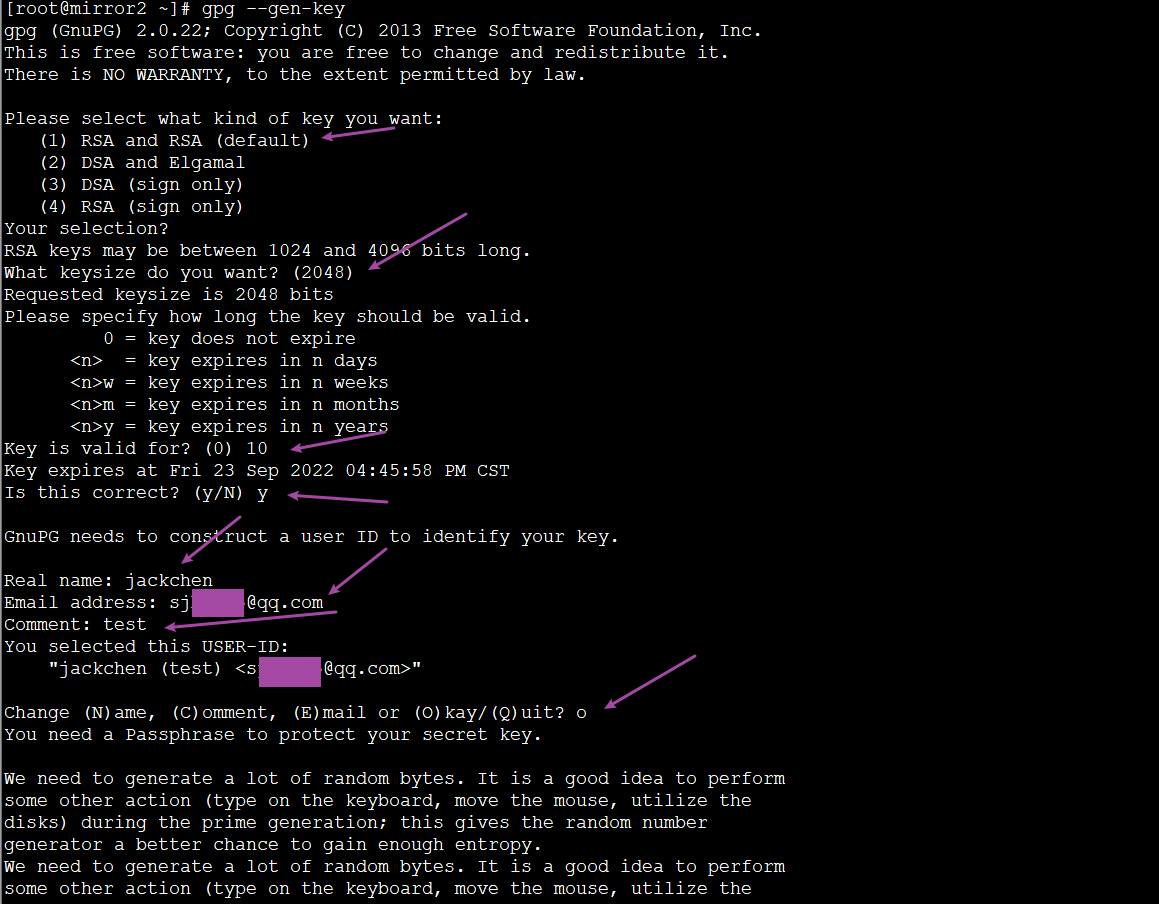
Please select what kind of key you want:
(1) RSA and RSA (default)
(2) DSA and Elgamal
(3) DSA (sign only)
(4) RSA (sign only)
Your selection?
Encryption type: Here we choose the first default option and just press Enter.
RSA keys may be between 1024 and 4096 bits long.
What keysize do you want? (2048)
Encryption bit length: Just press Enter directly.
Please specify how long the key should be valid.
0 = key does not expire
<n> = key expires in n days
<n>w = key expires in n weeks
<n>m = key expires in n months
<n>y = key expires in n years
Key is valid for? (0)
Set key expiration time: If you don’t need a password expiry, enter “0”. However, for better information security, setting a time limit is generally recommended. Here, we temporarily enter “10” and press Enter.
Format reference:
10 #Default is in days. Entering “10” and pressing Enter means it expires 10 days after encryption.
1w # Entering “1w” and pressing Enter means it expires after one week.
1y # Entering “1y” and pressing Enter means it expires after one year…
Key expires at Fri 23 Sep 2022 04:45:58 PM CST
Is this correct? (y/N) y
Enter “y” to confirm directly.
Key expires at Fri 23 Sep 2022 04:27:39 PM CST
Is this correct? (y/N)
After entering the date and pressing Enter, the prompt above will ask for confirmation. Just enter “y” to confirm.
Real name: jackchen
Email address: sj***@qq.com
Comment: test
Enter the above information based on your actual situation.
Change (N)ame, (C)omment, (E)mail or (O)kay/(Q)uit? o
Enter “o” and press Enter.
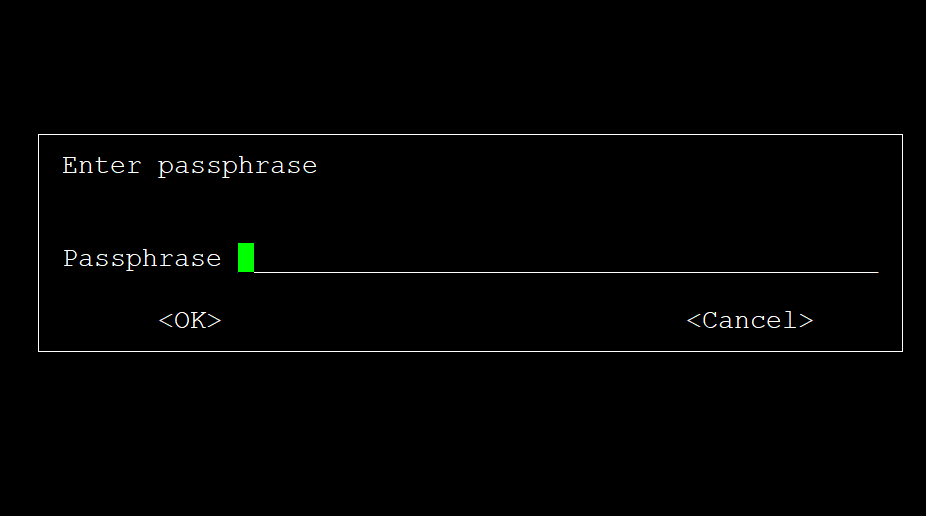
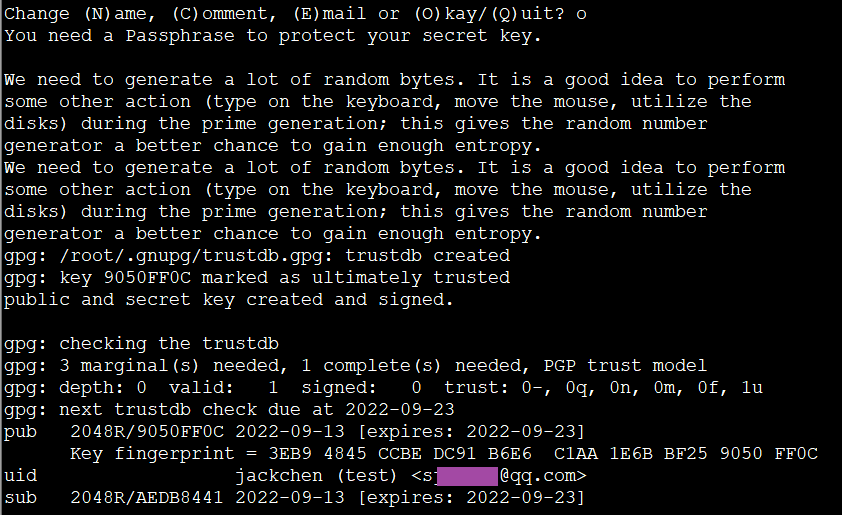
Follow the prompt to enter a passphrase, and you’ll eventually see the prompt below.
4. Usage
Encryption: Suppose we want to encrypt a file named h.txt in our system.
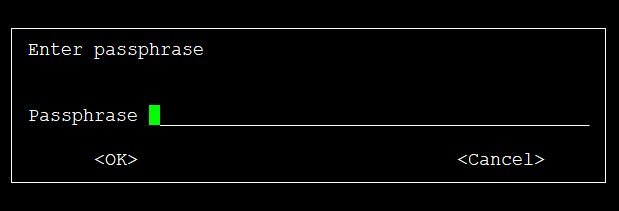
gpg -c h.txt #A password dialog box will appear below. Enter and confirm your passphrase.
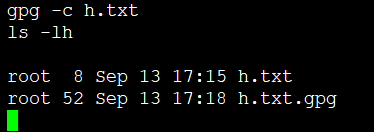
ls -lh #At this point, an extra encrypted file h.txt.gpg will appear. This file can be sent to the recipient, who can then use the preset passphrase to decrypt it.
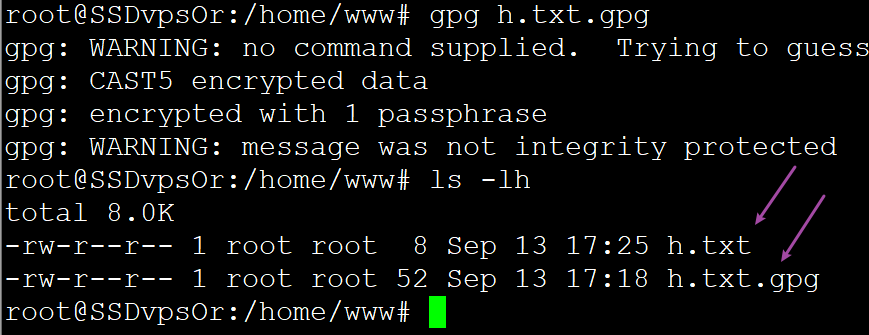
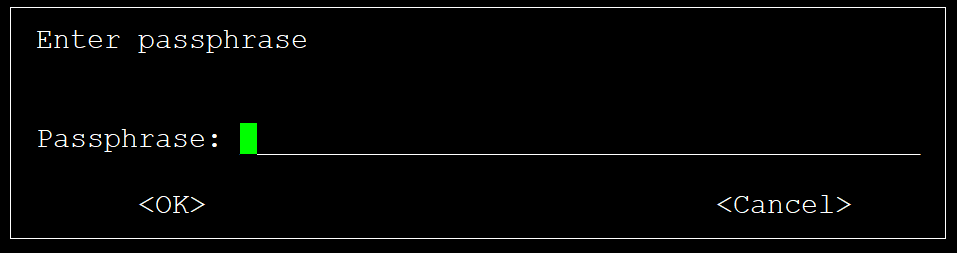
Decryption: Assuming the user has received this file on another computer, run the following command to decrypt it and view the file and its content:
gpg h.txt.gpg
ls -lh #You can see the decrypted file now