

How to Fix phpMyAdmin “Cannot Load mysql Extension” Error
After configuring the PHP runtime environment and installing the MySQL database, the next step is to learn how PHP interacts with MySQL.
Since MySQL is a database, operations like creating databases, tables, and fields are essential (imagine the scenario of using ASP+ACCESS). However, for MySQL databases, the default installation does not include a visual interface for operating MySQL. Therefore, we often rely on phpMyAdmin to manage MySQL databases.
However, when using the “PHP 5.2.3 installer” version and applying it to phpMyAdmin, the page displayed the error: “Cannot load mysql extension, please check PHP configuration.”
1. First, check the PHP configuration file, php.ini.
Open the php.ini file located in the PHP installation directory. Press Ctrl+F and search for “php_mysql.dll”. Remove the “;” before “;extension=php_mysql.dll” to uncomment it. Also, search for “extension_dir” and modify its value to the folder containing the “php_mysql.dll” file.
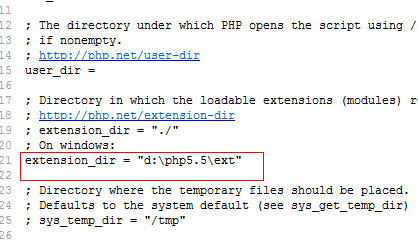
That is:
extension_dir = "D:/PHP/ext"
extension=php_mysql.dll
2. However, the installer version used here did not include the ext folder containing the PHP extension DLL files, meaning php_mysql.dll was missing. Naturally, running phpMyAdmin would cause problems.
Next, go to http://www.php.net/downloads.php, select the “PHP 5.2.3 zip package” archive, and extract the entire ext folder from it into your PHP installation directory. This allows you to set extension_dir = "D:PHPext" (Note: this assumes PHP is installed on the D drive).
3. After completing the modifications to the php.ini file and adding the ext folder containing php_mysql.dll, it is recommended to restart your computer before debugging phpMyAdmin.
4. Of course, you should also modify the MySQL username and password in the config.inc.php file located inside the phpMyAdmin folder.
Additionally, searching online for solutions to this problem, some fixes require copying the “php.ini file and php_mysql.dll to the c:/windows and c:/windows/system32 directories”. This is necessary for non-installer versions of PHP, whereas the installer version generally does not require this. You can check by right-clicking “My Computer”, selecting “Properties” -> “Advanced” -> “Environment Variables”, and checking the system variable “Path”, which specifies the PHP installation path.
With the solution to the phpMyAdmin “Cannot load mysql extension, please check PHP configuration” error resolved (thanks to Hanxiao for guidance and reference), you can now proceed to learn how to use PHP for MySQL interaction.