

I. Summary
This article summarizes how to enable Gzip compression for websites hosted on IIS, thereby reducing the network transfer size of web pages and improving page load speed for users.
II. Preface
The knowledge points in this article are collected and organized from the internet, mainly sourced from the Chinese wiki. When using YSlow to detect which optimizations a website has enabled, Gzip is a critical one. Enabling Gzip compression will immediately reduce the network transfer size of pages.
III. Overview of HTTP Compression
HTTP compression is a method of transmitting compressed text content between web servers and browsers. HTTP compression uses common compression algorithms such as gzip to compress HTML, JavaScript, or CSS files. The biggest advantage of compression is reducing the amount of data transferred over the network, thereby increasing the access speed for client browsers. Of course, it also adds a slight burden on the server. Gzip is one of the more common HTTP compression algorithms.
IV. How HTTP Compression Works
The working principle of web servers processing HTTP compression is as follows:
1. After the web server receives the browser’s HTTP request, it checks whether the browser supports HTTP compression;
In the HTTP header sent by the user’s browser request, the presence of the "Accept-Encoding: gzip, deflate" parameter indicates support for both gzip and deflate compression algorithms.
2. If the browser supports HTTP compression, the web server checks the file extension of the requested file;
Both static and dynamic file extensions need to be set in MetaBase.xml to be enabled.
Static files require setting: HcFileExtensions Metabase Property (Click to jump to MSDN description)
Dynamic files require setting: HcScriptFileExtensions Metabase Property (Click to jump to MSDN description)
3. If the requested file is a static file like HTML or CSS and the file extension has compression enabled, the web server checks the compression cache directory to see if the latest compressed version of the requested file already exists;
4. If the compressed version of the requested file does not exist, the web server returns the uncompressed requested file to the browser and stores the compressed version of the requested file in the compression cache directory;
5. If the latest compressed version of the requested file already exists, it directly returns the compressed file;
6. If the requested file is a dynamic file like ASPX and the file extension has compression enabled, the web server dynamically compresses the content and returns it to the browser; the compressed content is not stored in the compression cache directory.
V. Enabling HTTP Compression in IIS
IIS does not support HTTP compression by default; simple configuration is required.
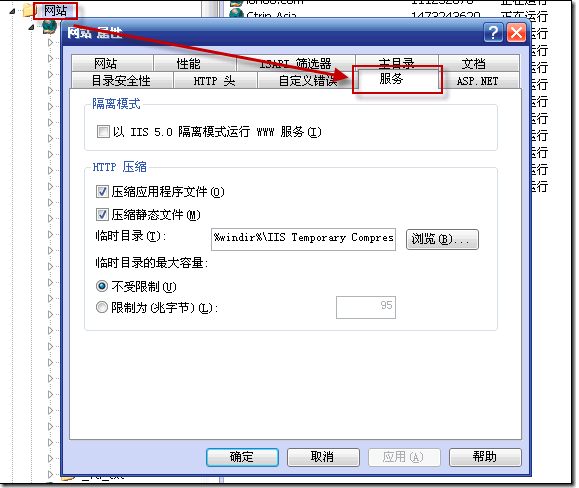
1. Open Internet Information Services (IIS) Manager, right-click "Web Sites" -> "Properties", and select the "Service" tab. In the "HTTP Compression" section, check "Compress application files" and "Compress static files", and set the "Temporary directory" and "Maximum temporary directory size" as needed;
2. Note: Through testing, this step had no effect on my machine and can be ignored.
In Internet Information Services (IIS) Manager, right-click "Web Service Extensions" -> "Add a new Web service extension…", in the "New Web Service Extension" dialog, enter the extension name "HTTP Compression", add the "Required files" as C:/WINDOWS/system32/inetsrv/gzip.dll (the Windows system directory may vary depending on your installation), and check "Set extension status to Allowed";
3. Use a text editor to open C:/Windows/System32/inetsrv/MetaBase.xml (recommend backing up first),
Locate Location ="/LM/W3SVC/Filters/Compression/gzip for setting up gzip compression,
Locate Location ="/LM/W3SVC/Filters/Compression/deflate" for setting up deflate compression.
The above two nodes are adjacent and have the same configurable properties.
If you need to compress dynamic files, set HcDoDynamicCompression to "TRUE", and add the dynamic file extensions you want to compress in HcScriptFileExtensions, such as aspx; if you need to compress static files, set HcDoStaticCompression and HcDoOnDemandCompression to "TRUE", and add the static file extensions you need to compress in HcFileExtensions, such as xml, css, etc.; HcDynamicCompressionLevel and HcOnDemandCompLevel represent the desired compression rate, with values ranging from 0-10, defaulting to 0.
HcDynamicCompressionLevel property description: HcDynamicCompressionLevel Metabase Property
HcOnDemandCompLevel property description: HcOnDemandCompLevel Metabase Property
Note: These two property values are generally recommended to be set to 9, which offers the best cost-performance ratio. However, on my Windows Server 2003, regardless of the compression level setting, the compressed sizes of jQuery and jQuery UI (58k/188k) remained constant (20k/45k).
Below is my example:
<IIsCompressionScheme Location ="/LM/W3SVC/Filters/Compression/deflate" HcCompressionDll="%windir%/system32/inetsrv/gzip.dll" HcCreateFlags="0" HcDoDynamicCompression="TRUE" HcDoOnDemandCompression="TRUE" HcDoStaticCompression="true" HcDynamicCompressionLevel="9" HcFileExtensions="htm html txt js css swf xml" HcOnDemandCompLevel="9" HcPriority="1" HcScriptFileExtensions="asp aspx dll exe" ></IIsCompressionScheme><IIsCompressionScheme Location ="/LM/W3SVC/Filters/Compression/gzip" HcCompressionDll="%windir%/system32/inetsrv/gzip.dll" HcCreateFlags="1" HcDoDynamicCompression="TRUE" HcDoOnDemandCompression="TRUE" HcDoStaticCompression="true" HcDynamicCompressionLevel="9" HcFileExtensions="htm html txt js css swf xml" HcOnDemandCompLevel="9" HcPriority="1" HcScriptFileExtensions="asp aspx dll exe" ></IIsCompressionScheme>
4. After editing, save the MetaBase.xml file. If the file cannot be saved, IIS is likely using it. Open “Start” -> “Administrative Tools” -> “Services”, stop the “IIS Admin Service”, and then save.
5. Finally, restart IIS. You can verify the results using an HTTP compression test website. Taking jQuery as an example, the core library and UI library original sizes are 57k and 188k, respectively. After compression, they are 20k and 45k: 
We can determine that the returned data has enabled gzip compression via the HTTP header: Content-Encoding:gzip attribute:
Using YSlow to test, when only static file compression is enabled, the Gzip compression rating is B:
When dynamic file compression is also enabled, the Gzip compression rating is A: 
VI. Key Points Summary
1. When modifying the MetaBase.xml file, stop the “IIS Admin Service” service first; otherwise, it cannot be saved.
2. It is best to set both static and dynamic compression levels to 9.
3. For step 2 above, the effect is the same even if you do not add the Web Service Extension.
4. The compression level setting does not affect JS files; their compressed size is always the same.
5. Image files show no size change even when gzip compression is enabled.
VII. Conclusion
This article summarizes how to enable Gzip compression in IIS. I enabled Gzip for a website in a project six months ago. Today I compiled this article mainly to organize my knowledge for future review. Additionally, upon inspection, the CDN services provided by ChinaCache also have Gzip compression enabled.
Attachment Download https://www.cnop.net/uploadfile/2015/1024/20151024071719433.zip