

With password-based authentication so prevalent, you may already use a password management tool. There are various options varying in complexity, UI, and target environment. For example, there are GUI-based password managers likeKeePass(X)。

For those who prefer CLI over GUI, I will explain how to use passto manage passwords,a simple command-line password management tool.。
This tool is a shell script frontend that calls tools like gpg, pwgen, git, and xsel to manage passwords with OpenPGP. Each password is encrypted with gpg and stored in a local store. Passwords can be accessed via terminal or auto-clearing clipboard.
It is flexible and easy to use. Store passwords in OpenPGP-protected text files organized into categories. It supports bash autocompletion with TAB.
Install pass on Linux
Install pass on Debian, Ubuntu, or Linux Mint:
- $ sudo apt–get install pass
- $ echo “source /etc/bash_completion.d/password-store” >> ~/.bashrc
Install pass on Fedora:
- $ sudo yum install pass
- $ echo “source /etc/bash_completion.d/password-store” >> ~/.bashrc
Install pass on CentOS: firstenable the EPEL repository, then run:
- $ sudo yum install pass
- $ echo “source /etc/bash_completion.d/password-store” >> ~/.bashrc
Install pass on Arch Linux:
- $ sudo pac –S pass
- $ echo “source /etc/bash_completion.d/password-store” >> ~/.bashrc
Initialize Local Password Store
Before using pass, initialize it by creating a GPG key pair and a local password store.
First, create a GPG key pair (public/private). Skip if you have one.
- $ gpg —gen–key
You will be prompted; accept defaults if unsure. Create a passphrase – your master password stored in ~/.gnupg directory.
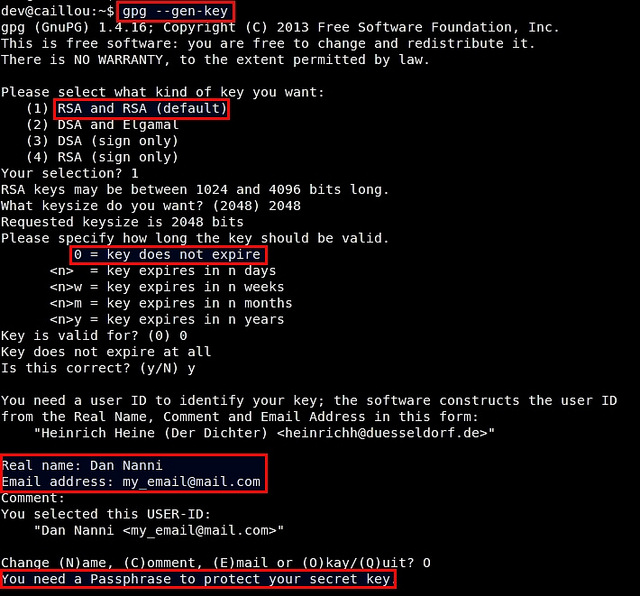
Next, initialize the local password store with the email associated with your GPG key:
- $ pass init <gpg–id>
This creates a password store in ~/.password-store.
Manage Passwords with pass in Terminal
Insert New Password
To insert a new password into the store:
- $ pass insert <password–name>
is a unique, optionally hierarchical name. Passwords are stored in corresponding subdirectories.
Use the -m option for multi-line input. Enter in any format and press Ctrl+D to finish.
- $ pass insert <password–name> –m
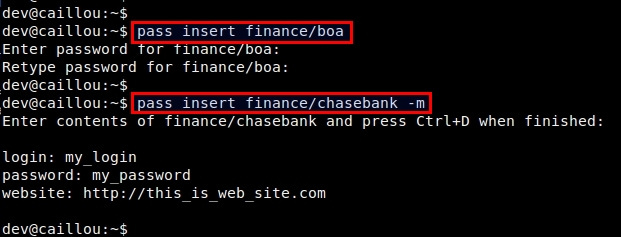
List All Password Names
To list all stored password names, simply type “pass”:
- $ pass
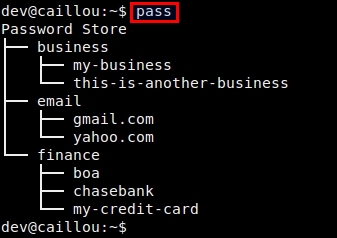
Retrieve Password from Store
To access a specific password:
- $ pass <password–name>
Example:
- $ pass email/gmail.com
will prompt for your passphrase to unlock the key.
To copy password to clipboard instead of displaying it:
- $ pass –c email/gmail.com
The clipboard is automatically cleared after 45 seconds.
Generate and Store New Password
You can also generate a random password with pass, specifying length and whether to include symbols.
Generate a 10-character password without symbols:
- $ pass generate email/new_service.com 10 –n
Remove Password
Removing a password is easy:
- $ pass rm email/gmail.com
In summary, pass is flexible, portable, and easy to use. I highly recommend it for secure CLI-based password management.
via: http://xmodulo.com/2014/05/manage-passwords-command-line-linux.html